

VirtualBox lets Windows, Mac, and Linux hosts run multiple guest operating systems simultaneously. Until recently, installing Windows 11 in VirtualBox required registry tweaks to bypass TPM and Secure Boot checks. That changes with VirtualBox 7.0 — Oracle added official support for TPM (1.2 & 2.0) and Secure Boot, plus improved graphics support, including DirectX 11 on Windows and DXVK support for other platforms.
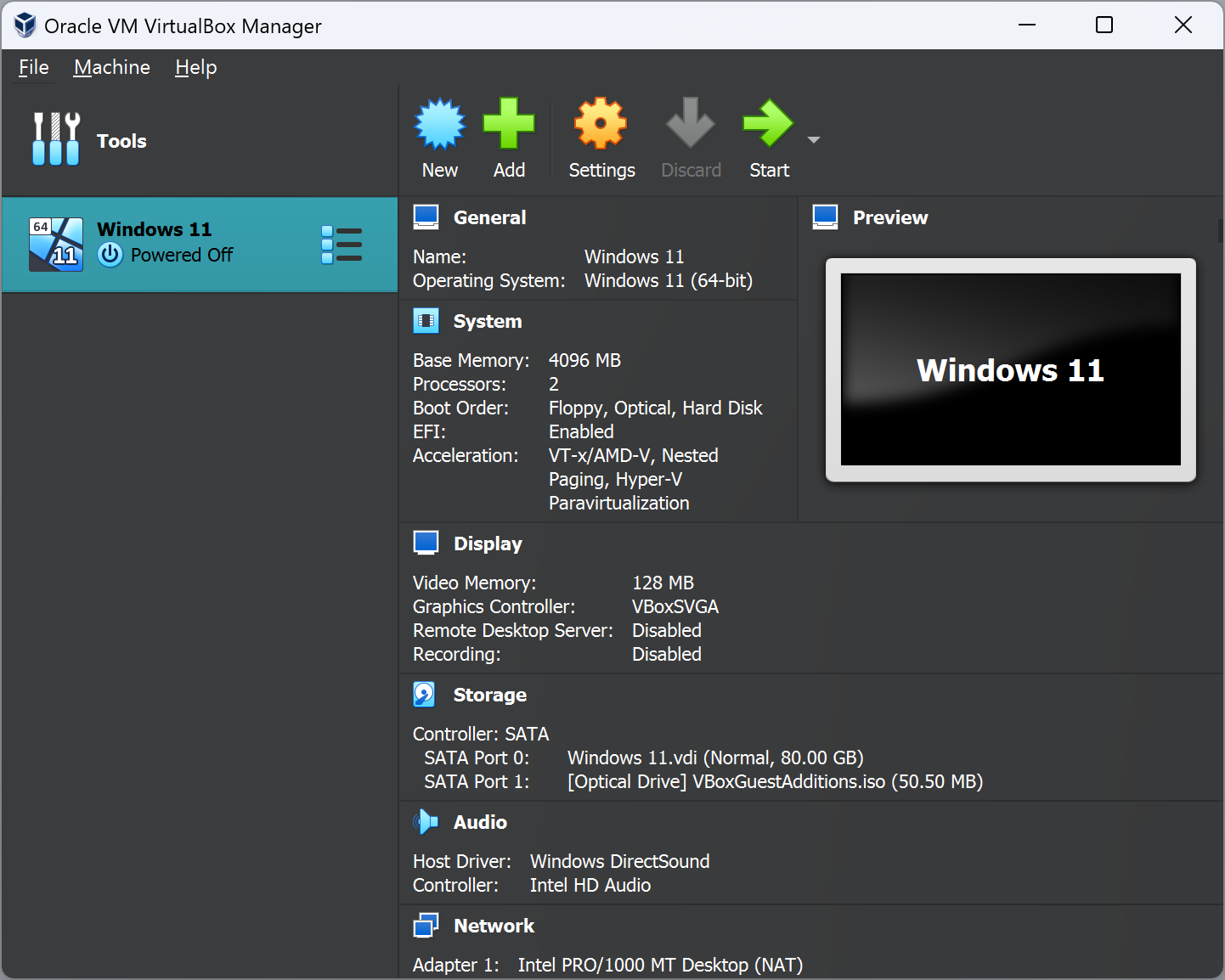
Previously, users had to tweak the registry to bypass setup checks. See our guide if you used that method before: Fix “This PC can’t run Windows 11” during setup
What’s new in VirtualBox 7.0?
- Official TPM support (TPM 1.2 and TPM 2.0) and Secure Boot for guests, enabling compliant Windows 11 installs.
- Improved graphics: DirectX 11 support on Windows hosts and DXVK improvements for Linux guests.
- General VM usability and performance improvements to make Windows 11 guests more reliable.
Why this matters for Windows 11
Windows 11 enforces hardware-based security features like TPM and Secure Boot on many installs. VirtualBox 7.0’s support means you can now create a Windows 11 VM that meets those requirements without workarounds. For a step-by-step walkthrough on getting Windows 11 running now that VirtualBox supports TPM and Secure Boot, see our guide: How to Install Windows 11 on VirtualBox Virtual Machine
Download
Get the official VirtualBox 7 packages from Oracle’s downloads page (includes Windows, macOS, and Linux host installers). Download VirtualBox 7 from Oracle
Recommended pre-checks
- Confirm your host machine’s virtualization support (VT-x/AMD-V) is enabled in BIOS/UEFI.
- If you’re concerned about TPM hardware on physical machines, learn how to check TPM version in Windows: How to Check TPM Version in Windows 10 and 11
- Take snapshots or backups of important VMs before major upgrades.
How to create a Windows 11 VM with TPM and Secure Boot (quick overview)
Step 1. Install VirtualBox 7 on your host and launch the Manager.
Step 2. Create a new virtual machine and attach a Windows 11 ISO as the guest optical drive.
Step 3. In the VM settings, enable the virtual TPM (add a TPM device) and enable Secure Boot under the appropriate System/Firmware settings (OVF/EFI options depend on VirtualBox UI version).
Step 4. Start the VM and proceed with the standard Windows 11 installer (no registry bypass should be required).
Post-install: improve guest performance
Install VirtualBox Guest Additions inside your Windows 11 VM for better drivers, shared clipboard, seamless mouse integration, and improved display support. See our step-by-step guide: How to Install Guest Additions to Windows 11 in VirtualBox
Graphics, DXVK, and screen resizing
VirtualBox 7’s DirectX 11 support for Windows hosts and improved DXVK handling for Linux guests make graphical apps run more smoothly and help with dynamic screen resizing on platforms that previously struggled. After installing Guest Additions, adjust display scaling and VM video memory for the best results.
Useful VM enhancements
- Enable shared clipboard and drag-and-drop for improved workflow. Learn how to enable drag-and-drop here: How to Enable Drag and Drop Support in VirtualBox
- Configure shared folders to move files between host and guest: How to Share Folders Between VirtualBox VM and Windows Host
Pros
- Official TPM & Secure Boot support — no more unsupported install workarounds for Windows 11 guests.
- Better graphics support (DirectX 11 & DXVK) — improved app compatibility and smoother display scaling.
- Cross-platform host support — same VirtualBox installer works on Windows, macOS, and Linux hosts.
Considerations
- Guest TPM and Secure Boot are virtualized — they do not replace a physical TPM in terms of certain security guarantees like hardware isolation.
- Some advanced features or drivers may still require manual tweaks or Guest Additions updates.
- Performance for heavy GPU-backed workloads remains limited compared with native hardware or GPU-passthrough setups.
- Always download ISOs and software from trusted sources and keep snapshots before changes.
Frequently Asked Questions (FAQs)
Q. Do I still need to tweak the registry to install Windows 11 in VirtualBox?
No — VirtualBox 7.0 adds official TPM and Secure Boot support, so registry bypasses are no longer necessary for a compliant Windows 11 install. If you previously used a registry workaround and are upgrading an existing VM, follow the standard upgrade path or create a clean VM for best results.
Q. Which TPM version does VirtualBox support?
VirtualBox 7.0 supports both TPM 1.2 and TPM 2.0; choose the option that matches your guest OS expectations (Windows 11 prefers TPM 2.0 where applicable).
Q. Will Windows Update work inside a VirtualBox Windows 11 VM?
Yes — with a properly configured VM (TPM & Secure Boot enabled and up-to-date Guest Additions), Windows Update should function normally. Always verify update settings after installation.
Q. Can I use VirtualBox for GPU-intensive Windows applications or games?
VirtualBox’s improved DirectX support is helpful for moderate graphical workloads, but it is not a substitute for dedicated GPU passthrough or native hardware. For heavy gaming or GPU compute, native installs or hypervisors with PCIe passthrough are recommended.
Q. Where can I find a guide to install Windows 11 on VirtualBox?
We published a step-by-step installation guide: How to Install Windows 11 on a VirtualBox Virtual Machine
Conclusion
VirtualBox 7.0 makes installing Windows 11 inside a virtual machine far more straightforward by providing built-in TPM and Secure Boot support, plus better graphics handling. For best results, install Guest Additions, configure virtual TPM and Secure Boot in VM settings, and use snapshots before making major changes.