

If you’re looking for an easy and effective way to optimize your computer’s performance, CCleaner is a great choice. CCleaner is a popular system optimization tool that helps users clean up their computers by removing unwanted files, junk files, temporary files, and more. It is available for Windows, macOS, and Android, and comes in both free and paid editions. In this post, we’ll explore what CCleaner is, how it works, its pros and cons, and whether it’s worth using.
What is CCleaner?
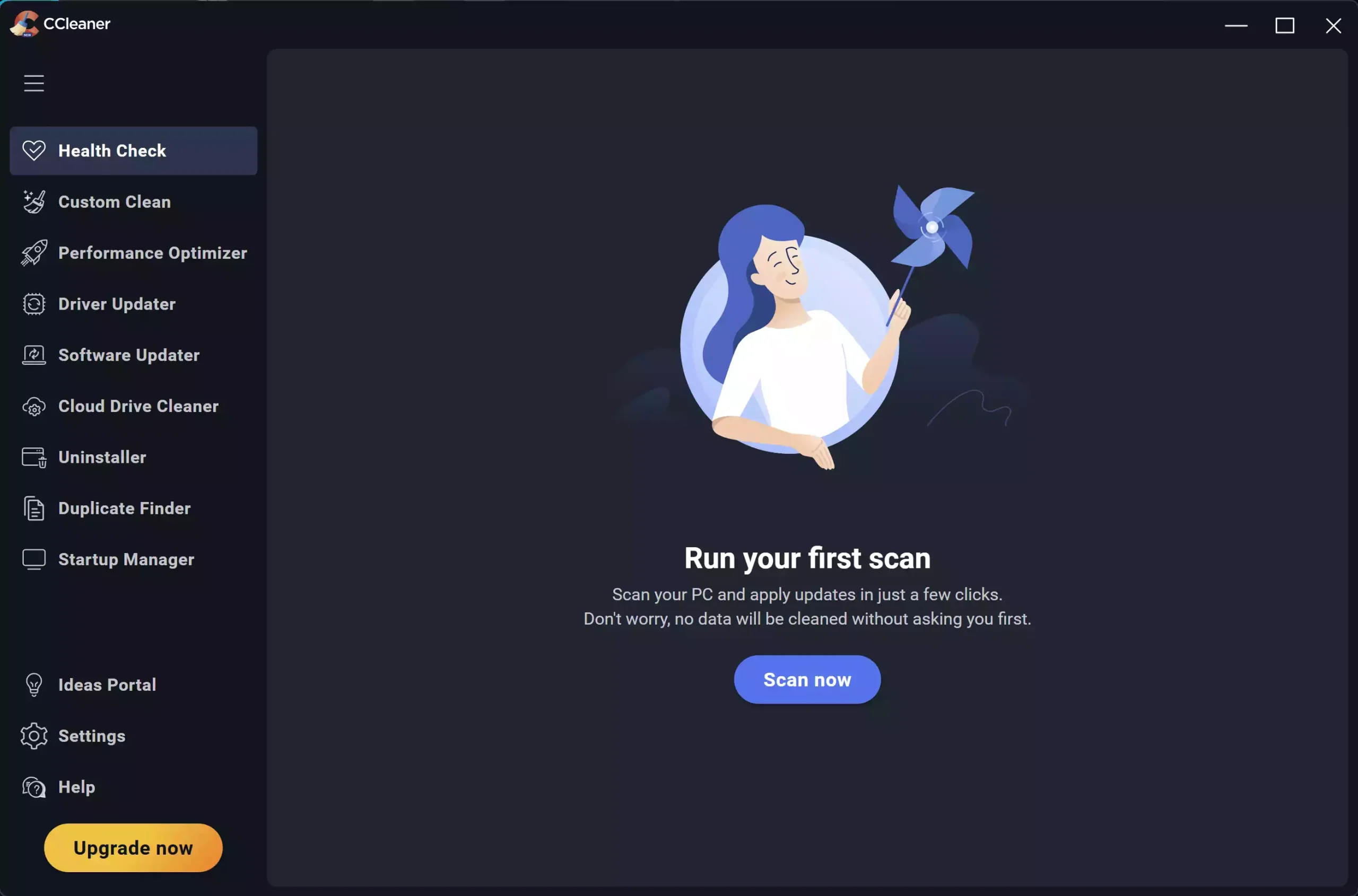
CCleaner, developed by Piriform, is a utility program that cleans up your computer by removing unnecessary files and tidying up certain system areas. First released in 2004, it has grown into one of the most well-known system maintenance tools thanks to its simple interface and quick, safe cleanup routines. The free version covers essentials like junk cleanup and application/cache clearing, while the paid version adds advanced features such as real-time monitoring, automatic updates, and deeper cleaning.
How does CCleaner work?
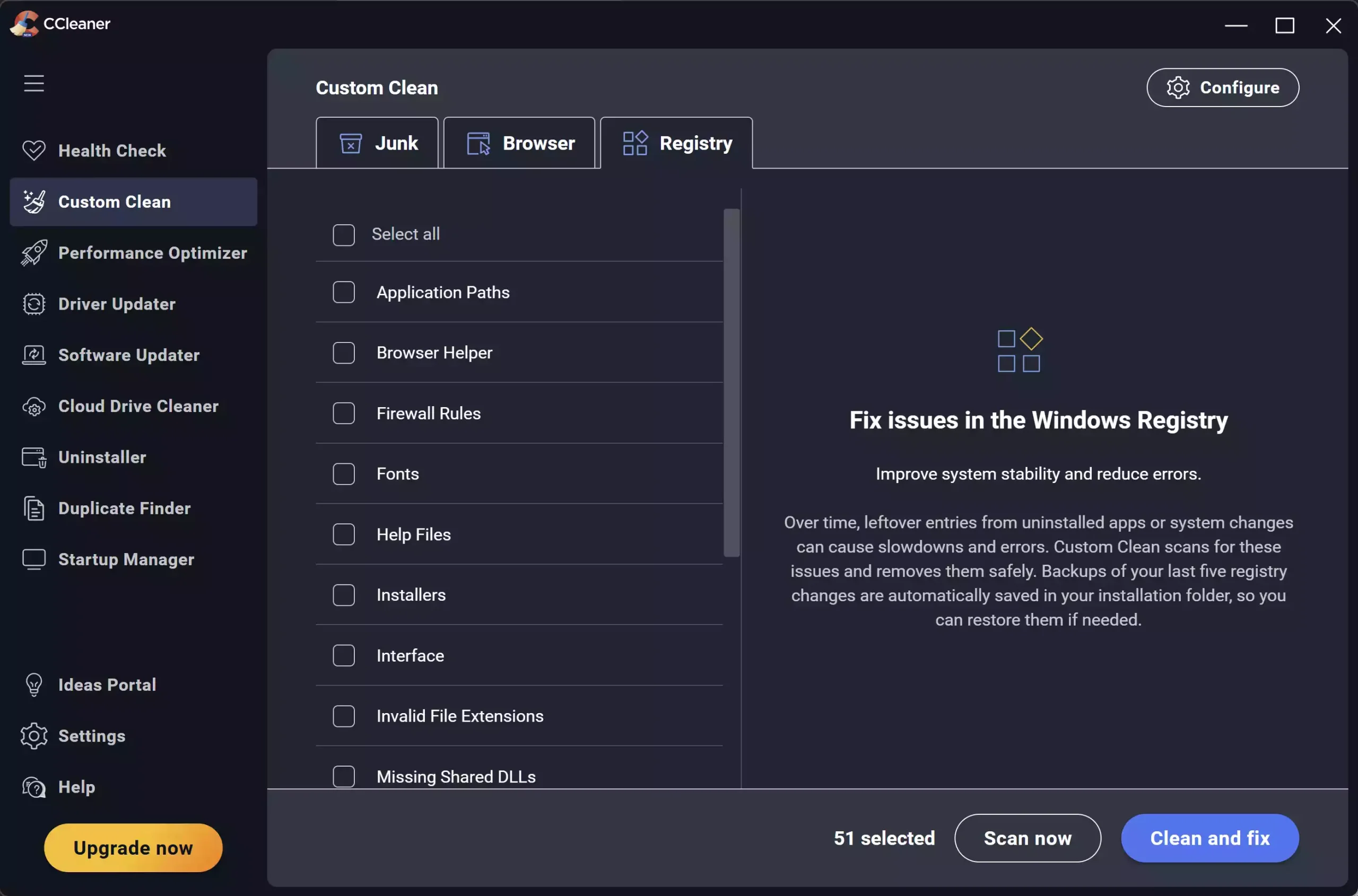
CCleaner scans your PC for files you can safely remove—browser caches, temporary files, logs, crash dumps, and other leftovers that accumulate over time. It also includes a lightweight registry cleaner (Custom Clean > Registry) for clearing broken or obsolete entries (optional and best used cautiously). Beyond cleaning, CCleaner offers tools to manage startup apps and installed programs, helping you disable or uninstall items that slow down boot and overall responsiveness.
What’s New in the Latest Versions of CCleaner?
Recent versions of CCleaner have refined the interface and removed some older tools that modern browsers and Windows no longer support. For example, the software no longer manages browser plugins or context menu entries, as Chrome, Edge, and Windows now restrict external apps from modifying these areas. Instead, CCleaner focuses on secure junk cleanup, startup optimization, browser data clearing, and large-file detection.
The latest build also improves cleaning for Chromium-based browsers where allowed by modern browser privacy rules, supports Windows 11’s new folder structure, and offers a more accurate breakdown of storage usage. In the latest version of CCleaner, the previous Smart Cleaning feature (which used to notify users about browser junk) has been removed. Junk monitoring and automatic clean-on-exit options are no longer available in current builds.
Features No Longer Available in CCleaner
Over time, CCleaner has phased out some tools that relied on system hooks no longer supported in Windows or major browsers. These include:
- Browser Plugin Manager: Modern browsers block third-party apps from removing or disabling extensions, so this feature has been removed.
- Context Menu Cleanup: Windows no longer allows CCleaner to safely modify right-click menu handlers. You must now adjust them manually or through built-in OS options.
- Old Disk Analyzer Engine: Replaced by a more accurate space-usage module.
These removals don’t affect basic cleaning, but they do change how users manage certain system areas. If you specifically need context menu customization, consider using a dedicated tool instead.
Useful Tools for Customizing the Right-Click Menu
While CCleaner no longer manages context menu entries, you can use the tools below for deeper customization and visual changes:
- Nilesoft Shell – Advanced Context Menu Customizer
- CustomFolders – Add Folder Colors and Icons to the Context Menu
These tools offer more powerful control than what older versions of CCleaner ever provided.
Pros
- Easy to use: A clean, beginner-friendly interface with straightforward toggles.
- Fast scans: Quickly find and remove common junk to free up space.
- Free and paid versions: Choose the feature set that fits your needs and budget.
- Can improve responsiveness: Trimming startup items and clearing caches often reduces hiccups and speeds up boot.
- Multi-platform: Available on Windows, macOS, and Android.
Cons
- Free version limits: Some automation and deeper features are paywalled.
- Over-aggressive cleaning risk: If you don’t review what’s being removed, you might wipe data you intended to keep.
- Not a cure-all: Cleaning helps, but it won’t fix failing hardware or major OS issues.
Is CCleaner worth using?
For most users, yes—when used sensibly. CCleaner is excellent at routine housekeeping and trimming obvious bloat. Review the scan results before deleting anything, skip registry cleaning unless you have a clear reason, and combine CCleaner with good habits (keeping apps updated, uninstalling software you don’t use). If you prefer a fully free alternative, you might like BleachBit, which focuses on privacy-friendly cleaning and open-source transparency.
FAQ
Is CCleaner safe?
Yes, CCleaner is safe when downloaded from the official site and used with the default recommendations. Always review items before deleting, and avoid “clean everything” impulses on a shared or work PC.
Should I use the Registry Cleaner?
Only if you’re troubleshooting a specific problem (like a leftover context-menu handler). Registry tweaks seldom yield speed gains and can introduce risk if you remove the wrong entry.
How often should I run CCleaner?
For typical home use, once every week or two is sufficient. Power users who install/uninstall lots of apps may benefit from a quick clean after big changes.
What’s the difference between the Free and paid versions?
The paid edition adds features like scheduled cleaning, real-time monitoring, driver updater, and priority support. If you want set-and-forget maintenance, the upgrade can be worthwhile.
Are there good free alternatives?
Yes. Besides BleachBit, Microsoft’s own PC Manager offers a simple, no-cost way to perform basic cleanup and boost performance.
Download CCleaner
You can download it from its official website.
Conclusion
CCleaner remains a reliable and effective maintenance tool for decluttering your PC and smoothing everyday performance. Use it thoughtfully—review cleanups, go easy on the registry, and pair it with sensible system care. If you’d rather stick to fully free or Microsoft-made tools, options like BleachBit and PC Manager are solid picks too.