

Active@ISO Burner is a lightweight yet powerful ISO creation and burning tool that lets you easily burn ISO images to CD, DVD, and Blu-ray discs. It supports popular ISO formats such as ISO 9660, Joliet, and UDF, and works with both single and dual-layer discs.
Quick Summary: Active@ISO Burner is a free and reliable tool for creating and burning ISO images on Windows. It supports ISO 9660, Joliet, and UDF formats, works with CD, DVD, Blu-ray, and even HD-DVD discs, and offers multiple burn modes (TAO, SAO, DAO) plus test-mode and logging for troubleshooting. Perfect for backups, bootable discs, and software distribution.
- ✅ Free and lightweight
- ✅ Works with all major disc formats
- ✅ Supports single & dual-layer burning
- ✅ Includes advanced features for power users
For a full comparison of this utility with other top tools, check out our guide to the Best Free ISO Burners for Windows 11 and 10.
What is an ISO File?
An ISO file, also known as an ISO image, is a digital copy of the entire contents of a CD, DVD, or Blu-ray disc. It contains all the data, file system information, and structure of the original disc in a single file. ISO files are widely used for software distribution, creating bootable installation media, backing up discs, and sharing large collections of files in an organized way.
While Windows allows you to mount ISO files, you still need dedicated software to burn them to physical discs — and that’s where Active@ISO Burner comes in.
Why Use Active@ISO Burner?
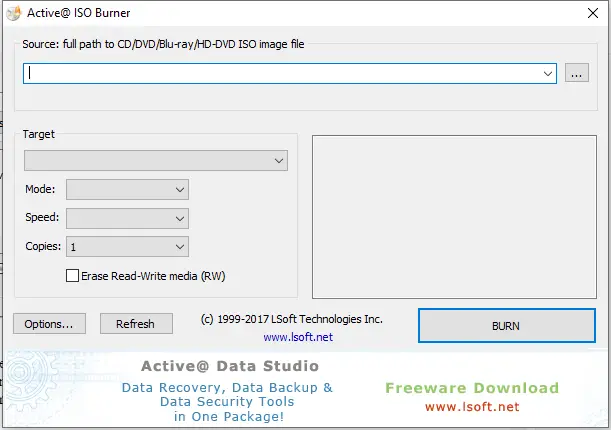
Active@ISO Burner offers a clean, intuitive interface, making it simple for both beginners and advanced users to create and burn ISO images. In just a few clicks, you can make ISO files from existing CD/DVD media or from files and folders stored on your PC, and then burn them to discs without hassle.
Its simplicity doesn’t come at the cost of features — it supports all major disc types, multiple ISO formats, and both single and dual-layer burning. This makes it suitable for creating backup copies, preparing installation discs, or distributing software on optical media.
Main Features of Active@ISO Burner
- Wide format support: Works with ISO 9660, Joliet, and UDF standards for maximum compatibility.
- Single & dual-layer burning: Burn ISO files of any size to both single and dual-layer discs.
- Create ISO from physical discs: Easily back up important data by creating ISO images from existing CDs or DVDs.
- Create ISO from files & folders: Build ISO images from your computer’s data for bootable discs or software distribution.
- Multi-disc burning: Burn the same ISO to multiple discs when you need to distribute large files or applications.
- Supports all disc types: Works with CD-R, CD-RW, DVD-R, DVD+R, DVD-RW, DVD+RW, Blu-ray, and even HD-DVD discs — a rare feature among free burners.
- User-friendly interface: Minimal setup and easy navigation for quick ISO creation and burning.
Behind the Scenes: How Active@ISO Burner Works
Developed by LSoft Technologies, Active@ISO Burner supports multiple transport protocols, including SPTI, ASPI, and SPTD. It offers different burning modes such as Track-at-Once (TAO), Session-at-Once (SAO), and Disc-at-Once (DAO) for advanced users. The software also provides test-mode burning, full log visibility for troubleshooting, and command-line automation options for batch processing.
Benefits of Using Active@ISO Burner
- Free to use: Burn and create ISO images without spending a penny.
- Time-saving: Quickly back up discs or prepare installation media in minutes.
- Highly compatible: Works with most ISO formats and all major disc types, including HD-DVD.
- Reliable results: Ensures consistent quality when burning important data.
If you’re looking for other lightweight burning tools, you may also like Free ISO Burner, which offers a minimal setup process for quick burns.
For ISO creation needs, see our article on the Top 5 Free ISO Maker Tools for Windows 11/10.
When Active@ISO Burner Can Help You
Active@ISO Burner is useful in many scenarios, such as:
- Installing operating systems: Burn ISO images of Windows or Linux to create bootable installation discs.
- Data backups: Preserve data from aging optical discs by creating ISO backups.
- Software distribution: Distribute large applications or games on physical media.
- Archiving projects: Store multimedia projects, presentations, or large file collections in ISO format for safekeeping.
Safe ISO Burning Tips
- Always verify the ISO image before burning to ensure it’s complete and error-free.
- Use high-quality discs for better longevity and fewer read errors.
- Burn at a slower speed when creating critical installation media to reduce the risk of data corruption.
- Label your discs clearly to avoid confusion later.
Tips & Troubleshooting
- If a burn fails, try using test mode to simulate the process before burning a physical disc.
- Switch burn modes (TAO, SAO, DAO) if you encounter compatibility issues with certain media.
- Check the detailed burn log for error codes and troubleshooting guidance.
Download Active@ISO Burner
You can get the latest version of Active@ISO Burner for free from the official website:
Download Active@ISO Burner
For more disc-burning options, see our article on 11 Best Free CD/DVD Burner Alternatives to Nero.
Conclusion
Active@ISO Burner is an excellent free tool for creating and burning ISO images on Windows. With its wide format support, compatibility with all disc types (including HD-DVD), and simple interface, it’s perfect for both personal backups and professional media preparation. Whether you’re preserving data, creating bootable discs, or distributing software, this utility gets the job done quickly and reliably.
Frequently Asked Questions
Is Active@ISO Burner really free?
Yes. Active@ISO Burner is free to use for creating and burning ISO images without any subscription or hidden charges.
Does Active@ISO Burner work on Windows 11 and Windows 10?
Yes. It works smoothly on modern Windows versions, including Windows 11 and Windows 10, with support for common optical drives.
Can Active@ISO Burner create bootable discs?
Yes. If your ISO image is already bootable, the tool will burn it as-is to a bootable CD/DVD or Blu-ray. You don’t need extra steps—just select the ISO and burn.
Which disc types and formats are supported?
It supports ISO 9660, Joliet, and UDF image formats and can burn to CD-R/RW, DVD-R/+R/RW/+RW, dual-layer DVDs, Blu-ray, and even HD-DVD media.
How do I reduce burn errors or failed discs?
Use high-quality media, choose a moderate burn speed, verify the ISO checksum if available, and review the burn log. If issues persist, try test mode or switch between TAO, SAO, and DAO modes.
Can I automate burning tasks?
Yes. Active@ISO Burner supports command-line parameters, so you can script or batch your burning jobs for repeatable workflows.