

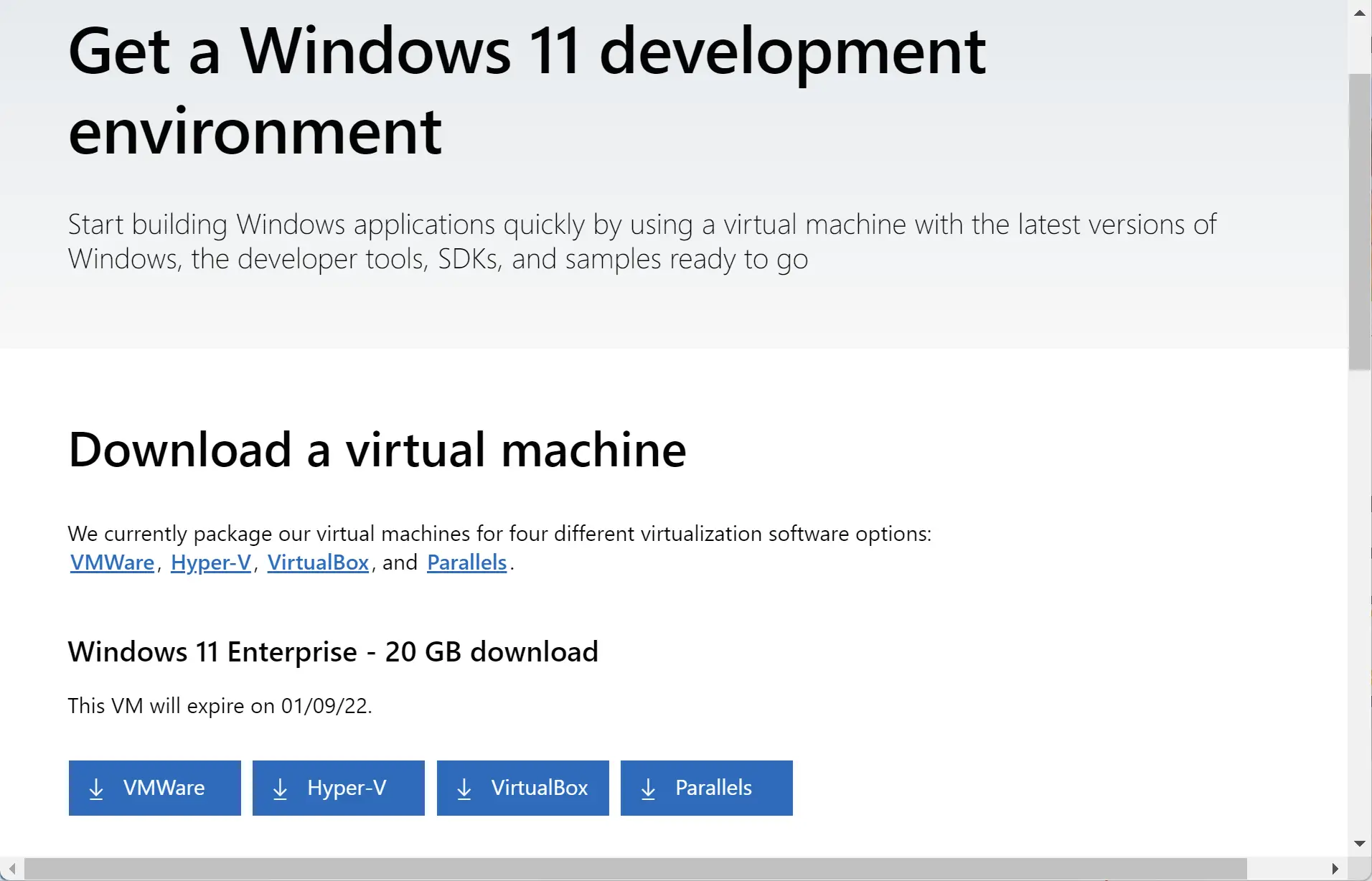
Microsoft has released pre-built Windows 11 Enterprise virtual machine images to help developers and enterprise admins deploy Windows 11 quickly for testing and development. Instead of downloading an ISO and installing from scratch, you can deploy an image and start using Windows 11 on a VM within minutes — though the package is large (~20GB) because Windows and developer tools come pre-installed.
What’s included in the VM package
- Windows 11 Enterprise (evaluation).
- Windows 10 SDK, version 2004 (10.0.19041.0).
- Visual Studio 2019 (latest as of 10/09/21) with UWP, .NET desktop, Azure workflows, and Windows Template Studio extension.
- Visual Studio Code (latest as of 10/09/21).
- Windows Subsystem for Linux enabled with Ubuntu installed.
- Developer Mode enabled.
- Windows Terminal installed.
Supported virtual machine formats
Microsoft provides images for four major VM hosts: VMware, Hyper-V, VirtualBox, and Parallels — choose the format that matches your environment and deploy the provided image file.
If you plan to run Windows 11 on VirtualBox, follow our step-by-step guide to ensure VirtualBox is configured correctly and the VM runs smoothly: learn how to install Windows 11 on VirtualBox step-by-step.
Prefer Hyper-V? See our Hyper-V walkthrough for enabling and running Windows 11 VMs on Windows hosts: install Windows 11 using Hyper-V on Windows 10.
For VMware users, this guide explains how to set up Windows 11 on VMware Workstation Player: run Windows 11 on VMware Workstation Player.
Download Windows 11 Enterprise Virtual Machines
The official virtual machine images are available from Microsoft’s developer site. Use the official download page to select your preferred VM format and download the package. Download Windows 11 Enterprise virtual machines from Microsoft.
If you prefer to set up Windows 11 manually instead of using a pre-built VM, Microsoft also provides an ISO — here’s how to download the Windows 11 ISO directly: download Windows 11 ISO directly from Microsoft if you prefer manual setup.
Size & deployment notes
- The download is large (~20GB) because the image is fully pre-installed with developer tools.
- After download, import or open the image in your VM host (use the recommended import/open procedure for your VM software).
- For some hosts you may need to convert or adjust VM settings (hardware virtualization, secure boot, TPM) to match Windows 11 requirements.
Post-deployment tips
- Activate Developer Mode and sign in with your developer account if needed for debugging or app sideloading.
- Update Visual Studio and SDK components if you require versions newer than those included.
- Use snapshots or differencing disks in your VM manager to keep a clean baseline and revert quickly when testing.
Optional — create bootable media
If you later decide to perform a local install or create installation media, you can create a Windows 11 bootable USB drive easily.
Legal & usage reminder
The VM images are intended for evaluation and development. Respect Microsoft’s licensing and the included software licenses — use evaluation images within the permitted timeframes and conditions. Do not use the images to bypass licensing requirements for production deployments.
Conclusion
Pre-built Windows 11 Enterprise VM images save setup time and provide an immediate, ready-to-use development environment (SDK, Visual Studio, WSL, Terminal, etc.). Download the format that matches your VM host from Microsoft’s official page and follow the host-specific guides above to get started quickly.