

If you are looking for a way to restore the Windows 10 Taskbar and File Explorer in Windows 11, Explorer Patcher may help you. This freeware application adds a ‘.DLL’ to C:\Windows, and all the necessary files will be downloaded automatically on your PC to make it possible.
According to the developer, this project aims to bring back a productive working environment on Windows 11.
Want to fully revert your File Explorer interface too? Check out how to get Windows 10’s File Explorer in Windows 11 to complete the classic setup.
You can access the GUI configuration option of Explorer Patcher to customize the classic functionality based on your needs and preferences. For that, right-click on the Taskbar and select the Properties option. Numerous customizations are possible on a Windows 11 PC, so do not hesitate to check it out.
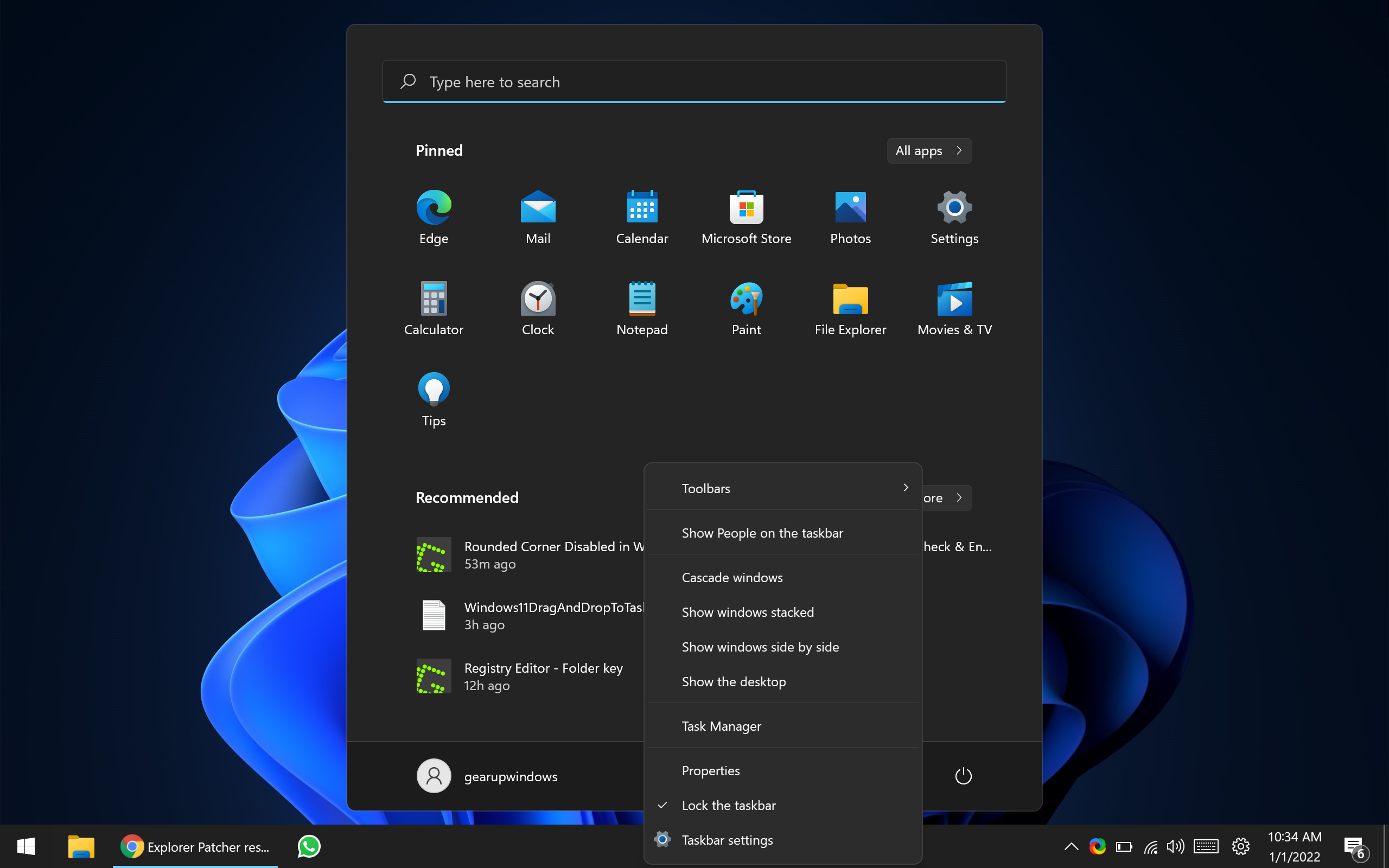
Using the Explorer Patcher Freeware Tool
With Explorer Patcher, you can customize various components of Windows 11 to bring back Windows 10 functionality and aesthetics.
Taskbar
- Windows 10 Style taskbar.
- Add more taskbar options in the Windows Settings app.
- Customize the notifications area icons.
- Customize system icons in the notification area.
- Show/hide the Search button.
- Show/hide the Task view button.
- Show the Desktop button.
- Automatically hide the taskbar.
For deeper taskbar customization, see how to change taskbar size on Windows 11 using Windhawk and ExplorerPatcher.
System Tray
- Skin taskbar and pop-up tray menus.
- Center tray icon pop-up menus.
- Flyout behavior for tray icon pop-up menus.
- Show/hide the touch keyboard button.
- Show seconds in the clock.
- Hide the Control Center button.
If you prefer seeing seconds in the system clock, here’s how to display seconds in the Windows 11 taskbar clock.
File Explorer
- Disable the Windows 11 command bar.
- Disable the Windows 11 context menu.
- Disable the navigation bar.
- Disable the modern search bar.
- Hide the Search bar.
You can also restore the old context menus back in Windows 11 for a complete legacy experience.
Start Menu
- Open Start on the monitor containing the cursor.
- Open Start at logon.
- Open Start in “All apps” by default.
- Positioning on screen.
- The maximum number of frequent apps to show.
Window Switcher (Alt+Tab)
- Choose whether to include a desktop in the window list.
- Ability to set the opacity of the window list.
- Set row height, etc.
Others
- Open the time and date flyout when pressing Win+C (instead of Microsoft Teams).
- Set the default shutdown action for Alt+F4 on the desktop.
- Show Command Prompt instead of PowerShell in the Win+X menu.
Download Explorer Patcher
You can grab Explorer Patcher from GitHub.
Additionally, you can explore how to enable or disable Taskbar context menus in Windows 11 or 10 for even more control over your system interface.
Conclusion
In conclusion, the Explorer Patcher freeware tool is an excellent solution for those looking to restore the Windows 10 Taskbar and File Explorer in Windows 11. It offers numerous customization options, allowing users to configure the classic functionality according to their preferences. The tool aims to bring back a productive working environment on Windows 11, and users can access the GUI configuration option of Explorer Patcher to customize it further. The software is available for download on GitHub and is easy to use. Overall, Explorer Patcher is a great choice for Windows 11 users who miss the classic Windows 10 look and feel.
how to remove this.
Dar Akash,
Uninstall it from Settings like a regular app.
yea i dont care