

With the increasing use of wireless devices, keeping an eye on the battery levels of your Bluetooth peripherals is essential to ensure uninterrupted usage. Windows 11 includes a built-in feature that makes it easy to check the battery status of your connected Bluetooth devices. In this gearupwindows article, we’ll walk you through the step-by-step process of checking Bluetooth battery levels on Windows 11.
How to Check Bluetooth Battery Level on Windows 11?
To check the Bluetooth battery level on Windows 11, follow these steps:
Step 1. Before checking battery levels, make sure that Bluetooth is enabled on your Windows 11 system. Click on the Start button, go to “Settings,” and select “Bluetooth & devices.” Ensure the Bluetooth toggle is turned on.
Step 2. Confirm that your Bluetooth devices, such as headphones, mice, or keyboards, are properly paired and connected to your PC. If they’re not connected, pair them by navigating to “Bluetooth & devices” in Settings and selecting “Add device.”
Step 3. To view battery levels of connected Bluetooth devices, do the following:
- Click on the Start button and open “Settings” (or press Win + I).
- In the Settings window, choose “Bluetooth & devices” from the left-hand menu.
- On the right side, you’ll see a list of connected Bluetooth devices. If your device isn’t visible, click “View more devices” under the Bluetooth section.
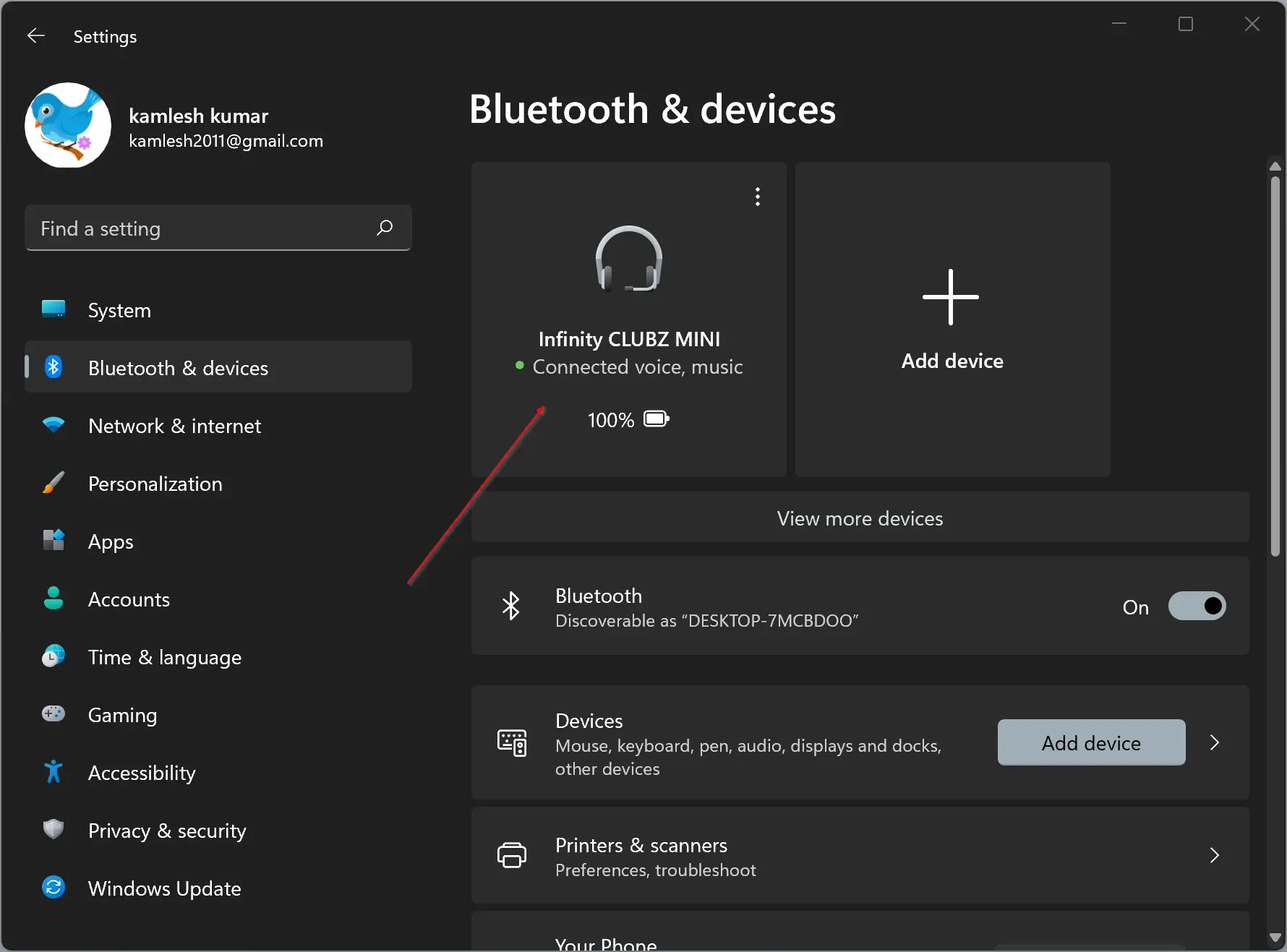
- Locate the device you want to check. If supported, the battery percentage will appear next to the device name.
Step 4. The battery level is shown as a percentage next to each compatible Bluetooth device. A higher percentage means the battery is well-charged, while a lower percentage suggests it needs charging. Note that not all Bluetooth devices support this feature, so the battery status may not appear for every device.
Step 5. Additional Methods for Some Devices: For certain third-party Bluetooth devices, Windows 11 might not show the battery level. In such cases, the device may indicate battery status using its own methods, such as a dedicated app or an LED indicator.
Conclusion
Checking the battery level of your Bluetooth devices on Windows 11 is a quick and easy process that helps you avoid unexpected power loss. By following the steps above, you can stay informed about the charge levels of your connected devices and recharge them in time. Remember, this feature’s availability depends on the support provided by both your device and Windows 11.