

Can I extend a partition without losing data? How do I force a partition to extend? While Windows 11/10 offers a built-in partition manager that helps you create and manage partitions on your PC’s HDD or SSD, if you want advanced features, you should opt for a third-party tool. EaseUS Partition Master is a free utility that lets you easily migrate OS, merge, and split partitions. On Windows 11/10 PC, it is also possible to create multiple partitions on a USB flash drive without using a third-party tool. You can also refer to our guide to resize or increase the Bootcamp Partition without deleting Windows.
Why IM-Magic Partition Resizer?
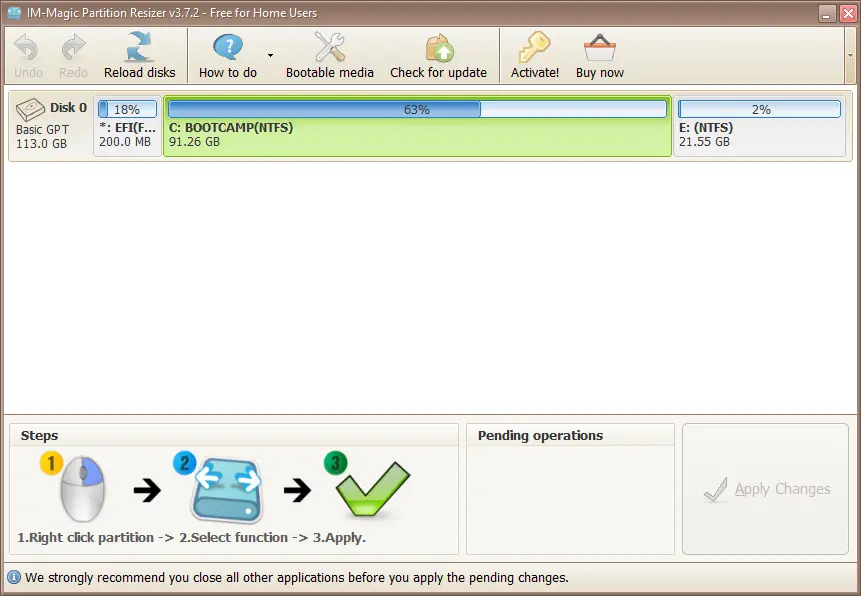
In this gearupwindows guide, we’ll show you how to use IM-Magic Partition Resizer, a free partition manager for Windows. IM-Magic Partition Resizer is a completely free application for personal use that helps you expand, move, shrink, and merge partitions without destroying data. With just a few clicks, you can rearrange disk partition space while keeping your files untouched.
This tool also offers a portable version, so there’s no need to install it. Simply keep it on a USB flash drive and run it when needed to manage or resize your Windows partitions easily.
The IM-Magic Partition Resizer supports Windows 11, 10, 8, 7, Vista, and XP. It handles FAT12, FAT16, FAT32, NTFS, Ext2, Ext3, Ext4, and exFAT file systems. Whether your system uses MBR or GPT, UEFI/EFI boot, or RAID configurations, this software works flawlessly. It’s compatible with traditional HDDs, SSDs, and even SSHDs.
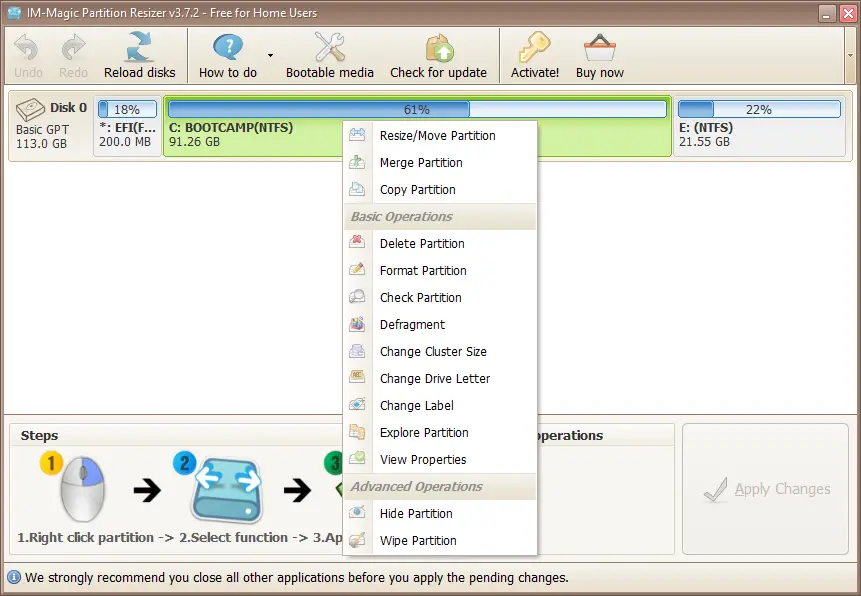
Everything is crystal clear in IM-Magic Partition Resizer. Just right-click any existing partition to access its powerful tools. You can perform the following operations on an HDD or SSD:
- Resize or Move Partition
- Merge Partition
- Copy Partition
- Delete Partition
- Format Partition
- Check Partition
- Defragment
- Change Cluster Size
- Change Drive Letter
- Change Label
- Explorer Partition
- View Properties
- Hide Partition
- Wipe Partition
- Convert NTFS to FAT32 and vice versa
IM-Magic Partition Resizer can even resize the C drive where Windows is installed. This feature helps you increase the boot volume without reformatting your drive, reinstalling Windows, or transferring data manually. Resizing the system partition becomes quick and safe using this tool.
Download IM-Magic Partition Resizer
You can download IM-Magic Partition Resizer from here.
Conclusion
If you’re looking for a reliable, free, and beginner-friendly tool to manage your disk partitions without risking data loss, IM-Magic Partition Resizer is an excellent choice. It supports a wide range of file systems and storage configurations, including modern SSDs and traditional HDDs. Whether you want to resize the system drive or create space on a data partition, this tool makes the process simple and safe. With its portable version, you can even carry it on a USB drive and manage partitions on the go.
For users who need more advanced partition features beyond what the built-in Windows Disk Management tool offers, IM-Magic Partition Resizer provides a powerful yet easy-to-use solution.