

Windows 11/10 comes with several features, and many customizations are also possible in it. One can pin “This PC” to the Taskbar, disable or lock all Taskbar Settings, move the Taskbar in Windows 10 to any side of the screen, etc. It is also possible to backup, restore, or reset Taskbar Toolbars in Windows 10 without using a third-party tool.
Earlier in our blog, gearupwindows, we introduced a freeware tool from the Microsoft Store, Linkbar. It lets you create and manage multiple Taskbars on Windows 11, 10, 8, and Windows 7.
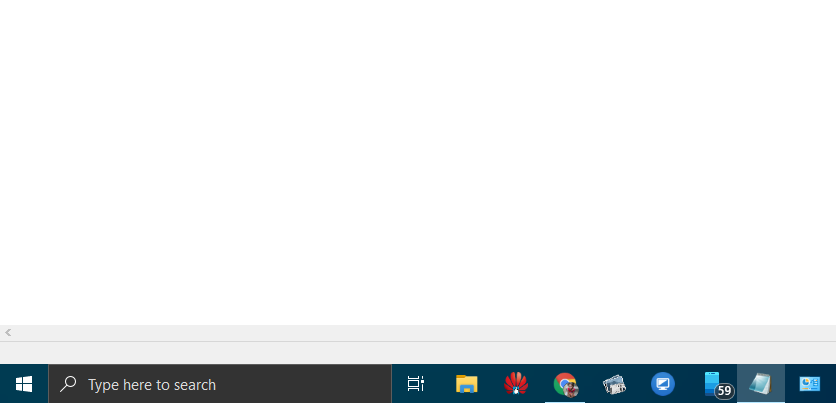
This post will introduce a new freeware tool from the Microsoft Store that lets you make the Windows 11/10 Taskbar fully transparent. TranslucentTB is a free UWP (Universal Windows Platform) app that helps to change the look of the Windows 11/10 Taskbar to be transparent. However, there is a catch with this program. It works on Windows 10 version 15063.0 or higher, and only a 32-bit PC is supported at present. We are expecting that the developer will add support for 64-bit OS as soon as possible.
How to Make Windows 11/10 Taskbar Fully Transparent with TranslucentTB?
To make the Windows 11/10 Taskbar fully transparent, you have to install the TranslucentTB application on your PC. The rest will all be taken care of by this utility.
You can compare the above and below images of the Windows 11/10 Taskbar. After running the TranslucentTB application, it turned fully transparent and looks like it is merged with the background.
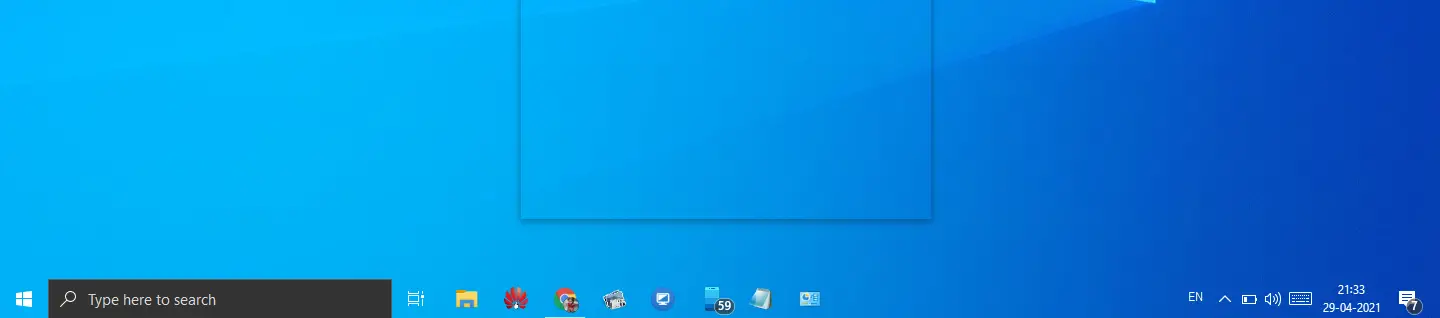
I tried to run it on a 64-bit Windows 11/10 PC. After running the TranslucentTB tool, we see a fully transparent Taskbar. But when I open any application, the Taskbar color returns to its previous state.
Once you run this application, it sits in the system tray of Windows 10. You can access its settings by clicking on its icon.
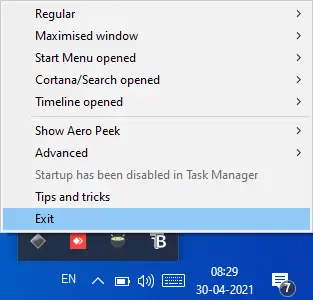
The default settings of TranslucentTB are sufficient for most Windows 11/10 Users; however, one can customize the Taskbar even more by accessing it from the system tray. One can choose Ascent Color or make the Taskbar clear, normal, opaque, blur, or fluent. There is also a tutorial available that you can access by navigating to this link.
Download TranslucentTB
You can download TranslucentTB from the Microsoft Store.
Conclusion
Windows 11/10 provides various customization options to enhance the appearance and functionality of the Taskbar. One such customization is making the Taskbar fully transparent, which can be achieved using the freeware tool TranslucentTB available on the Microsoft Store. TranslucentTB allows users to change the transparency level of the Taskbar, giving it a sleeker and merged-with-the-background look. Although TranslucentTB currently supports only 32-bit operating systems and Windows 10 version 15063.0 or higher, it offers default settings that are suitable for most users. However, for further customization, users can access additional settings through the system tray icon, where they can choose accent colors and make the Taskbar clear, opaque, or blurry. By downloading TranslucentTB from the Microsoft Store, users can personalize their Windows 11/10 Taskbar and enjoy a visually appealing desktop experience.