

Windows 8, 10, and 11 come with an inbuilt feature to mount ISO files on a virtual drive. However, if you are still using Windows 7 or earlier versions of Windows, you need a third-party tool to mount image files. For instance, you can use gBurner Virtual Drive, WinCDEmu, Virtual CloneDrive, etc.
What is PassMark OSFMount?
PassMark OSFMount is a powerful tool available for Windows PCs that allows you to mount image files on a virtual disk. It mounts local disk image files in Windows as a physical disk or assigns them a logical drive letter. Once mounted, you can analyze the disk data, play media files, or access any content stored within the image file.
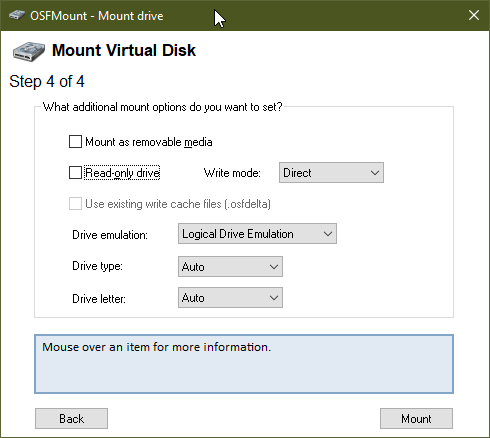
By default, image files are mounted as read-only to ensure the original file remains unchanged. One of the best features of OSFMount is that it supports mounting image files in “write cache” mode. In this mode, all write operations are redirected to a cache file, helping to preserve the integrity of the original image.
OSFMount also features the ability to create RAM disks. In simple terms, this means mounting a virtual disk directly into RAM. This feature offers a significant speed advantage over traditional hard disks. It’s especially useful for applications that require high-speed disk access, such as database programs or games.
Another benefit of using a RAM disk is that its contents are never written to a physical hard drive. Once the system shuts down, all data stored in the RAM disk is automatically erased, enhancing privacy and performance.
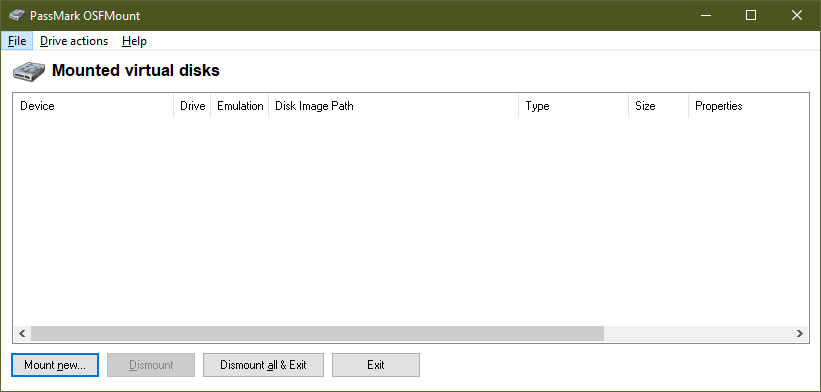
With PassMark OSFMount, you can mount a wide range of image formats, including ISO, VMDK, BIN, IMG, VHD, NRG, AFF, AFD, and more. After installation, you can create multiple virtual drives and view them all through the software’s interface. It also provides the option to dismount individual image files or all mounted images at once.
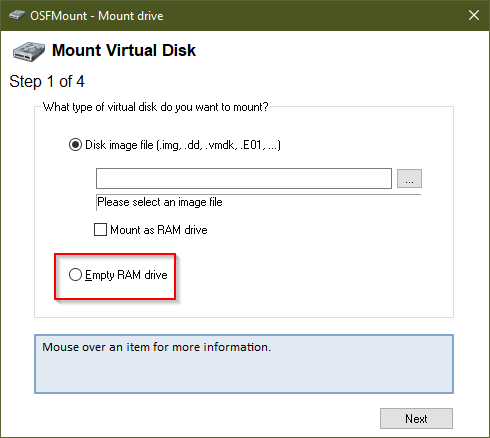
PassMark OSFMount features a user-friendly interface. Simply open the application and click the Mount new button. Alternatively, you can use the File menu to mount an image file. A new window will open, where you need to select the Disk image file option.
Here, you will also see a checkbox for “Mount as RAM drive” if you prefer mounting the image into RAM.
After that, click the browse button (…) to choose an ISO image from your PC and press the Next button. In the following step, the software automatically selects the option to mount the entire image as a virtual disk. Continue to the next step and configure the settings according to your needs.
It is compatible with all versions of Windows, including Windows XP, Vista, 7, 8, 10, and 11.
Download PassMark OSFMount
PassMark OSFMount is a free-to-use tool, and you can download it from its official webpage. There are separate installers available for 32-bit and 64-bit systems. Make sure to download the correct version for your PC.
Conclusion
In conclusion, while Windows 8, 10, and 11 offer a built-in feature to mount ISO files, users running Windows 7 or older need third-party solutions. One such reliable option is PassMark OSFMount.
This powerful software lets you mount disk image files as virtual drives, supporting a wide variety of formats. It provides both read-only and write cache modes to ensure data safety. Additionally, the ability to create RAM disks offers speed and efficiency benefits.
Its easy-to-use interface allows you to manage multiple virtual drives, mount images in a few clicks, and dismount them as needed. Compatible with Windows XP through Windows 11, and available for free, PassMark OSFMount is a valuable utility for any user working with disk image files.