

Those who love to mount an archive file in a virtual drive can use WinArchiver Virtual Drive or Pismo File Mount. Both are freeware apps and allow you to mount several file formats in a virtual drive. Pismo File Mount is different in its class, and it also allows you to mount an archive file in a virtual folder apart from the virtual drive. If you are looking for more free virtual drive software, check out this detailed guide.
Pismo File Mount for Windows 10/11
Unlike WinArchiver Virtual Drive, Pismo File Mount supports only a few file formats, such as ZIP, ISO, CISO, CFS, and PFO. It is a handy application if you would like to mount an archive file or an ISO image in a virtual folder or virtual drive. You don’t need to extract the contents into a folder to access the files or folders available in the archive file. If you often work with ISO or disk image formats, you might also like Universal Disk Image Tool.
Once you download and install the Pismo File Mount on your PC, it will integrate itself into the right-click context menu of supported file systems. That means you don’t have to search the app when you actually want to operate it. Just right-click on the supported file format and do your mounting job either on a virtual drive or a virtual folder. You can also learn how to add WinRAR or 7-Zip to the right-click menu for easy file management.
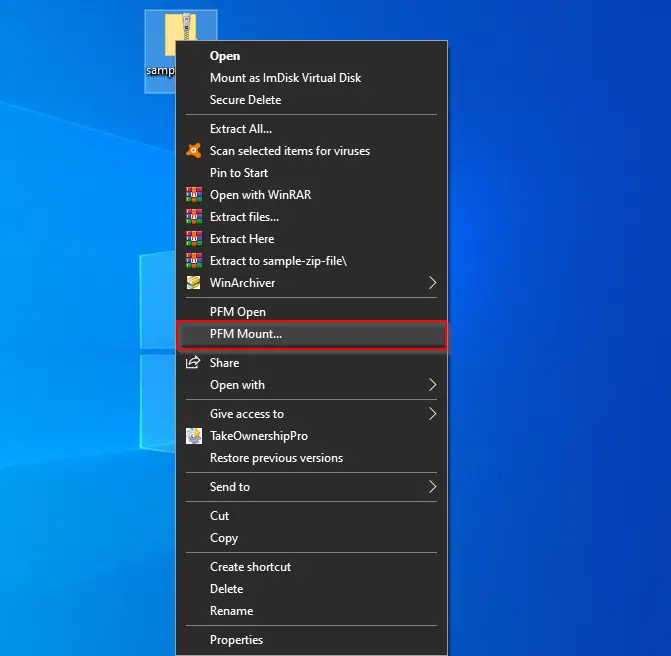
To mount an archive file on a virtual folder or a virtual drive, right-click on the ZIP, ISO, CISO, CFS, or PFO file and select the “PFM Mount” from the drop-down menu.
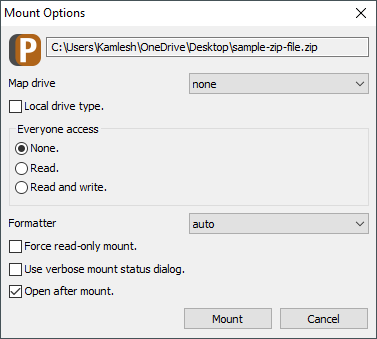
A new window with the title Mount Options will open. If you would like to mount the file in a virtual folder, there is no need to make any changes. The default settings are enough to mount it in a virtual folder. Simply click on the Mount button, and it will mount in a virtual folder.
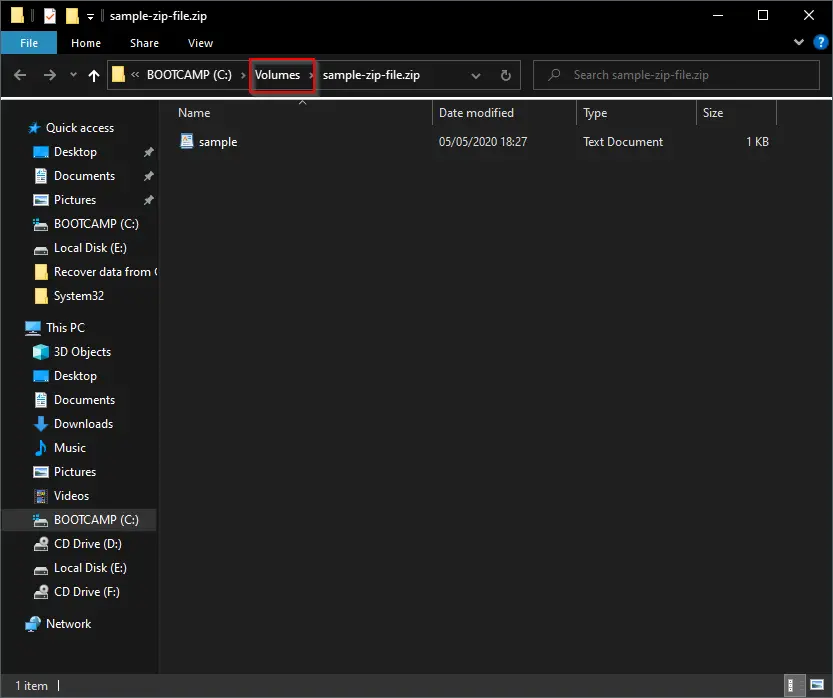
Now, Pismo File Mount will automatically create a folder with the name “Volumes” in the Windows installation drive, and in the sub-folder, you will see your content mounted.
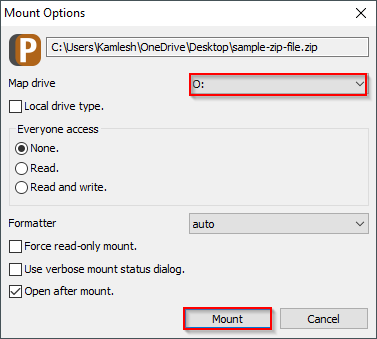
If you would like to mount the ISO or archive file in a virtual drive, right-click on the ZIP, ISO, CISO, CFS, or PFO file and select the “PFM Mount” from the drop-down menu. On the Mount Options window that opens, select a free drive letter from the drop-down menu of “Map drive.” Other options are optional, check or select according to your need. Finally, click the Mount button to see the content(s) of the selected file in a mapped virtual drive. If you would like to mount as a separate Local Drive, you need to check the option “Local drive type.” For alternative methods, see how to mount an ISO image in Windows 7, 8, and 10.
Once you have finished with the mounted drive or mounted folder, right-click on the mounted drive and select the PFM Eject option.
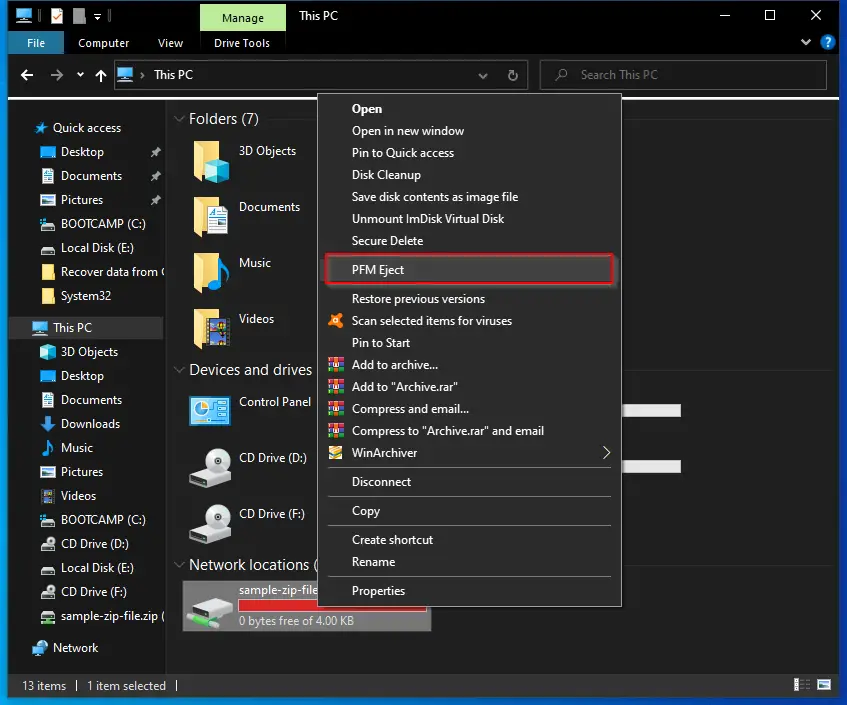
You can also dismount the mounted drive or folder by right-clicking on the mounted file and selecting the “PFM Eject” option.
Download Pismo File Mount
You can download the latest version of Pismo File Mount software from its official website. It is compatible with all versions of Windows, including Windows XP, Vista, 7, 8, and 10. There is a separate package available for Mac and Linux OS, too.
Conclusion
Pismo File Mount is a lightweight and reliable utility that makes it simple to mount archive and ISO files without extracting them. Whether you want a quick virtual folder mount or a mapped drive, it offers both flexibility and convenience. If you’re an enthusiast for disk imaging and virtual drives, you can also explore PeaZip as another powerful and free archiver for Windows.