

If you are looking to personalize and configure your Windows operating system, there are several freeware options available. While creating bootable media to install Windows can be challenging, there are great free tools available, such as Windows USB/DVD Download Tool, ISO2Disc, and WinUSB Maker, that make the process easier by allowing you to create a bootable USB flash drive or install the Windows OS from an ISO file.
However, if you are looking for an even easier way to install or reinstall Windows 11/10/8.1/8/7/Vista & Windows Server, WinToHDD is an excellent freeware tool to consider. With WinToHDD, you can install and clone your Windows operating system without the need for a CD/DVD or USB drive. This software is perfect for those who want to install or clone their operating system from an HDD to an SSD or even from one HDD to another.
Why WinToHDD?
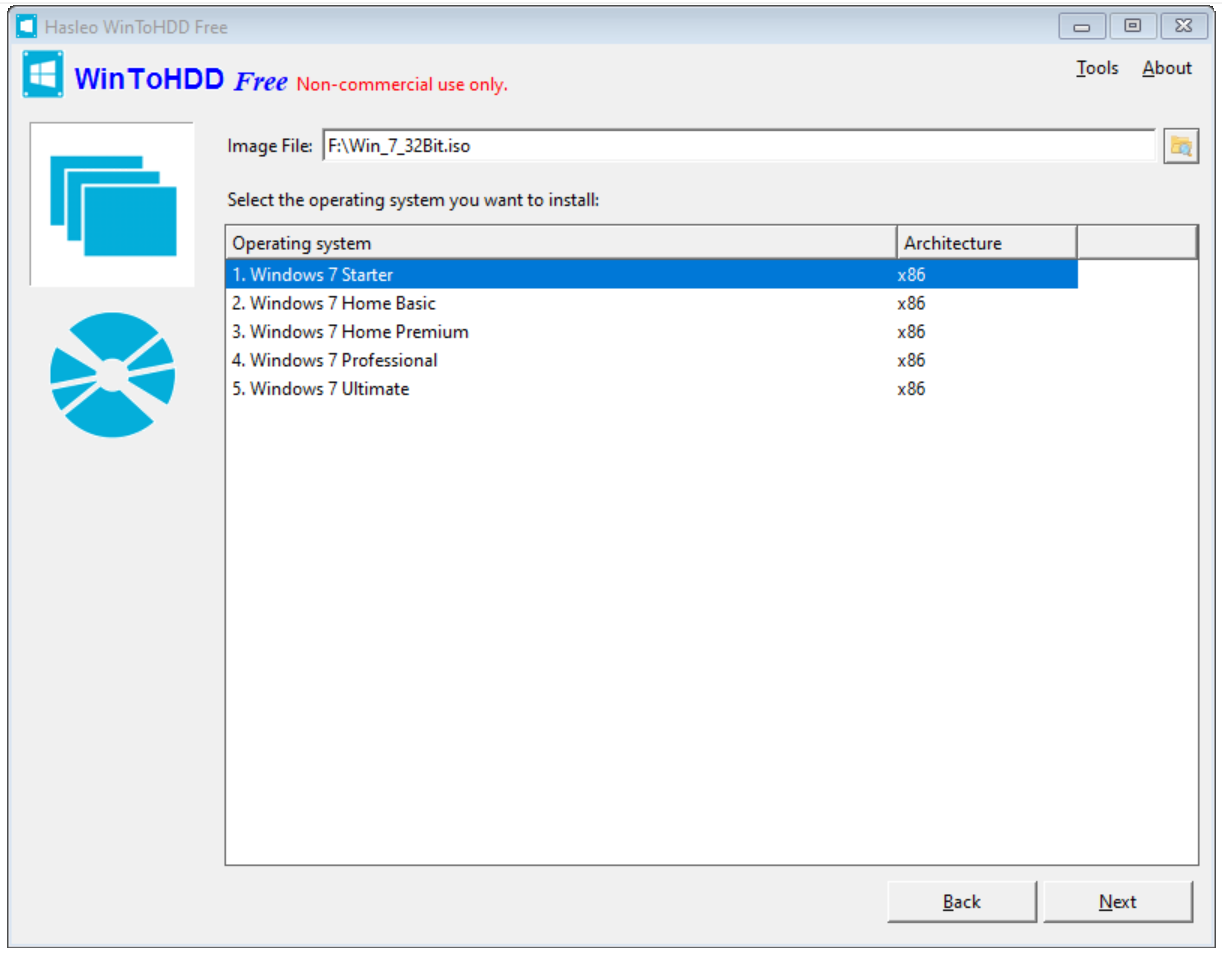
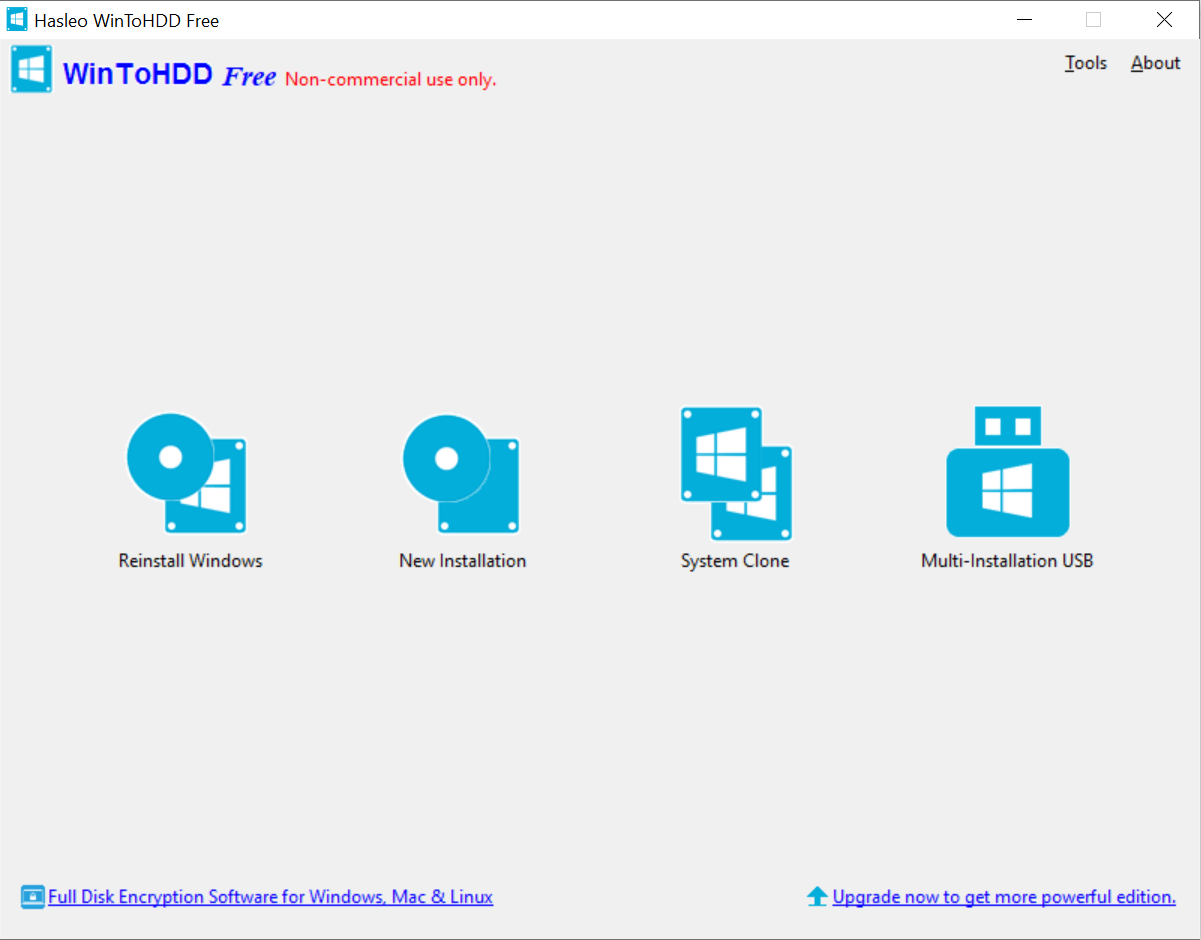 WinToHDD has a simple and user-friendly interface, allowing you to select Reinstall Windows, New Installation, System Clone, and Multi-installation USB from the home screen itself. Once you have selected the desired option, you can move to the next window, where you will need to provide the location of the ISO file. Once the ISO file is selected, it will show the operating system name available inside the ISO file. Select the appropriate operating system you wish to install/reinstall and proceed.
 WinToHDD is a convenient tool, especially if you don’t have a DVD/bootable ISO, and you want to install/reinstall Windows 10/8.1/8/7/Vista & Windows Server on your computer. It is also free for personal use. If you are planning to install/reinstall Windows shortly, it’s recommended to download and keep a copy of WinToHDD.
Download WinToHDD
To download WinToHDD, you can visit the official website. After creating a bootable USB flash drive, you can test it without installing it on your computer or laptop.
Conclusion
In conclusion, if you’re looking for a hassle-free way to install or reinstall the Windows operating system, WinToHDD is an excellent tool to consider. It allows you to perform these tasks without the need for a CD/DVD or USB drive, and it’s free for personal use. With its simple and user-friendly interface, you can easily select the desired option and proceed with the installation process. Moreover, you can download it from the official website, and once you have created a bootable USB flash drive, you can test it without installing it on your computer or laptop. Overall, WinToHDD is a great option for anyone looking for a convenient and straightforward way to install or clone their Windows operating system.
Frequently Asked Questions About WinToHDD
Is WinToHDD free to use?
Yes, WinToHDD is free for personal use. However, there is also a professional edition with additional features for commercial purposes.
Can I use WinToHDD without a USB or DVD?
Yes. One of the main advantages of WinToHDD is that it allows you to install or clone Windows directly from an ISO file without using a USB flash drive or DVD.
Will WinToHDD erase my data?
Installing or reinstalling Windows will typically overwrite your system partition, so it’s important to back up your important data before proceeding. Cloning a drive will also overwrite the destination drive.
Does WinToHDD work with both HDDs and SSDs?
Yes. You can use WinToHDD to install, reinstall, or clone Windows on both HDDs and SSDs, making it ideal for system upgrades.