

In this gearupwindows guide, we’ll show you the best free data recovery software for Windows 11 and 10. Imagine you’ve just deleted an important folder by mistake or lost files after a system crash — it feels like a disaster. Thankfully, several free tools can help you recover lost documents, photos, videos, and more from your hard drive, SSD, USB drive, or memory card. These recovery tools differ in performance, ease of use, and file system support. To make things easier, we’ve tested and reviewed the most reliable free options available today.
Best Free Data Recovery Software for Windows 11/10
Wondershare Recoverit
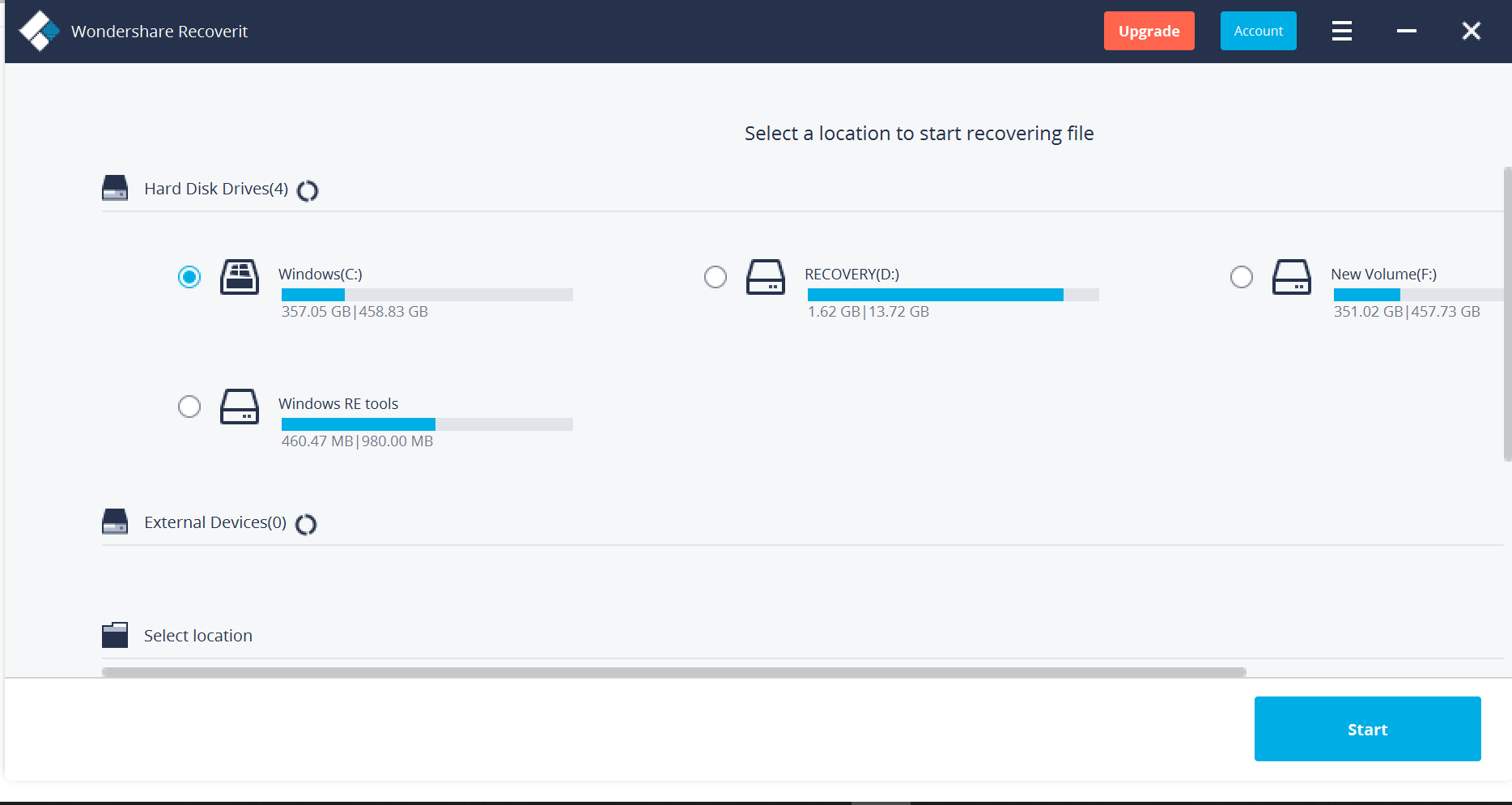
Wondershare Recoverit is a powerful and user-friendly data recovery tool for Windows 11 and 10. It supports recovery from a wide range of storage devices, including hard drives, SSDs, USB flash drives, memory cards, and even crashed systems. The free version allows recovery of up to 100MB of data, which is useful for rescuing essential files.
Recoverit supports over 1,000 file formats, including photos, videos, documents, emails, and archives. It offers a modern interface that guides users step-by-step through the recovery process. You can preview files before recovery, which helps ensure you’re restoring the right data. This feature is especially handy when dealing with large volumes of deleted content.
One of the standout features is Advanced Video Recovery, which helps repair corrupted videos while recovering them. The tool also supports scanning formatted, lost, or inaccessible partitions, making it ideal for users who need more than just basic undelete functionality.
While the free version has a file size limit, it’s a great way to test the software before considering a paid upgrade. If you’re looking to recover accidentally deleted files on your Windows PC, Recoverit provides a safe and efficient starting point.
Recuva
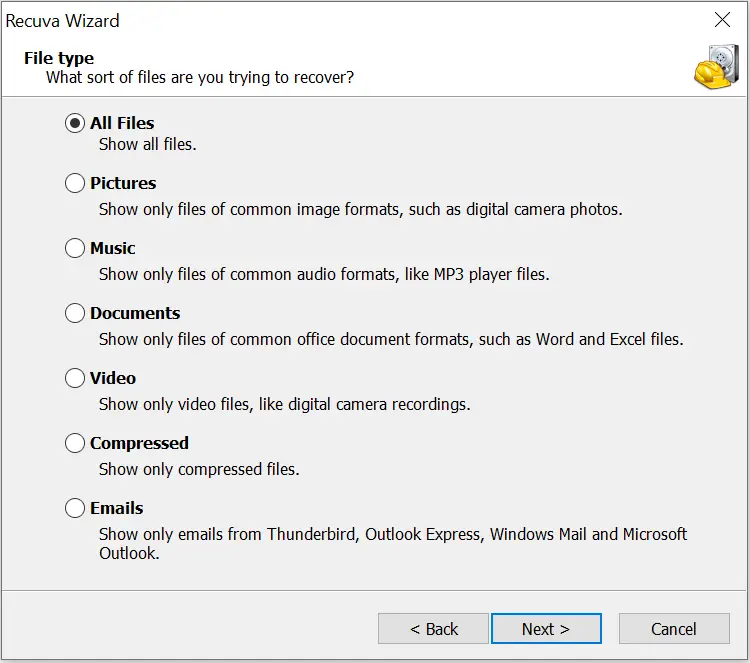
Recuva is one of the most well-known free data recovery tools for Windows users. Developed by Piriform (the makers of CCleaner), Recuva offers a lightweight, fast, and easy-to-use interface that’s perfect for beginners. It supports recovery from hard drives, USB drives, SD cards, and other external storage devices.
Recuva can recover a wide variety of file types, including images, documents, music files, videos, emails, and more. Its Deep Scan mode is particularly effective for finding files that have been deleted a long time ago or lost due to formatting or corruption.
Another useful feature is its ability to securely overwrite deleted files using industry-standard deletion techniques. This makes it a two-in-one tool — both for file recovery and secure erasure. You can preview images before recovery, which adds an extra layer of convenience.
Although Recuva hasn’t received frequent updates in recent years, it still performs reliably in most data loss scenarios. For users looking for a no-cost solution to retrieve deleted files on Windows, Recuva remains a solid and trusted choice.
IObit Undelete
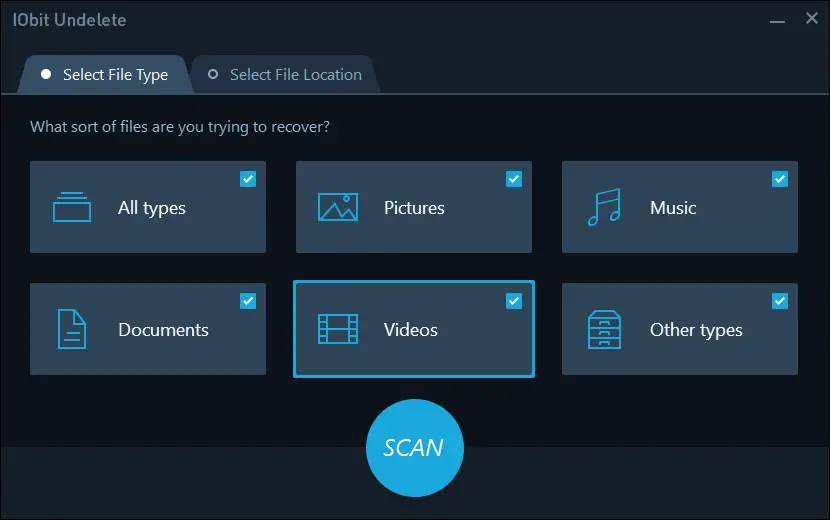
IObit Undelete is a free and lightweight file recovery tool that focuses on simplicity and speed. It’s designed for home users who want to recover deleted files from internal or external drives without dealing with complicated settings. The software supports FAT32, NTFS, and other common file systems used on Windows 11 and 10.
The interface is clean and beginner-friendly. You can select file types such as documents, videos, photos, or archives before scanning, which speeds up the process. Once the scan completes, it lists all recoverable files along with their original path and recovery status.
One standout feature of IObit Undelete is that it does not require installation. It runs as a portable tool, which means you can launch it from a USB drive without writing new data to the drive you’re recovering from — reducing the risk of overwriting lost files.
While it may lack advanced features like deep scanning or partition recovery, it excels at quick file recovery for recent deletions. If you’re looking for a free, no-fuss way to undelete files on your PC, IObit Undelete is a great starting point.
Disk Drill
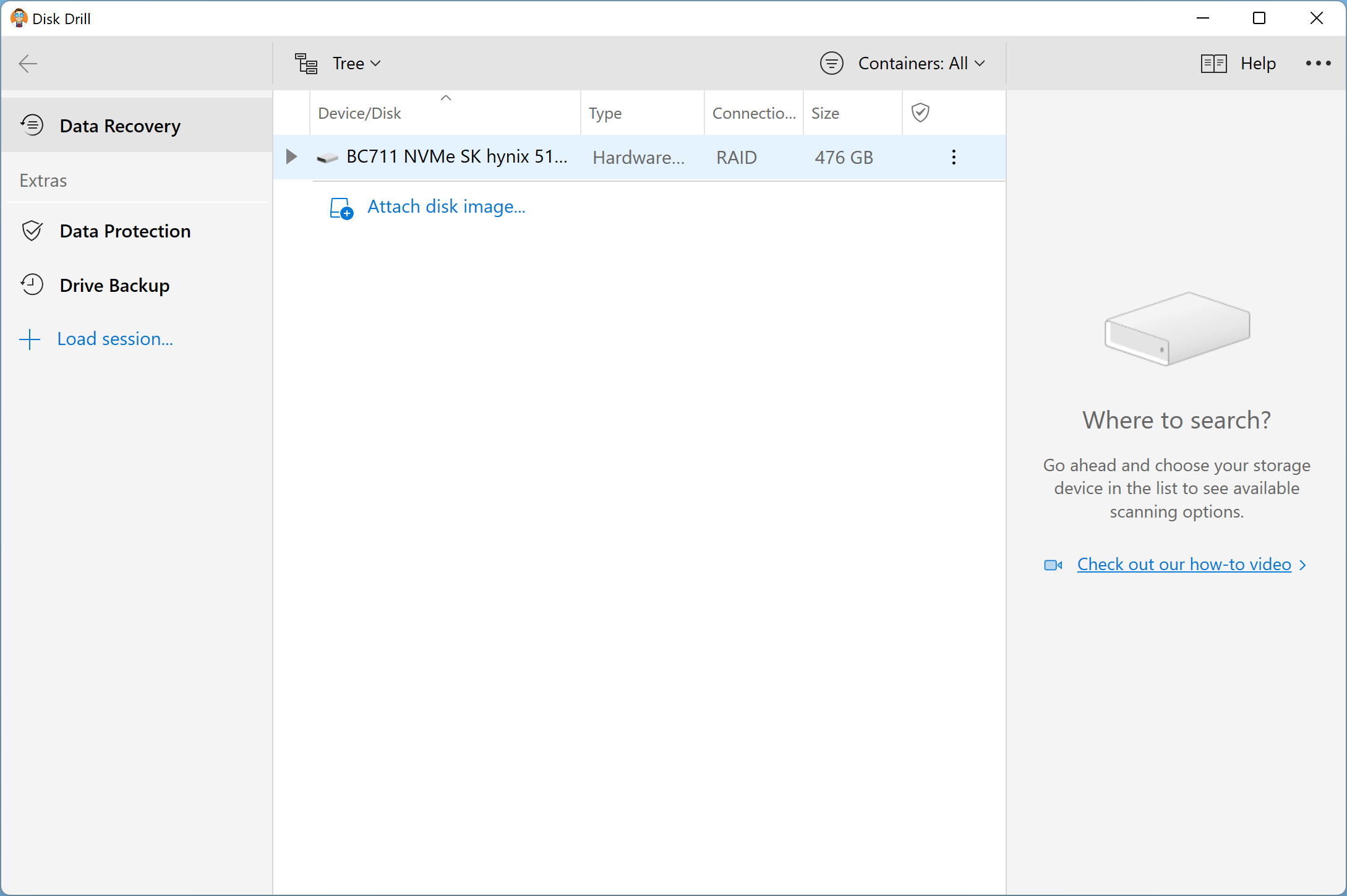
Disk Drill is a feature-rich data recovery software that offers a generous free recovery limit of up to 500MB for Windows users. Known for its sleek interface and powerful scanning engine, Disk Drill supports recovery from internal drives, USB flash drives, memory cards, and external hard disks.
It can recover over 400 file formats, including images, documents, audio, video, and even lost partitions. The software provides two types of scans — Quick Scan for recently deleted files and Deep Scan for more complex recovery tasks, such as formatted or damaged drives.
Disk Drill includes helpful extras like data protection features and a recovery vault that acts like a recycle bin for deleted files, improving your chances of recovery. You can pause and resume scans, preview files before recovery, and sort results by type or date.
Although some advanced features are reserved for the Pro version, the free edition is quite capable of recovering smaller amounts of data. For users who want both power and ease of use, Disk Drill is an excellent choice to retrieve deleted or lost files on Windows.
MiniTool Power Data Recovery Free
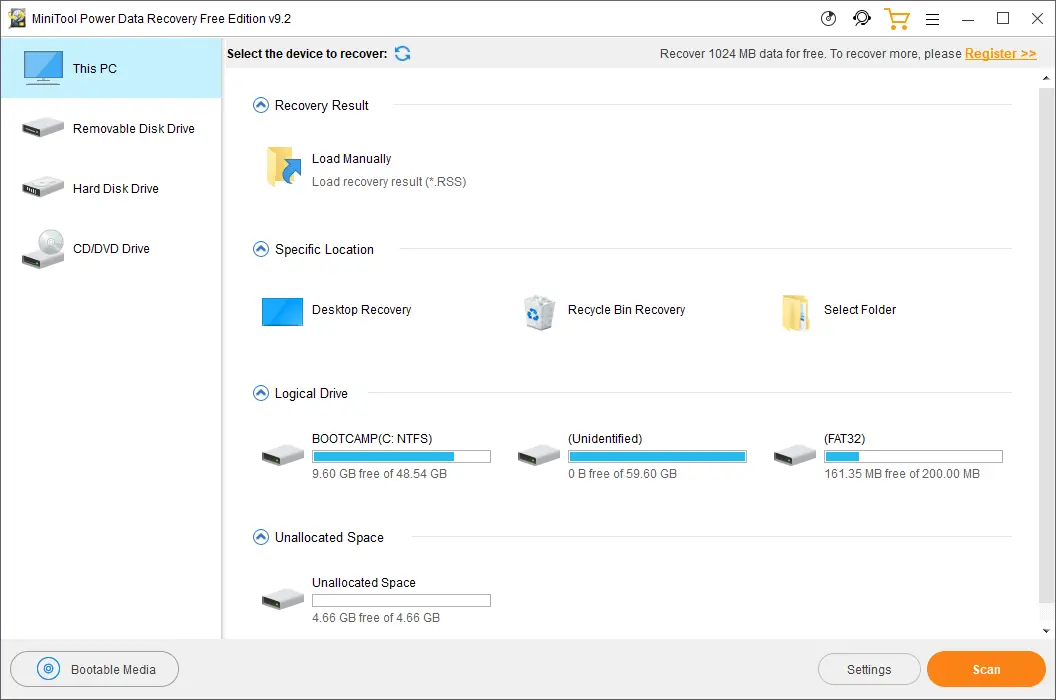
MiniTool Power Data Recovery Free is a reliable data recovery solution for Windows 11 and 10 users. It allows you to recover up to 1GB of data for free, making it ideal for rescuing essential files from accidental deletion, formatting, or corrupted drives. It supports recovery from hard drives, SSDs, external drives, memory cards, and even optical media like CDs and DVDs.
The software provides a clean interface with categorized recovery options such as This PC, Removable Disk Drive, Hard Disk Drive, and CD/DVD Drive. These categories make it easier for beginners to select the right recovery method based on the source of data loss.
MiniTool’s scanning engine is efficient, and you can preview a wide range of file types before restoring them. It also displays the recovery probability of each file — a useful feature when deciding which files to prioritize.
Although the free version has a 1GB recovery limit, it still offers access to all core features without forcing upgrades mid-process. If you’re trying to recover deleted or lost data on your Windows PC quickly and easily, MiniTool Power Data Recovery Free is a dependable option.
EaseUS Data Recovery Wizard Free
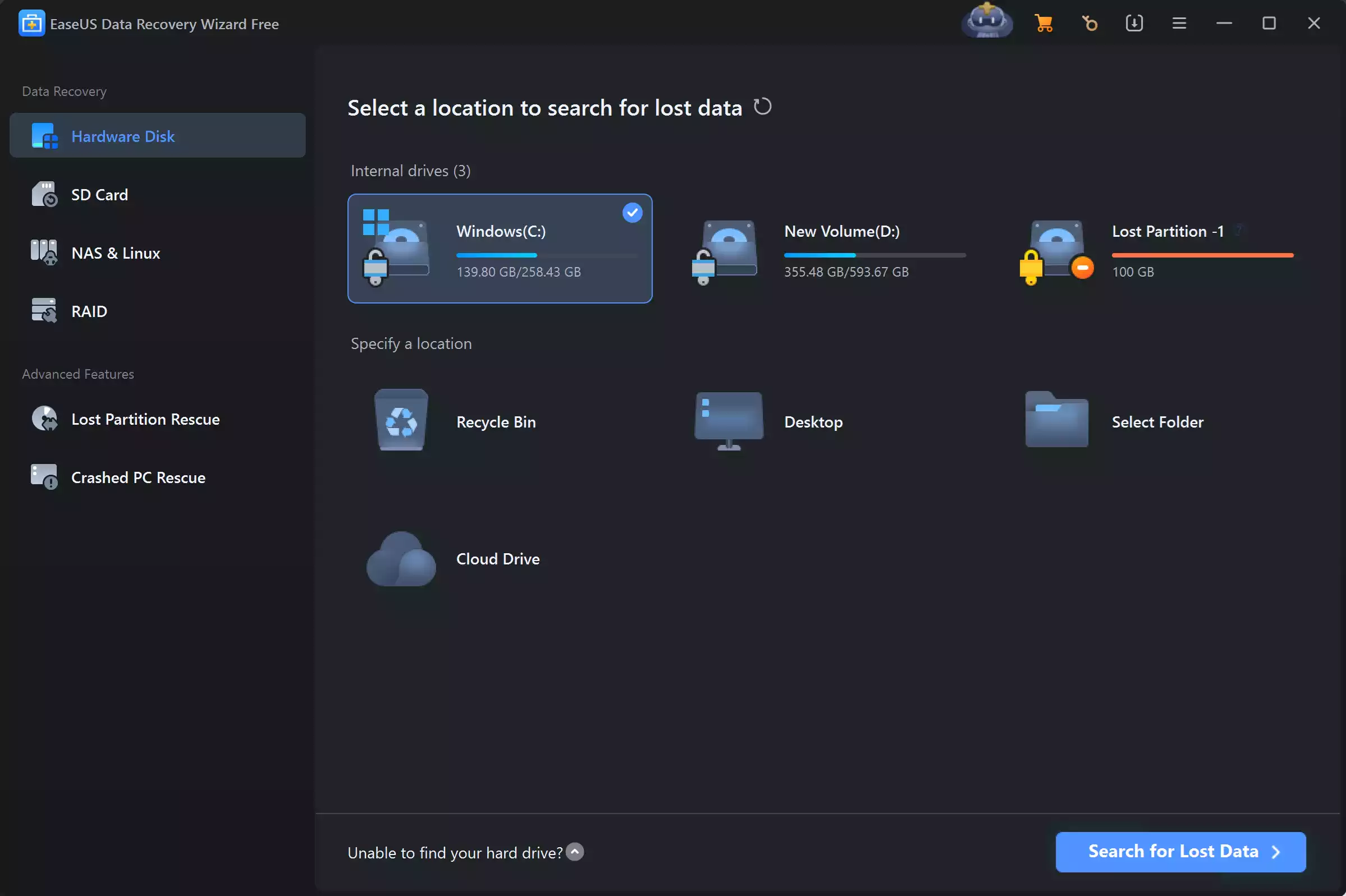
EaseUS Data Recovery Wizard Free is one of the most reliable and user-friendly data recovery tools for Windows 11 and 10. Whether you’ve accidentally deleted files, formatted a drive, or experienced a partition loss, this software can help restore your lost data quickly and safely.
It supports recovery from HDDs, SSDs, USB flash drives, SD cards, and even lost or RAW partitions. The tool offers two scan modes — Quick Scan for recently deleted files and Deep Scan for more complex data loss situations.
The interface resembles Windows File Explorer, making it easy to navigate for both beginners and advanced users. With the free version, you can recover up to 2 GB of data, which is more than enough for retrieving documents, photos, and other important files.
Another useful feature is the file preview option, which lets you confirm the recoverability of your files before restoring them. This ensures you only recover what you really need, saving both time and storage space.
If you’re new to data recovery, EaseUS also provides helpful tips and a recovery wizard to guide you through each step. Its success rate, clean interface, and generous free recovery limit make it one of our top recommendations.
Wise Data Recovery Free
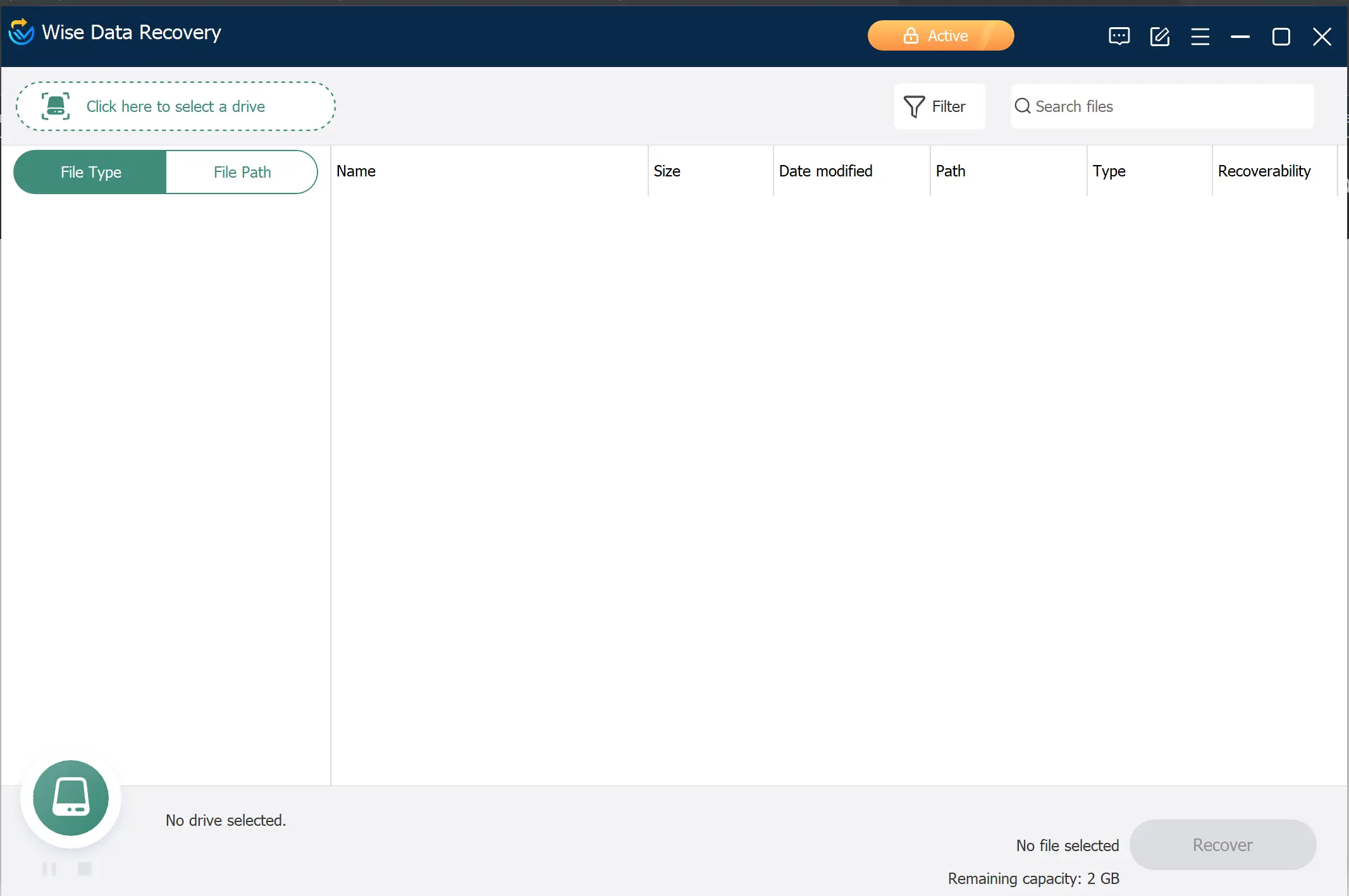
If you’ve accidentally deleted something important, Wise Data Recovery Free is one of those tools that just gets the job done without making you jump through hoops. It scans your drives quickly and lets you recover up to 2GB of data completely free — which covers most everyday oops moments.
What I appreciate most is its clean, easy-to-use interface. Whether you’re tech-savvy or not, Wise Data Recovery makes finding and restoring lost files pretty straightforward. There’s no expiration or trial period to worry about either — you can use it on multiple computers without any license hassles.
This tool supports recovering photos, documents, videos, and more, all while staying light on your system resources so it doesn’t slow your PC down. Honestly, if you want a no-fuss, reliable way to get back deleted files without spending a dime, Wise Data Recovery Free is definitely worth a try.
Puran File Recovery
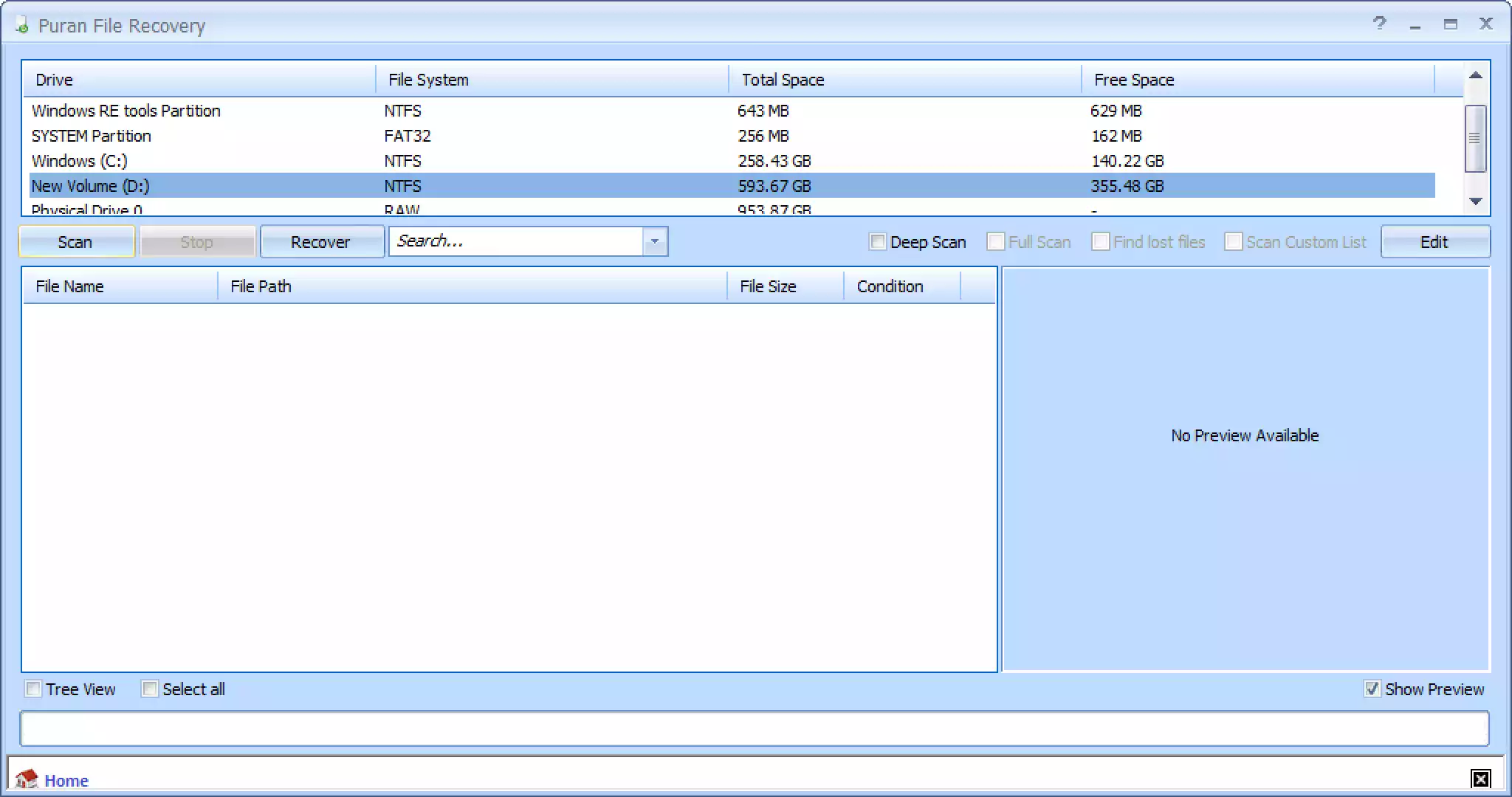
If you’re searching for a truly free and lightweight solution, Puran File Recovery is worth a try. This portable tool supports both FAT and NTFS file systems, and it’s effective at recovering files deleted using Shift + Delete or from formatted drives.
Its deep scan feature works well when basic scans miss data. Plus, there’s no need to install it if you use the portable version, which helps avoid overwriting lost files. It’s a reliable pick for beginners and tech users alike.
Glary Undelete
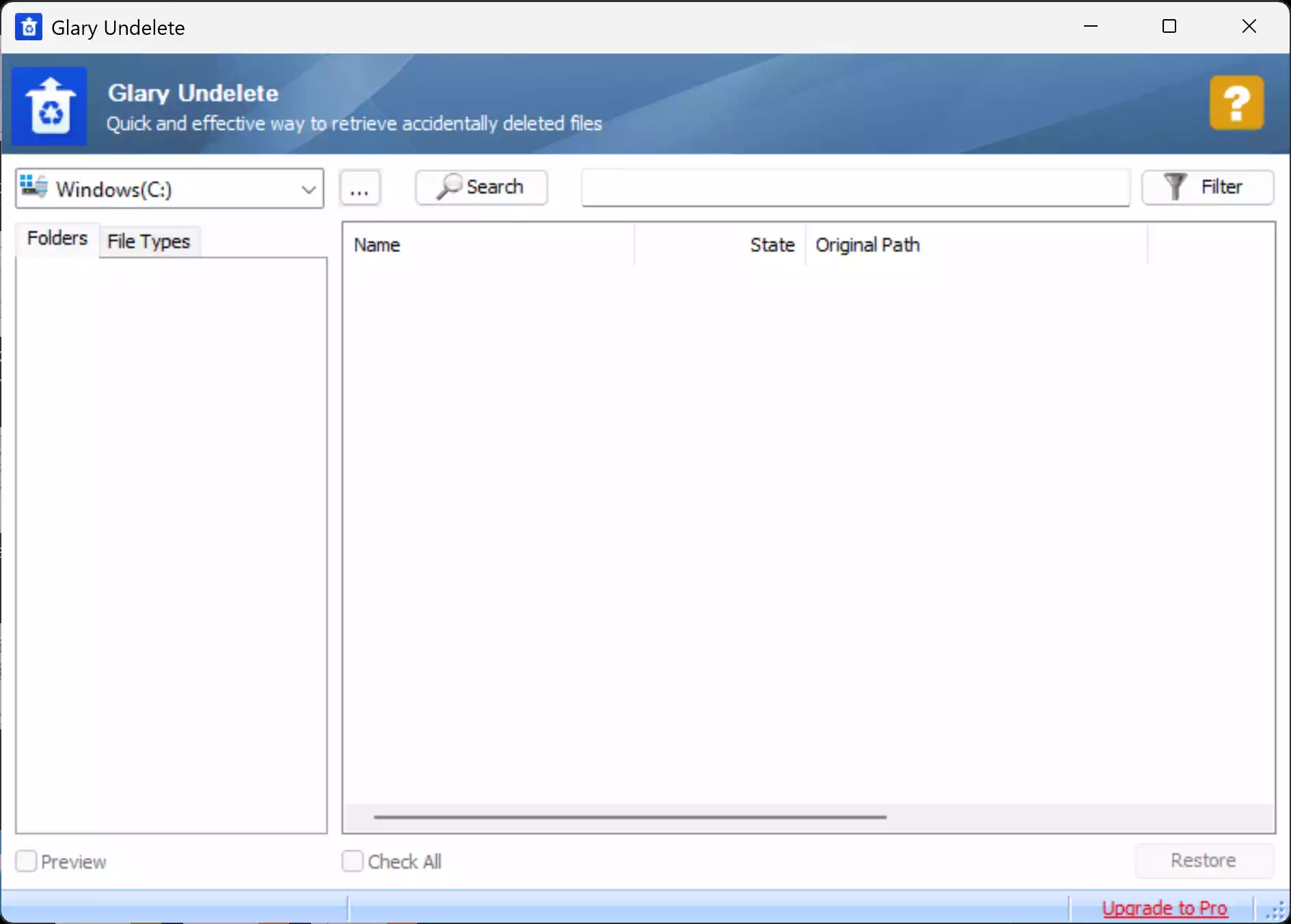
Glary Undelete is a lightweight and beginner-friendly file recovery tool from Glarysoft. It supports FAT and NTFS file systems (including compressed and encrypted NTFS) and works with internal hard drives, SSDs, USB flash drives, and memory cards. The interface is clean and easy to navigate — simply select a drive, run a scan, and recover your files with a few clicks. It also provides a clear status indicator for each file, so you can see which ones are most likely to be recovered successfully. If you’re looking for a no-cost, quick solution for undeleting files without dealing with complicated settings, Glary Undelete is a great choice.
Frequently Asked Questions
What should I do immediately after I delete files by mistake?
Stop using the affected drive to prevent overwriting. Avoid installing new apps or saving downloads there. Launch your chosen data recovery tool, run a Deep Scan, and always restore found files to a different drive or external disk.
Can free tools recover files from an emptied Recycle Bin?
Yes, many freeware options can scan free space and recover items removed from the Recycle Bin, provided the data blocks haven’t been overwritten. Deep scans take longer but usually find more.
What’s the difference between Quick Scan and Deep Scan?
Quick Scan looks for recently deleted entries and is fast. Deep Scan searches the entire disk, including lost partitions and raw file signatures, and is better for formatted or older deletions.
Can I recover data from a formatted or RAW drive?
Often, yes. If the drive shows up as RAW or was quick-formatted, a deep scan can still reconstruct many files. For stubborn cases, try multiple tools and compare results.
Does TRIM on SSDs reduce the chances of recovery?
It can. TRIM helps SSDs maintain performance by clearing deleted blocks, which may lower recovery success. If you suspect SSD issues, check health first using our guide on how to check SSD health in Windows, and proceed promptly.
How long will a Deep Scan take?
It depends on drive size, speed, file system condition, and how much data is on the disk. As a rough idea, large external HDDs can take hours, while small USB drives may finish in minutes. Let the scan complete for the best results.
Why are some recovered files corrupted or won’t open?
Parts of those files may be overwritten or fragmented. Try restoring alternate versions that the software lists, and preview files when possible. If the disk is unhealthy, assess it with a utility like HDDScan before further attempts.
Is it safe to install recovery software on the same drive I’m recovering from?
No. Installing to the same drive risks overwriting lost data. Use a different internal drive or a USB stick to run the data recovery program and save the restored files elsewhere.
What if Windows won’t boot—can I still recover my files?
Often yes. Try enabling the Windows Recovery Environment (WinRE) to access troubleshooting tools and attach another drive for saving recovered data. See our guide on enabling WinRE in Windows 11/10.
Should I create a restore point before making changes?
Creating a System Restore point is a good safety step before tweaks or driver changes that might cause issues later. If you need help, follow our System Restore guide for Windows 11.
How can I permanently erase sensitive files so they can’t be recovered?
Use a secure-erase utility that overwrites data. Our roundup of free tools to permanently delete files explains safe methods that prevent future recovery.
What’s the best way to avoid data loss in the future?
Adopt a simple 3-2-1 backup habit (three copies, two media, one offsite). You can automate this with a reliable freeware like AOMEI Backupper Free, so recoveries are easier next time.
Conclusion
Choosing the right free data recovery software can make a big difference when you’re facing data loss. Tools like Wondershare Recoverit, Recuva, IObit Undelete, Disk Drill, EaseUS Data Recovery Wizard Free, MiniTool Power Data Recovery Free, Wise Data Recovery Free, and Puran File Recovery offer reliable solutions for recovering lost documents, photos, videos, and more. These tools support a wide range of file types and storage devices, making them ideal for most everyday recovery needs.
Each of these programs provides a user-friendly interface, and some also include advanced scanning options. While free versions are great for basic recovery, you can explore paid upgrades if you need deeper or unlimited data restoration.
Remember to act quickly after file deletion, avoid writing new data to the affected drive, and use trusted recovery tools like the ones covered in this guide. Doing so will improve your chances of successful recovery.