

There are various freeware applications available on the internet that can help you create a bootable USB flash drive for installing Windows 11/10. These include WinUSB Maker, Windows USB/DVD Download Tool, ISO2Disc, and WinToHDD. Although these apps are useful, there is another lightweight freeware disc-burning tool called AnyBurn that offers additional features.
AnyBurn is an all-in-one solution that not only enables CD/DVD/Blu-ray disc burning but also allows you to create a bootable USB flash drive. With this software, you can perform various tasks such as ripping audio CDs, converting image file formats, modifying image files, and more. It is a reliable option for all your disc burning and imaging needs.
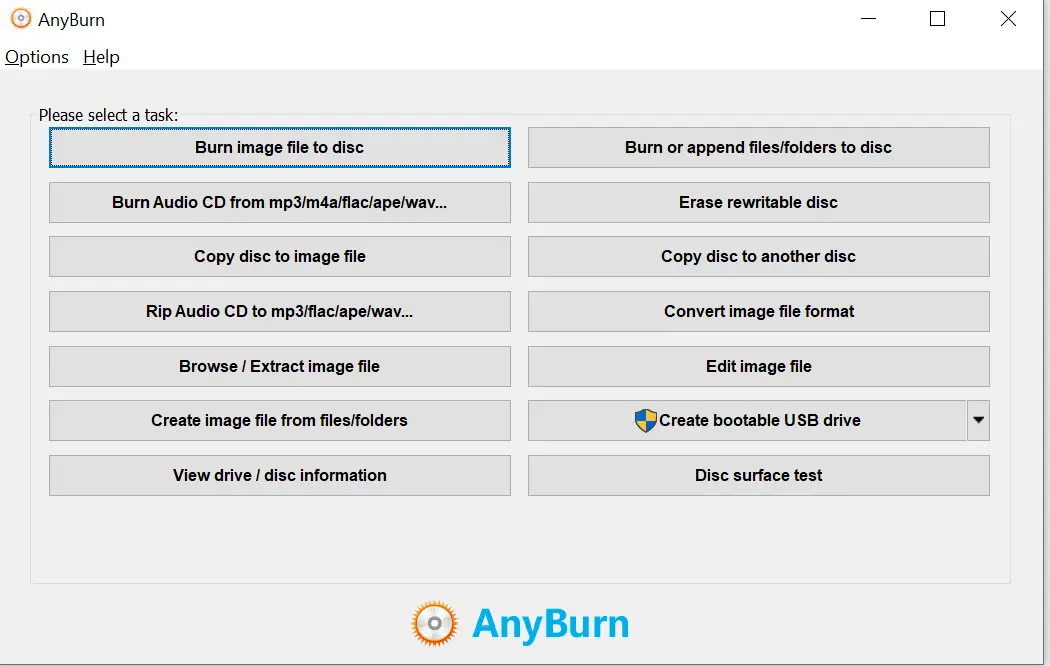
Advantages of AnyBurn
- Burns all CD / DVD / Blu-ray disc image files.
- Adds files and folders to discs for multi-session use.
- Burns Audio CDs playable in regular CD players from MP3, M4A, APE, FLAC, and WMA files.
- Rips Audio CDs to MP3, FLAC, APE, WMA, and WAV formats.
- Copies discs using the sector-by-sector method.
- Creates image files from hard disk files or discs.
- Converts image files between different formats.
- Creates bootable USB drives for Windows 7, 8, 10, 11, and Linux.
- Performs disc surface tests.
- Supports 32-bit and 64-bit versions of Windows 2000 to Windows 11.
- Small size (less than 2 MB).
- Free for personal and business use.
- User-friendly interface.
Tasks AnyBurn Can Perform
- Burn image files to a disc
- Burn Audio CDs from MP3/M4A/FLAC/APE/WAV, etc.
- Copy disc to image file
- Rip Audio CD to MP3/FLAC/APE/WAV, etc.
- Browse or extract image files
- Create image files from folders or files
- View drive and disc information
- Append files/folders to a disc
- Erase rewritable discs
- Copy disc to another disc
- Convert image file formats
- Edit image files
- Create bootable USB drives
- Test disc surfaces
As you can see, AnyBurn combines multiple functions in one easy-to-use tool. Even beginners can complete advanced tasks without much effort.
Two interesting features worth highlighting:
- Edit image file
- Create a bootable USB drive
Editing an Image / ISO File
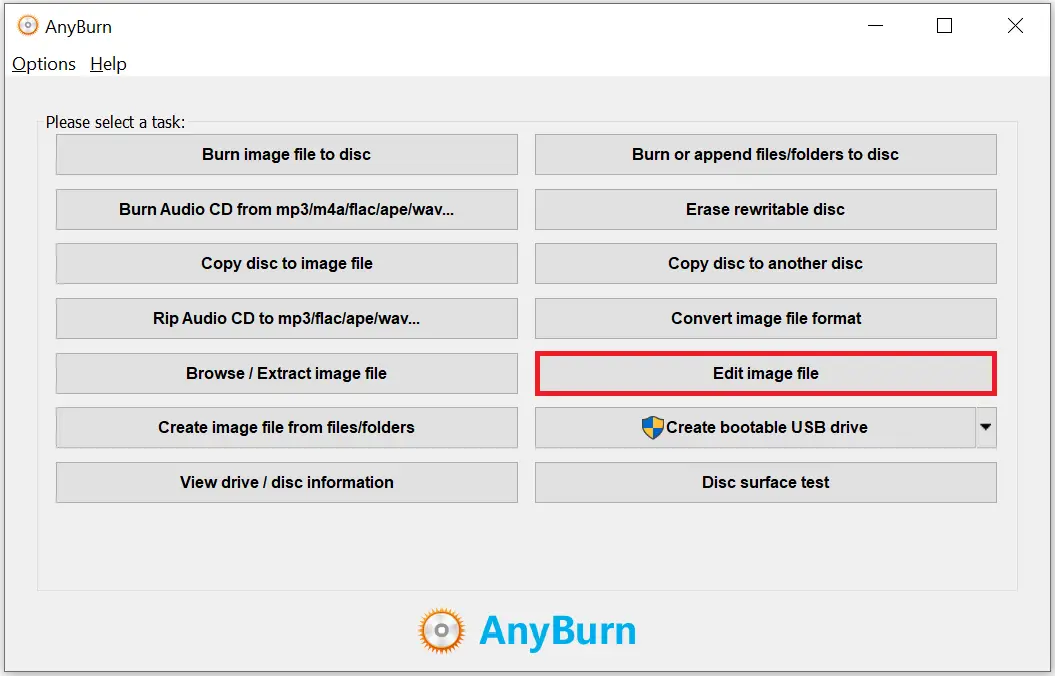
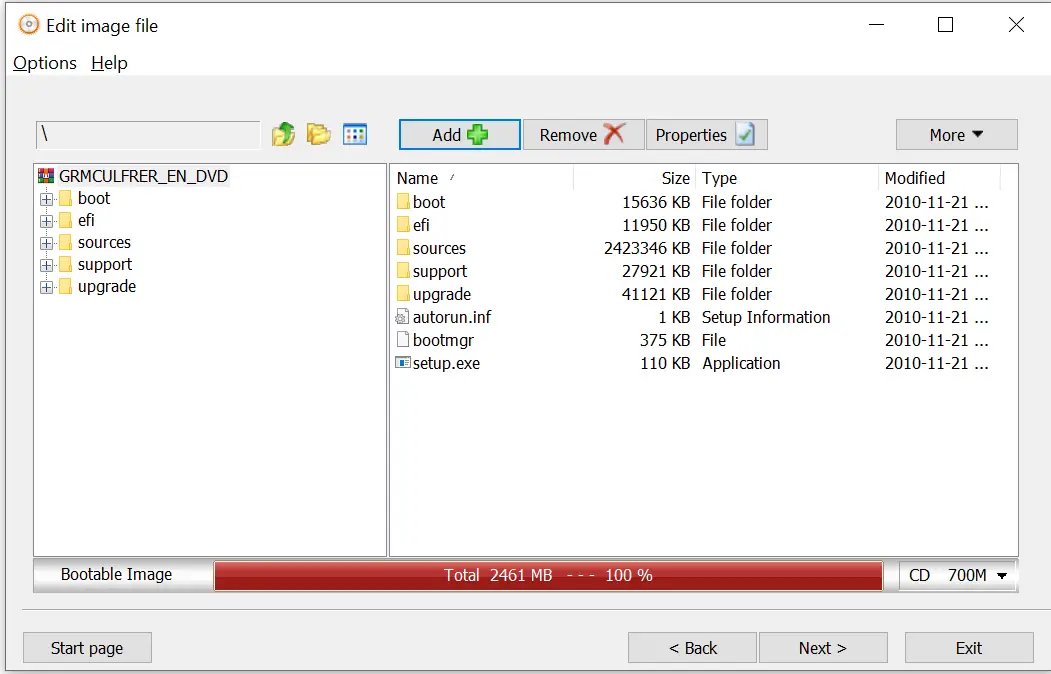
The AnyBurn freeware app allows you to edit an ISO image before burning it to a CD or DVD. If you want to modify an ISO file’s contents, you don’t need to extract or mount it. Just choose the Edit image file option.
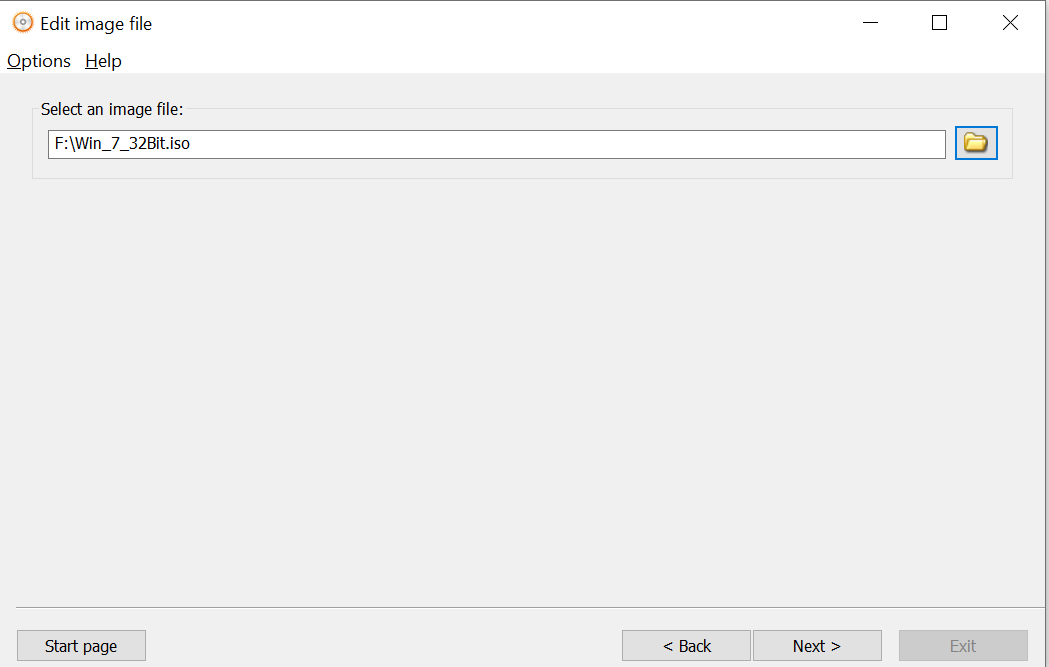
Browse and select the image file you want to edit.
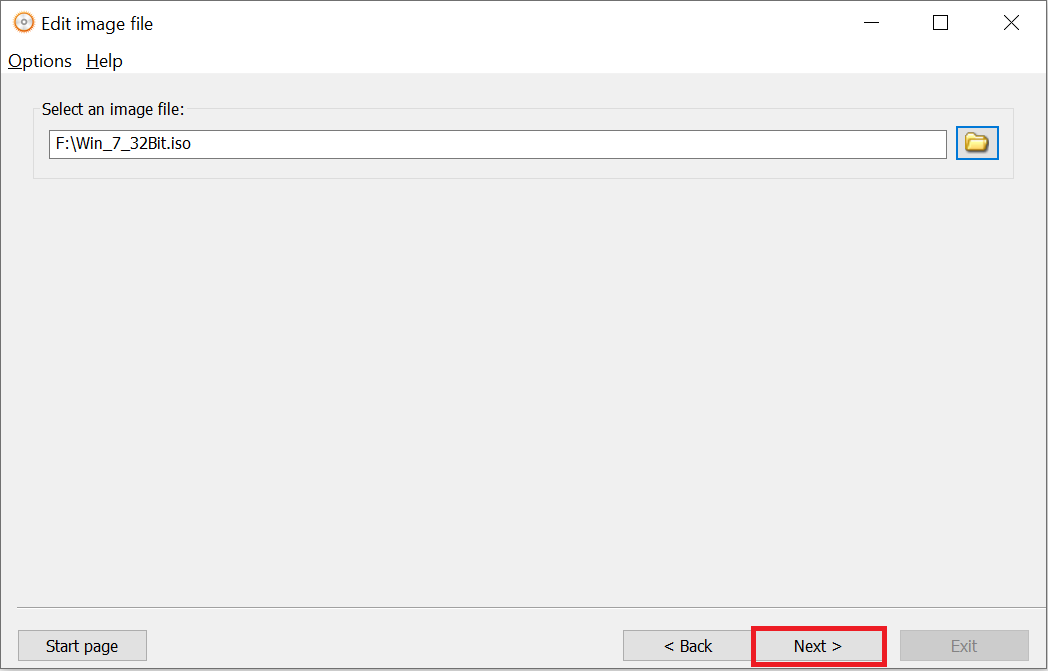
Once selected, click the Next button.
You’ll now see the ISO’s contents. You can add, delete, or modify files or folders before burning. This feature is especially handy when editing bootable ISOs without compromising their boot info.
Creating a Bootable USB Drive
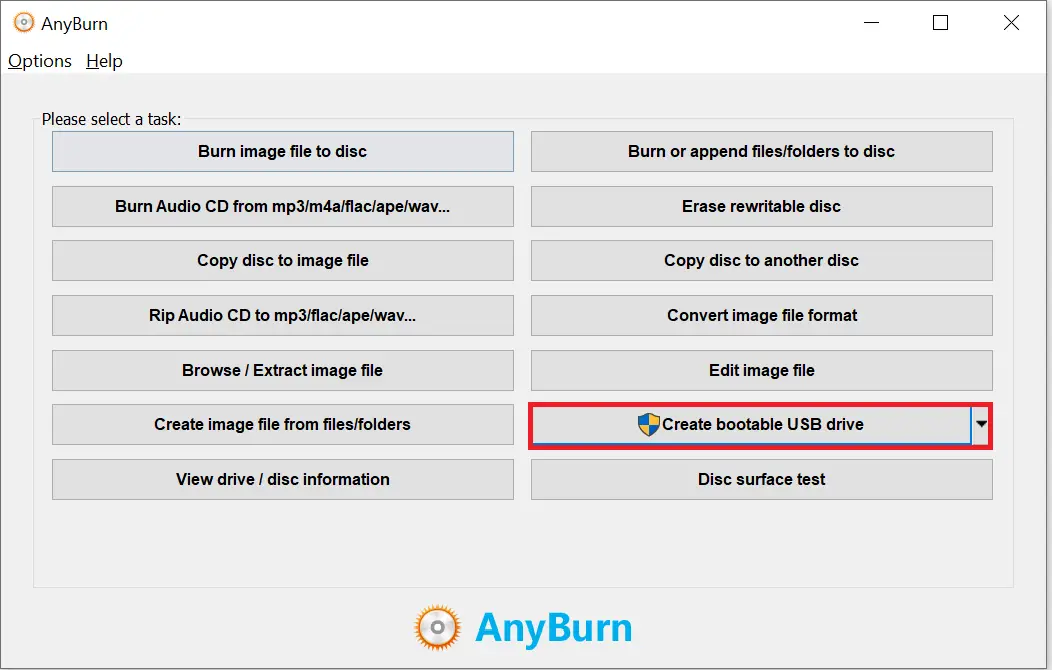
To create a bootable USB flash drive using AnyBurn, choose the Create bootable USB drive option.
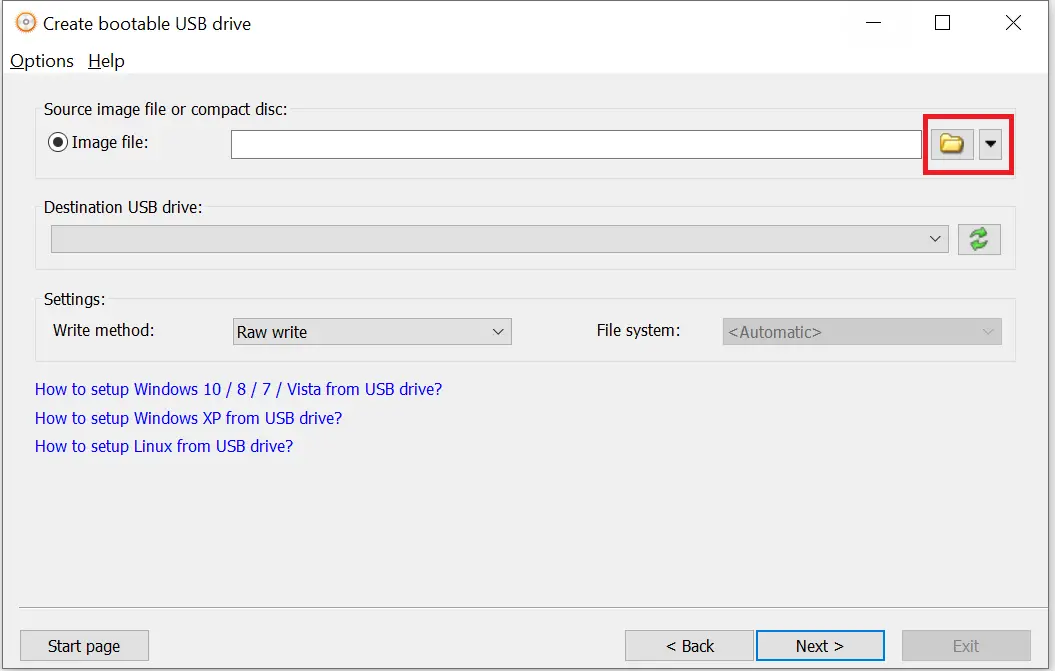
Select the ISO image file from your PC and connect a USB flash drive.
Once connected, the USB drive should be detected automatically. If not, click the Refresh icon.
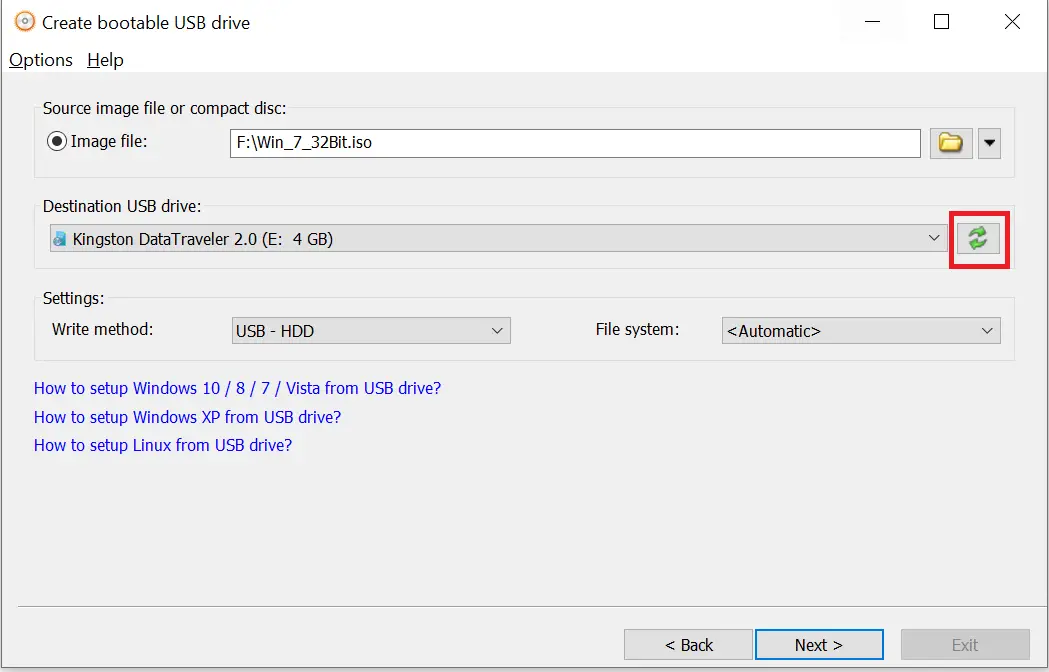
Note: For a Windows 7 bootable USB, you need at least a 4GB drive. For Windows 10 or 11, a minimum 16GB USB drive is required. After selecting the ISO and USB drive, click Next.
A warning will appear: “All data in the USB drive will be overwritten. Do you want to continue?” Click OK to proceed.
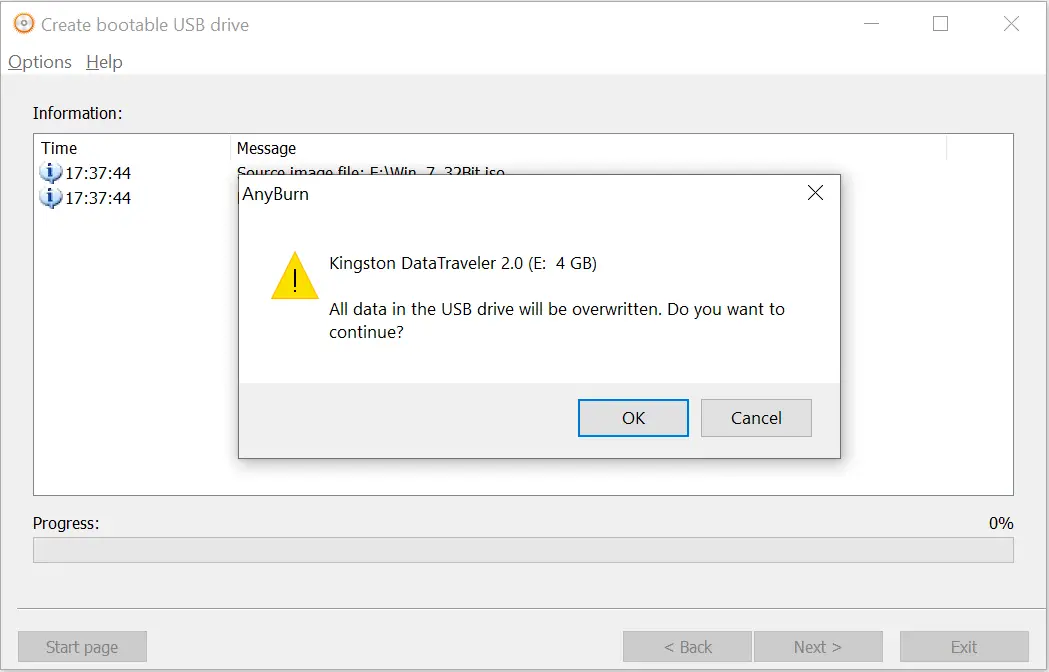
The USB drive will be formatted, and the file copying will begin to make it bootable.
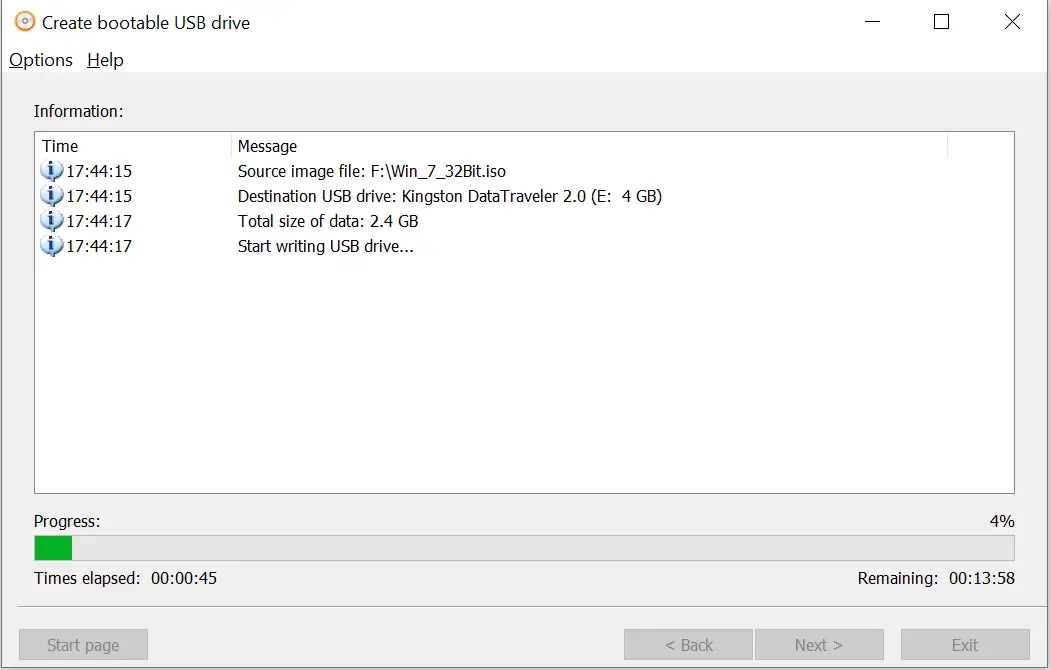
Once completed, your bootable USB drive will be ready. To boot from it, connect the USB drive and reboot your PC. While starting up (before Windows loads), press a key like F1, F2, Delete, or Esc to enter BIOS. Change the boot order to prioritize the USB drive, save changes, and exit BIOS.
Once the USB is created, you can test if the USB drive is bootable without installing it on your computer or laptop.
Download AnyBurn
You can download the free AnyBurn tool from here.
Conclusion
In conclusion, AnyBurn is a versatile and lightweight freeware disc-burning tool that makes it easy to create bootable USB drives for Windows 10/11 or Linux. It also offers powerful features such as ISO editing, ripping audio CDs, copying discs, and more. Its user-friendly interface and small footprint make it ideal for both personal and business use. If you’re looking for a reliable all-in-one disc imaging and burning solution, AnyBurn is worth trying.
AnyBurn Pro Full Version contains plenty of useful disc-burning and imaging tools, but they are packed into an organized interface.
https://sofvonda.com/anyburn-pro/