

ISO is one of the most popular file formats for distributing software, backups, and bootable media. In a single image file, you can store the entire contents of a CD, DVD, or any other external drive. This makes it not only easier to manage large amounts of data but also preserves the original structure and properties.
For example, imagine you have 40 GB of mixed files and folders that you want to share with friends or colleagues. Instead of sending them as loose files, you can convert everything into an ISO file and share it as a single package. When the recipient extracts or mounts it, the original structure will remain intact. This also applies to bootable USBs or DVDs — if you create an ISO from them, the ISO will remain bootable.
AnyToISO for Windows 11/10
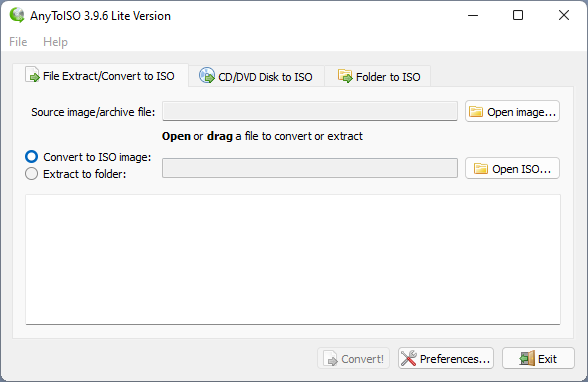
There are plenty of free tools for converting files and folders to ISO format, but AnyToISO stands out for its simplicity, broad format support, and integration with Windows Explorer. This free application can convert folders, CDs, DVDs, and multiple archive formats directly into ISO files.
Apart from folders, AnyToISO supports a wide variety of formats, including 7Z, BIN, DAA, DEB, DMG, IMG, ISZ, MDF, NRG, PKG, RAR, TAR.GZ, TAR.BZ2, XAR, ZIP, and more. That means you can also open and extract these formats without needing multiple separate tools.
How to Use AnyToISO?
When you launch AnyToISO, you’ll see three clear tabs:
- File Extract/Convert to ISO
- CD/DVD Disk to ISO
- Folder to ISO
Simply choose the tab based on your task — whether you’re converting a folder, ripping a disk, or extracting an archive.
How to Convert a Folder to ISO Using AnyToISO?
This feature is similar to the Folder2ISO tool, but with extra capabilities.
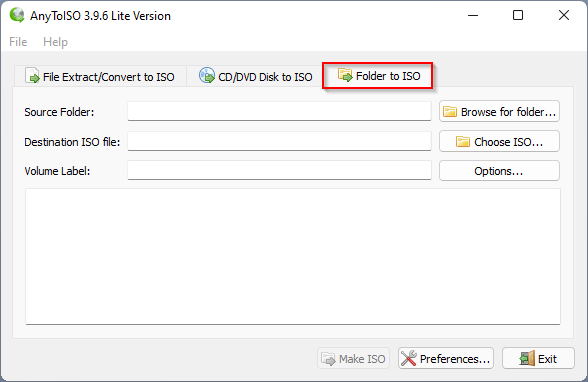
Step 1. Open AnyToISO and select the Folder to ISO tab.
Step 2. Click Browse for folder to select the source folder from your PC.
Step 3. Click Choose ISO to pick the destination location and filename for your ISO.
Step 4. (Optional) Type a Volume Label or leave it blank.
Step 5. Click Make ISO and wait for the process to complete.
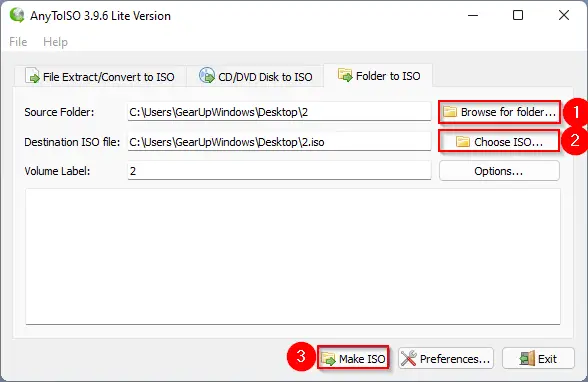
Your ISO file will be ready in the selected location.
Right-Click Context Menu Integration
One of AnyToISO’s most useful features is that it integrates directly into the Windows right-click context menu. This means you can simply right-click on any folder and choose to convert it to ISO without opening the program manually.
Extracting Archive and ISO Files
AnyToISO is also a powerful extractor for formats like 7Z, BIN, DAA, DEB, DMG, IMG, ISO, ISZ, MDF, NRG, PKG, RAR, TAR.GZ, TAR.BZ2, XAR, and ZIP.
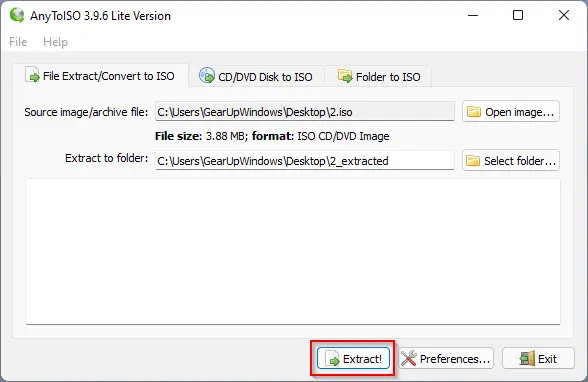
Step 1. Open AnyToISO and go to the File Extract/Convert to ISO tab.
Step 2. Drag and drop the supported archive or ISO file into the interface.
Step 3. Click Extract. The program will create a folder (with “_extracted” in its name) in the same location as the original file.
Download AnyToISO
AnyToISO works on Windows 7, 8, 8.1, 10, and 11 (both 32-bit and 64-bit). You can get it from the official download page.
Alternatives to AnyToISO
If you’re exploring alternatives to AnyToISO, consider these excellent tools we’ve reviewed on GearUpWindows:
- IsoCreator – a lightweight converter for turning folders into ISO files quickly.
- ISO Toolkit – full-featured management for creating, extracting, editing, and converting ISO images.
- Best Free ISO Burners for Windows – reviews of top tools like ImgBurn and Active@ ISO Burner for burning ISO to CDs/DVDs.
- Free ISO Mounter Tools – mount ISO files as virtual drives using tools like WinCDEmu or Virtual CloneDrive.
Conclusion
The ISO format is one of the most efficient ways to store and share large sets of data while maintaining structure and bootability. AnyToISO simplifies the process of creating ISOs from folders, disks, and archive formats, while also serving as a universal extractor. Its intuitive interface, context menu integration, and wide format support make it a valuable tool for both casual users and IT professionals.
If you work with ISO images regularly, downloading AnyToISO or one of its alternatives will make your workflow much faster and more efficient.
thanks for your informacion