

The system tray, also known as the Taskbar Corner Overflow area, is the small section on the right side of your Windows 11 taskbar. It houses essential icons like network, volume, battery, and background apps. Customizing it helps declutter your taskbar and makes quick access to frequently used apps more convenient.
What Are System Tray Icons in Windows 11?
System tray icons display background apps and system utilities such as Wi-Fi, sound, antivirus, or OneDrive. These icons also show notifications and quick controls. By default, Windows 11 hides many of them in the Taskbar Corner Overflow menu to keep your taskbar tidy.
How to Show or Hide System Tray Icons on Windows 11
Windows 11 allows you to easily manage which icons appear directly on your taskbar and which remain hidden in the overflow area.
Step 1. Right-click on an empty area of the taskbar and select Taskbar settings.
Step 2. In the Taskbar items section, scroll down and expand the Other system tray icons section.
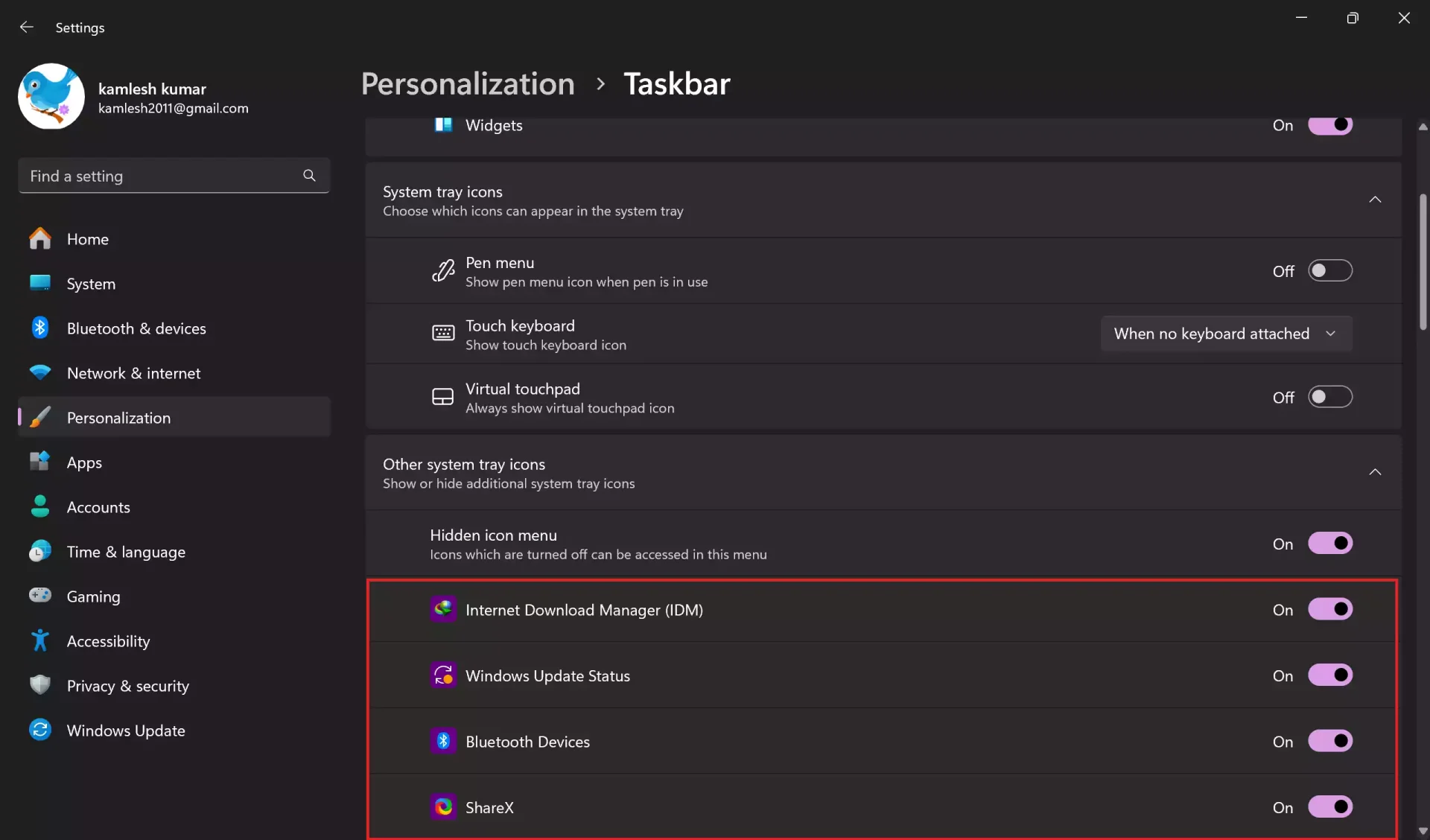
Step 3. Turn on or off the toggle next to each app or system icon you want to appear or hide in the tray area.
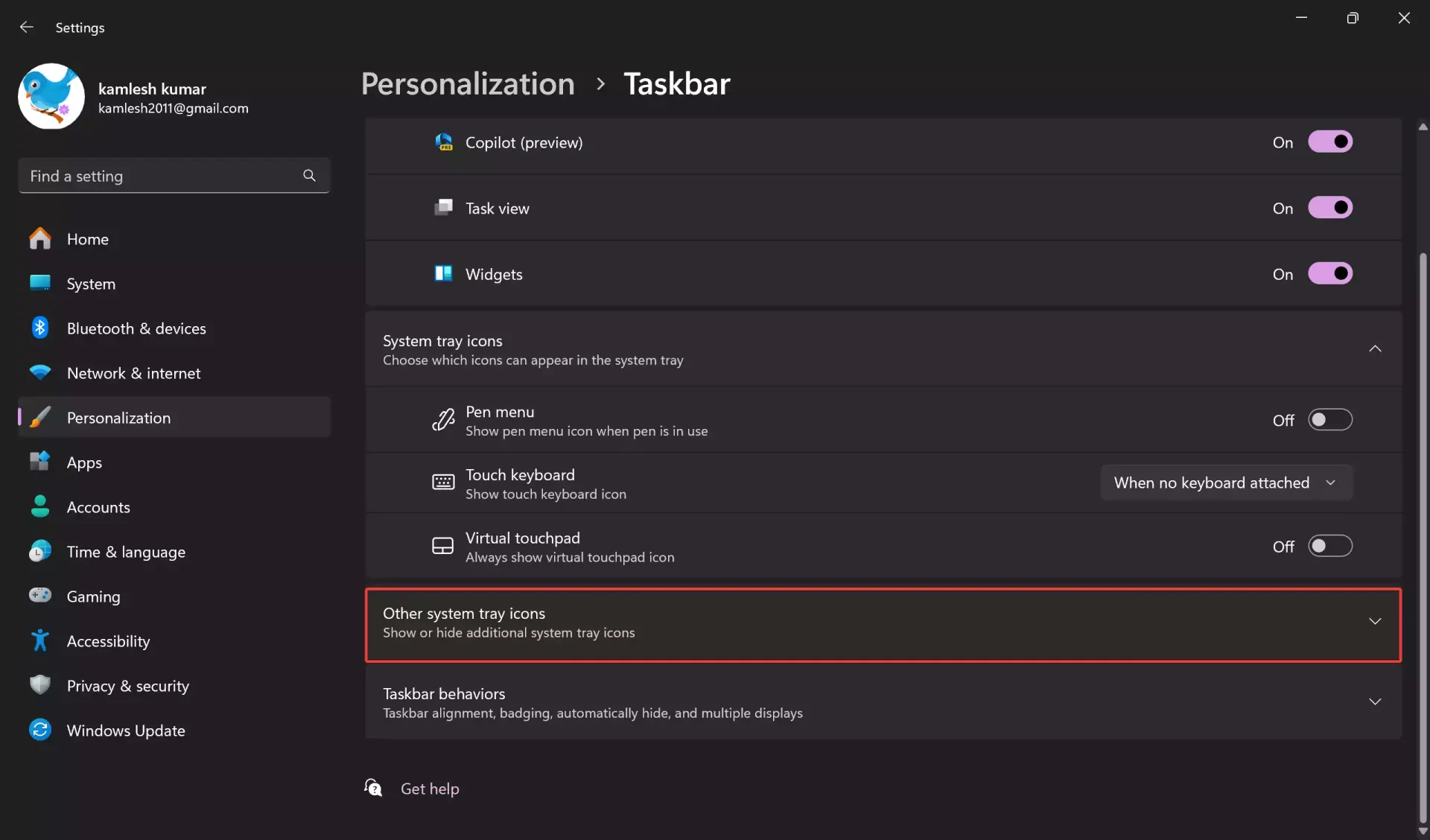
If you prefer a cleaner taskbar, you can hide less-used icons inside the Taskbar Corner Overflow menu instead (This setting is not available in the latest Windows 11 build).
For detailed steps, refer to our dedicated guide: How to show or hide icons in tray area (Taskbar Corner Overflow) on Windows 11.
How to Move or Rearrange System Tray Icons
You can rearrange tray icons for easier access. Simply click and drag an icon from the overflow panel onto the visible taskbar—or drag it back to hide it. This gives you control over which icons are immediately visible without digging into the overflow panel.
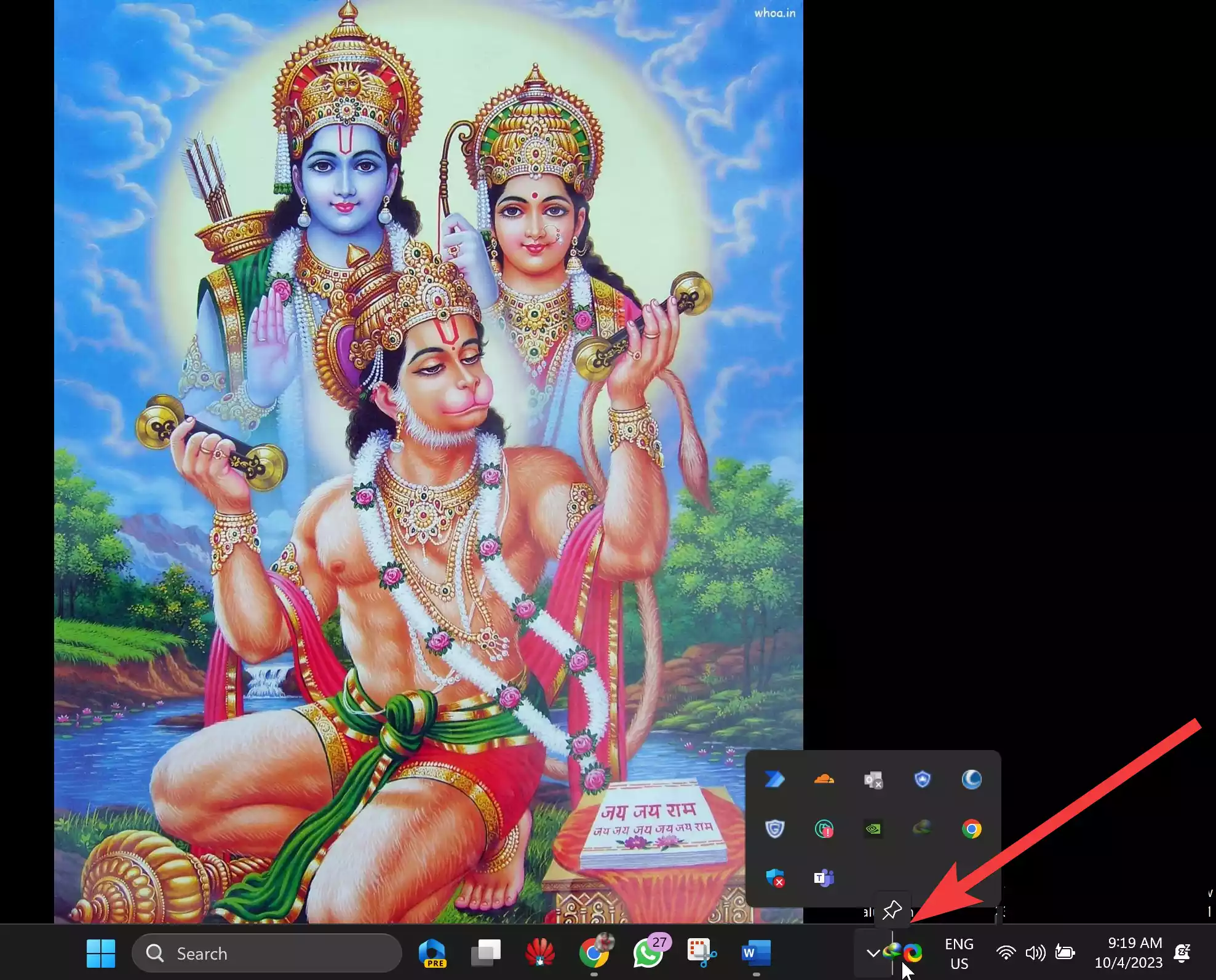
Show or Hide Notification Badges
Notification badges appear on certain tray icons to show alerts or updates. If you prefer a cleaner look, you can turn them off:
Step 1. Open Settings (Win+I) → Personalization → Taskbar.
Step 2. Scroll down and expand Taskbar behaviors.
Step 3. Turn off Show badges on taskbar apps.
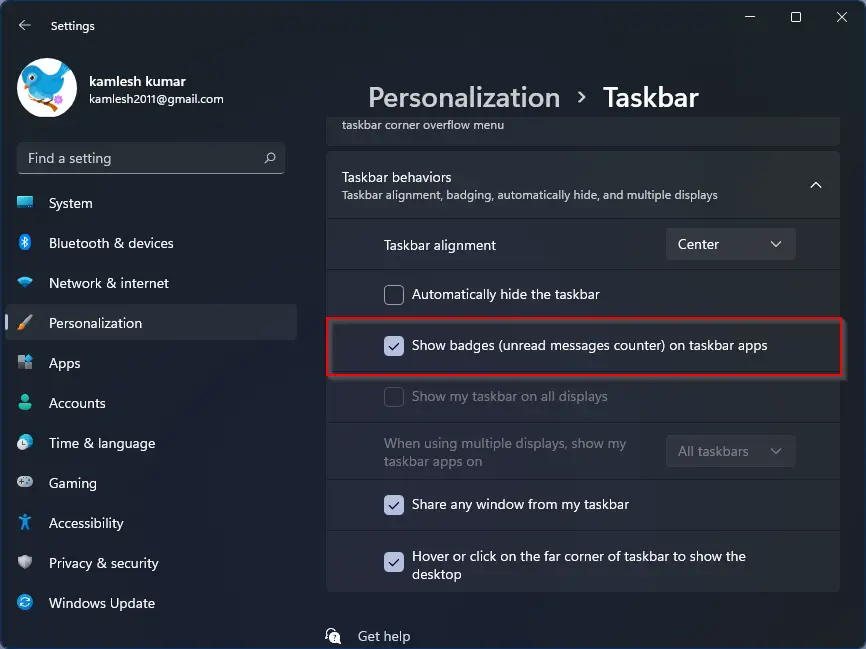
Check our full guide here: How to show or hide notification badges on taskbar icons in Windows 11.
Remove Unwanted Icons from the System Tray
Some apps add icons to your tray automatically at startup. If you find too many icons appearing, you can stop them from launching automatically.
Step 1. Press Ctrl + Shift + Esc to open Task Manager.
Step 2. Go to the Startup apps tab.
Step 3. Right-click the app and select Disable.
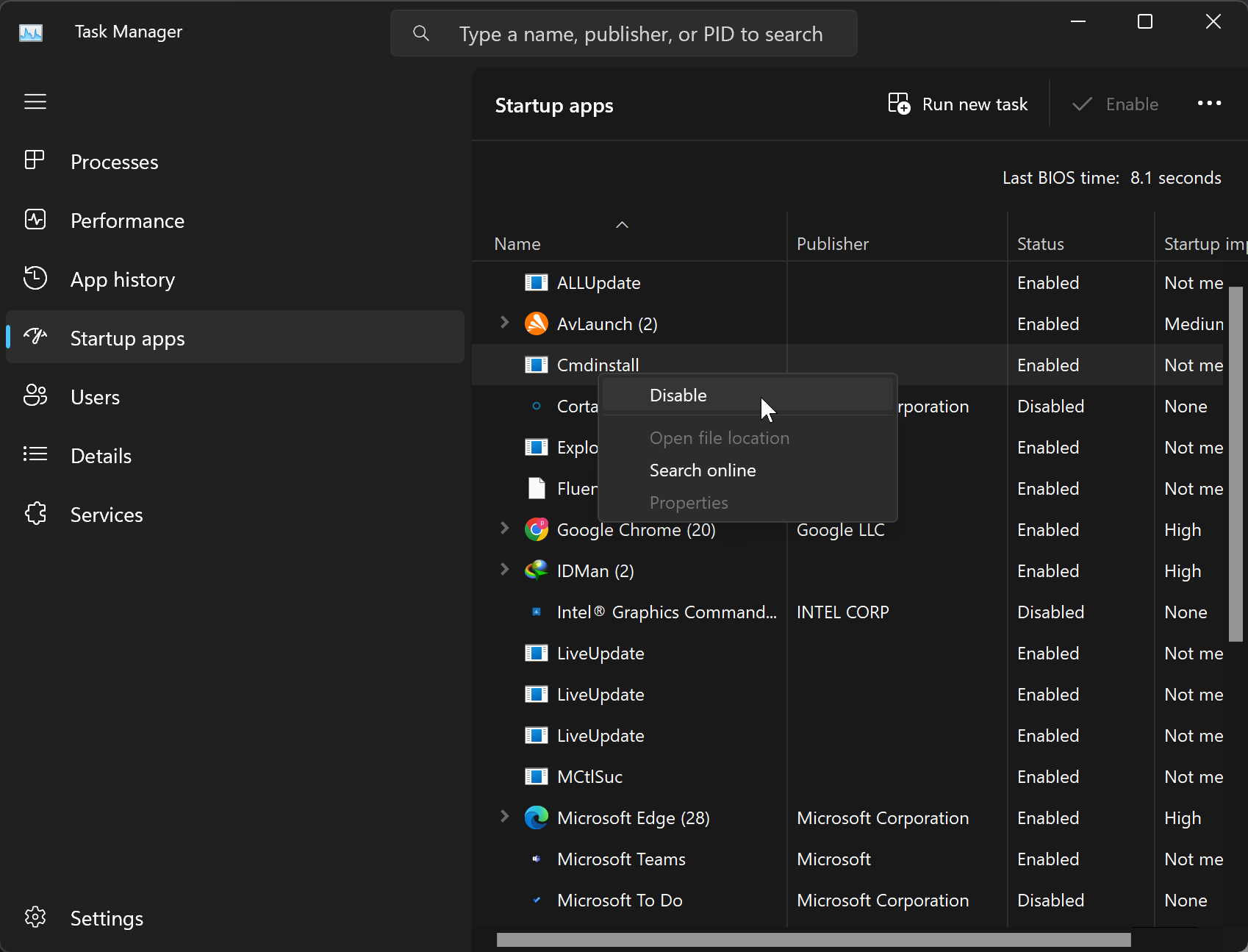
This prevents that app’s icon from appearing in the tray after reboot.
Check our full guide here: How to Enable or Disable Startup Programs in Windows 11.
Customize Taskbar and Tray Appearance
You can take customization further by changing the taskbar’s color, size, or even hiding certain items. Windows 11 offers several personalization options under Settings.
Related guides to help you enhance your Windows 11 taskbar:
- How to change the taskbar color on Windows 11
- How to resize the taskbar on Windows 11
- How to enable or disable Show Desktop on the taskbar in Windows 11
Hide Microsoft Teams Chat or Other Icons
Windows 11 includes the Teams Chat icon by default, which some users may not need. You can remove it easily from the system tray area:
Step 1. Open Taskbar settings.
To do that, right-click on the free space on the Taskbar and select “Taskbar settings.”
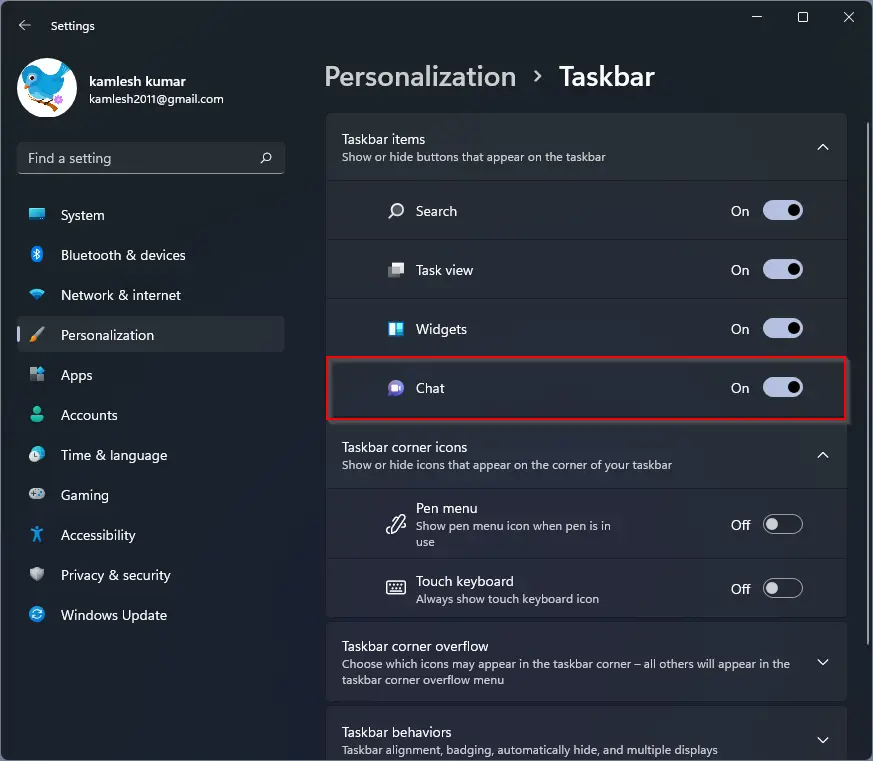
Step 2. Under Taskbar items, turn off the toggle for Chat.
Learn more: How to turn off or disable the Microsoft Teams Chat app in Windows 11.
Tips for Better System Tray Management
– Keep only frequently used icons visible for a clean and distraction-free look.
– Disable unused background apps to speed up boot time.
– Rearrange icons in order of importance for quicker access.
– Combine tray icon tweaks with other appearance settings for a unified look.
FAQs
Can I change the order of system tray icons?
Yes, you can click and drag icons to rearrange them on the taskbar or in the overflow menu.
Why are some tray icons missing in Windows 11?
Windows may hide icons automatically to reduce clutter. You can make them visible from Taskbar settings → Other system tray icons.
Can I hide the system tray completely?
No, the system tray is a core part of the Windows 11 taskbar. However, you can hide most icons and minimize their footprint.
How do I show all system tray icons permanently?
Toggle on all apps in Taskbar Corner Overflow to keep their icons always visible on the taskbar.
Conclusion
Customizing the system tray icons on Windows 11 not only keeps your desktop clean but also makes essential tools instantly accessible. Whether you want a minimalist layout or full access to background apps, these simple tweaks give you control over your workspace aesthetics and productivity.
Also, check out: How to enable or disable Windows startup sound in Windows 11 and 10 to further personalize your experience.