

USB drives are notorious carriers of viruses and malware, posing a significant threat to your PC’s security when connected. With the Windows OS Autorun feature, malware can easily infect your computer every time you plug in a USB drive. While most of us install antivirus software on our Windows PC, we often overlook the need for USB drive security.
Ordinary antivirus programs may not suffice to protect your PC from malware spread via USB drives. This is why you need dedicated USB security software that provides an added layer of protection against USB-borne viruses and malware.
Apart from protecting your PC against USB-borne viruses, USB disk security tools offer several other features. If you are concerned about your PC’s security, it is essential to install USB security software in addition to your regular antivirus.
In this gearupwindows article, we’ll explore some of the top free USB security software and antivirus programs that can safeguard your Windows PC against potential threats.
Free USB security software and antivirus tools
Several USB security tools are available online that can automatically scan USB drives upon connection and prevent malware from infecting your PC. We have compiled a list of the top applications for USB security:-
- Autorun Deleter
- Windows USB Blocker
- BitDefender USB Immunizer
- Panda USB Vaccine
- KASHU USB Flash Security
- USB Disabler
- Phrozen Safe USB
- USB Disk Security
- Nomesoft USB Guard
- URC Access Modes
- Yamira USB Drive Protection
Autorun Deleter
Autorun Deleter is a free USB security software that disinfects and deletes the Autorun.inf virus. Autorun.inf virus keeps coming back after deleting it manually; hence, you need a special program to disinfect it. Autorun Deleter is a portable app, and no installation is required.
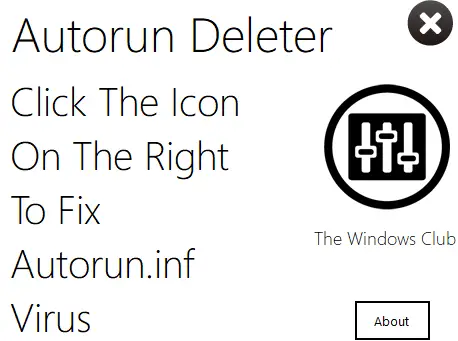
Before connecting a USB drive to the PC, run this portable tool. This freeware tool will delete the infected file and change the Windows registry to ensure that it does not appear again.
Just run the Autorun Deleter program, connect the USB drive to the PC, and click the big icon to delete the autorun.inf virus. Once the software deletes the autorun.inf file, you will be informed that “You are done.” To exit the application, click the “x” button.
Windows USB Blocker
Windows USB Blocker is actually not an antivirus tool, but it protects you in other ways. It is a simple USB security software that allows you to block and unblock your USB port access. Blocking and unblocking storage devices on any Windows system can now be done very easily and effectively with a Windows USB Blocker.
Once you have downloaded and installed the Windows USB Blocker, after running this tool, if the USB port is unlocked, it will show UNBLOCKED.
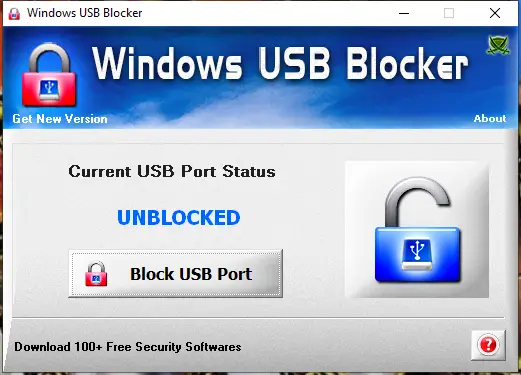
To block all available USB ports on your Windows 11/10 PC, click the Block USB Port button. It will instantly block access to all USB ports.
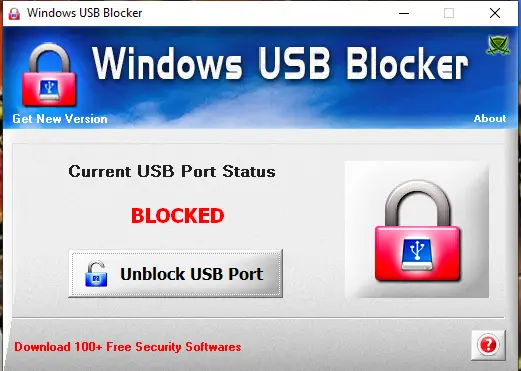
After blocking with a single mouse click, you can protect your PC from unauthorized data access using the USB drive. It is compatible with Windows XP, 2003, Vista, 7, 8, 10, and 11.
BitDefender USB Immunizer
BitDefender USB Immunizer is another freeware tool to immunize both the SD card and the USB storage devices against unwanted crapware. The tool prevents malware from running its autorun.inf file on your PC. However, there is an option to turn the autorun feature on or off according to your requirement. One should remember that if you accidentally use any infected USB drive without immunizing, it may infect your PC.
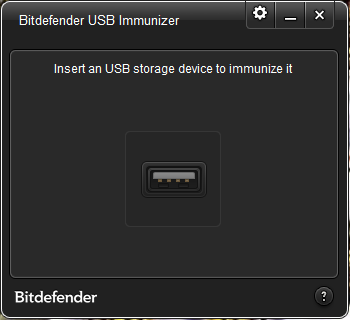
BitDefender USB Immunizer is a free utility compatible with Windows XP, Vista, 7, 8, 10, and 11.
Panda USB Vaccine
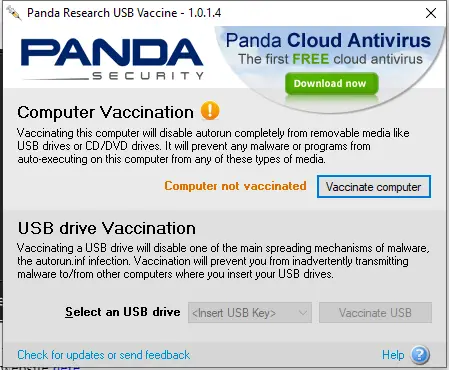
As the name suggests, Panda USB Vaccine also prevents malware infections on your computer systems. It is different from the other tools as it offers two types of vaccinations: USB Drive Vaccination and Computer Vaccination. It helps you to disable the autorun feature completely on Windows PCs so that no malware can enter through the infected USB storage devices.
KASHU USB Flash Security
KASHU USB Flash Security is a free tool that helps you to password-protect your USB device. The tool encrypts all your stored data in the device using AES 256-bit encryption. Before you encrypt your device, make sure to take your data backup to perform formatting of the USB drive.
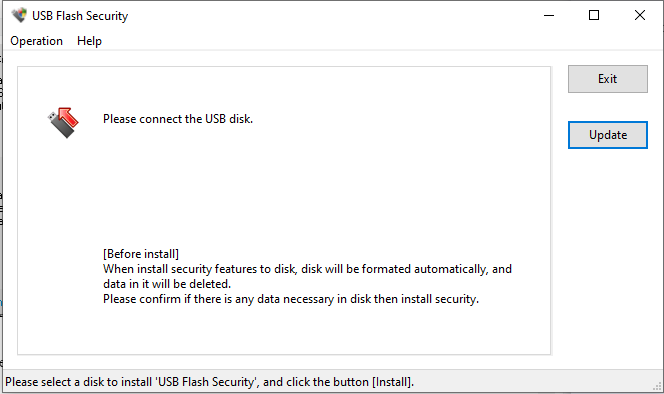
One should note that the free version has limited support for up to 32GB of USB devices only.
USB Disabler
USB Disabler is a small but powerful program to enable or disable USB storage access on your Windows computer or laptop. This program comes with a straightforward interface that allows you to perform the following actions:-
- It can disable any USB storage / PenDrive access to your laptop or pc.
- You can set Read-Only mode to USB storage / Pendrive, which means nobody can copy your personal documents to their removable storage.
- You can reset everything back to Normal, so your own USB Storage / Pendrive will be functioning as usual.
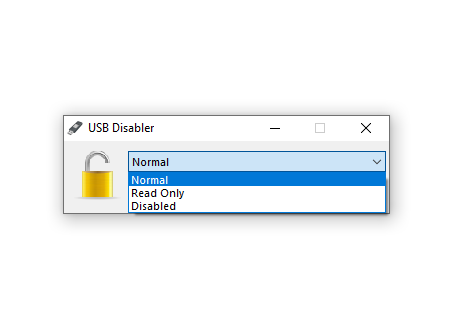
It is compatible with Windows 11, 10, 8, 7, Vista, and XP.
Phrozen Safe USB
Phrozen Safe USB features a similar function to above mentioned tool, USB Disabler. This tool offers three different ways to handle USB drives:-
- USB Devices Activated – In this mode, the USB port is open for all kinds of usage.
- USB Devices Read Only – In this mode, the user can only read the USB device’s contents but cannot modify, copy, or delete its contents.
- USB Devices Disabled – In this mode, the USB device is disabled completely and won’t even be detected on your Windows PC. You can opt first or second option according to your need to read or write on the USB drive.
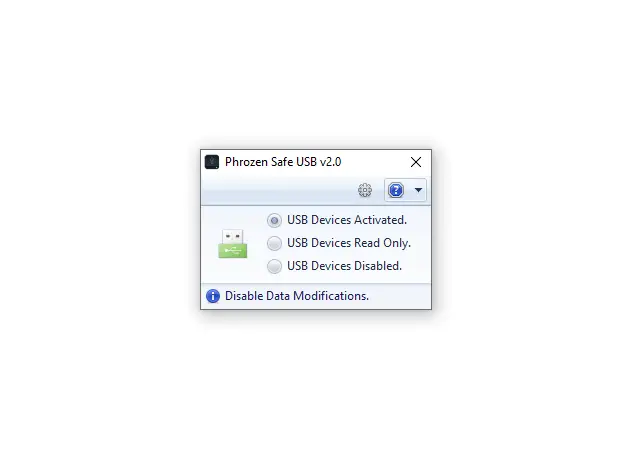
Phrozen Safe USB is compatible with Windows XP, Vista, 7, 8, 10, and 11.
USB Disk Security
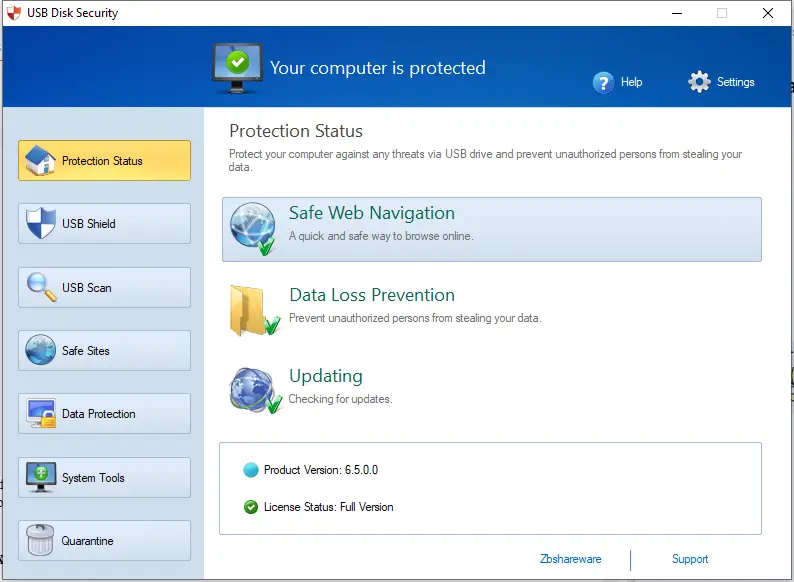
USB Disk Security is a free software that features USB Shield, which monitors your computer for any unwanted programs like a virus, USB Scan, etc. It scans your USB device as and when plugged into the PC. This free utility even password protects the device, which encrypts the data stored in the device. It also prevents Safe Web Navigation and Data Loss Prevention from your USB device.
Yamira USB Drive Protection
Yamira USB Drive Protection is a lightweight, portable tool from Türkay Software that shields USB drives from malware, unauthorized changes, and file corruption. It works instantly when a device is connected and is designed to keep your PC fast while protecting portable storage.
- USB Storage Protection: Blocks malicious changes to files on your drive.
- Advanced Device Support: Works with USB 2.0/3.x/4.0 and Thunderbolt drives.
- NTFS Conversion: Quickly convert drives to NTFS for better security.
- Multi-Architecture: Builds for x64 and ARM64 (Intel/AMD and Apple Silicon via Windows on ARM).
- Portable & Easy: No installation—just extract and run.

Nomesoft USB Guard
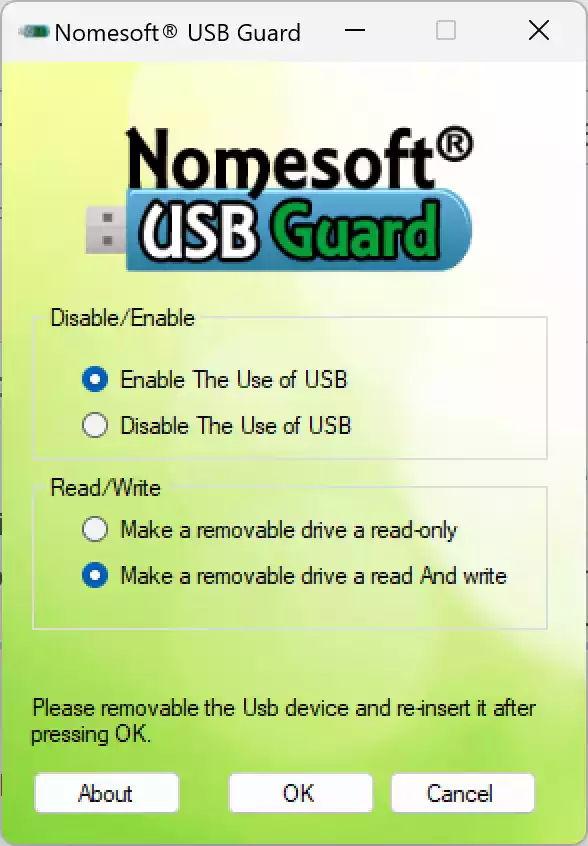
Nomesoft USB Guard focuses on stopping unauthorized USB access on Windows PCs. Acting as a gatekeeper, it gives you control over which USB devices can connect and how they can be used.
- Blocking Mode: Enable/disable USB access with a click to prevent unauthorized devices.
- Read-Only Mode: Allow viewing files on connected drives without permitting copies or changes.
- Lightweight & Simple: Minimal resource use with an interface that’s easy for anyone to operate.
URC Access Modes
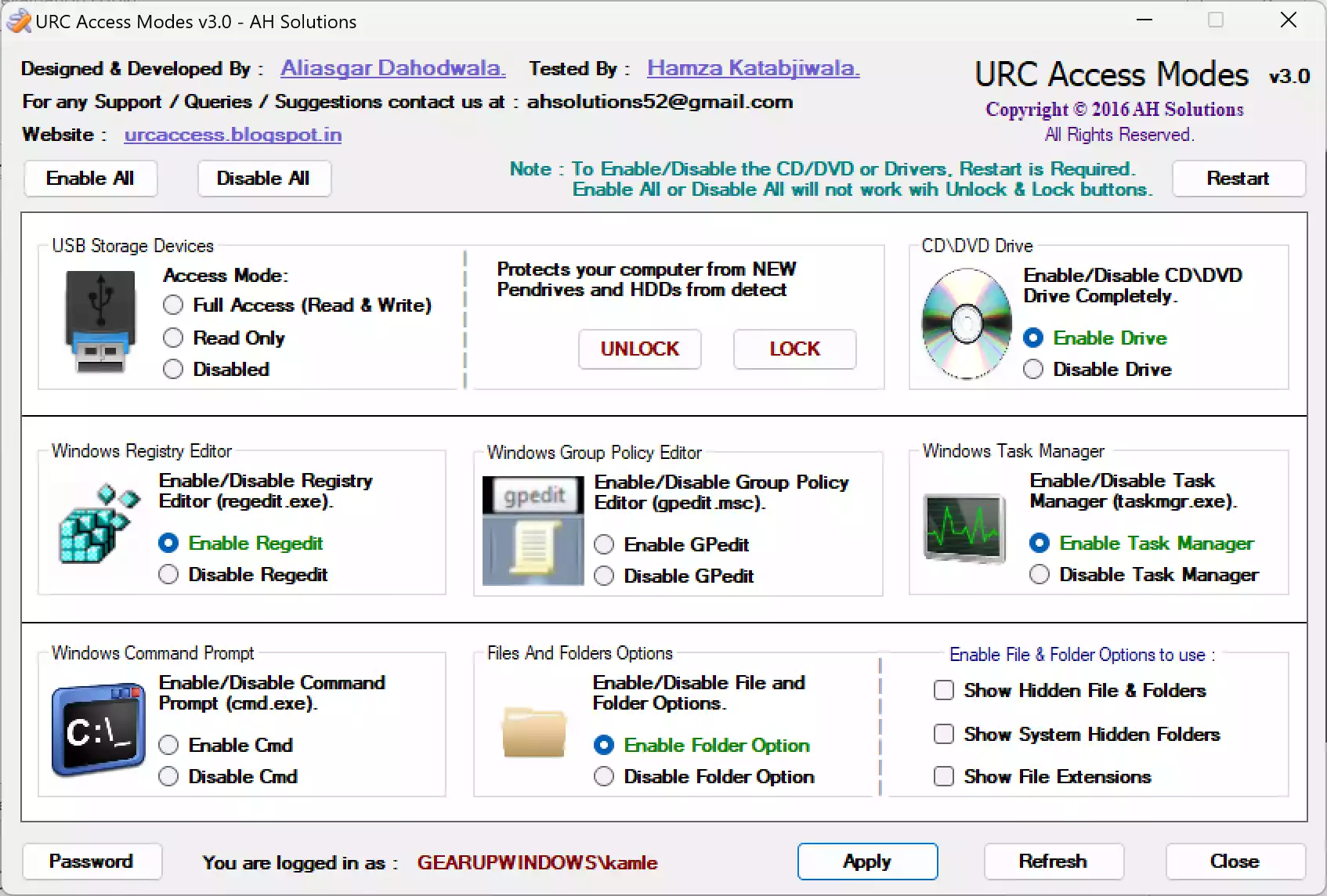
URC Access Modes is a portable security toolkit that locks down risky Windows features and removable media. It’s useful for preventing data theft and unwanted system tweaks on shared or office PCs.
- USB & CD/DVD Control: Disable USB storage while keeping keyboard/mouse working; restrict optical drives.
- System Hardening: Block access to Command Prompt, Registry Editor, Task Manager, and more.
- Privacy Tools: Hide files/folders and password-protect settings to avoid tampering.
- Wide Compatibility: Works with Windows XP through Windows 11, 32-bit and 64-bit.
Conclusion
USB drives remain one of the most common ways for viruses, malware, and other security threats to enter a computer. While a standard antivirus program offers general protection, it may not be enough to defend against USB-borne attacks. That’s where dedicated USB security tools come in — they add an extra layer of defense, ensuring that your files and system stay safe even when using multiple external drives.
The tools covered in this article — including Autorun Deleter, Windows USB Blocker, BitDefender USB Immunizer, Panda USB Vaccine, KASHU USB Flash Security, USB Disabler, Phrozen Safe USB, USB Disk Security, Yamira USB Drive Protection, Nomesoft USB Guard, and URC Access Modes — each bring unique features such as autorun virus removal, port blocking, read-only modes, password protection, drive immunization, and system hardening. Many of them are lightweight, portable, and completely free to use.
By combining a trusted antivirus with one or more of these USB protection tools, you can significantly reduce the risk of malware infections, unauthorized data access, and accidental data loss. Whether you’re safeguarding a personal laptop or securing work computers, these free solutions make USB usage far safer on Windows PCs.
Update: If you are using Windows 11 or want a more complete guide that covers both write protection and malware prevention, see our roundup of the best free USB security tools for Windows 11/10.
aa
I just try USB Disk Security. I hope I got no virus