

Are you in need of a reliable software to back up and restore drivers on your Windows PC? Look no further than DriverBackup! This user-friendly utility is not only portable but also offers a range of features such as restoration, backup, removal, command-line options, automatic restoration from CD/DVD, and path formatting. It even includes an interactive command-line builder, making it easier to use. Don’t leave your PC’s drivers to chance – download DriverBackup today!
If you’d like alternatives or a second safety net, you can also back up and restore drivers with Double Driver, or use Microsoft’s built-in method to export/import drivers on Windows 11. And if your goal is to update outdated drivers, try Snappy Driver Installer (offline packs) or Driver Easy; vendor tools like Intel Driver & Support Assistant and AMD Driver Autodetect are safe picks too.
What is DriverBackup?
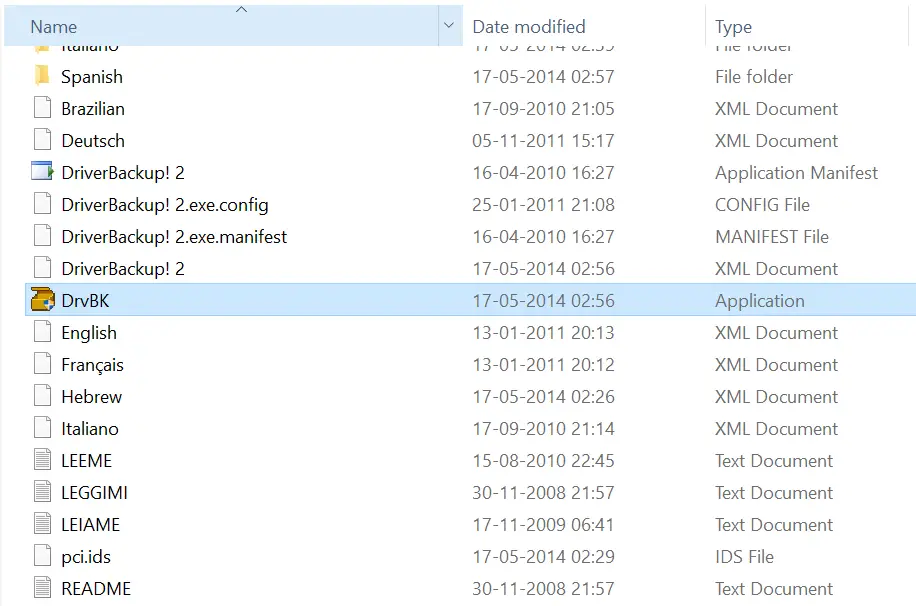
DriverBackup is a portable and free utility compatible with Windows 11/10. It is a convenient tool to retrieve the OS drivers if you have lost your driver’s CD. To start using DriverBackup software, simply download and unzip it in a folder and double-click on the “DrvBK” file to launch the DriverBackup app.
Once launched, you will be able to see all the drivers, including third-party drivers, in a discreet view. This allows you to choose which drivers to back up and which to skip. You can even filter and perform a selective backup of only third-party or only OEM drivers. During backup, DriverBackup allows you to choose Full Portability, offering devices that are entirely compatible with backup and restore, or the Digital Signature option if you want to back up drivers with a digital signature.
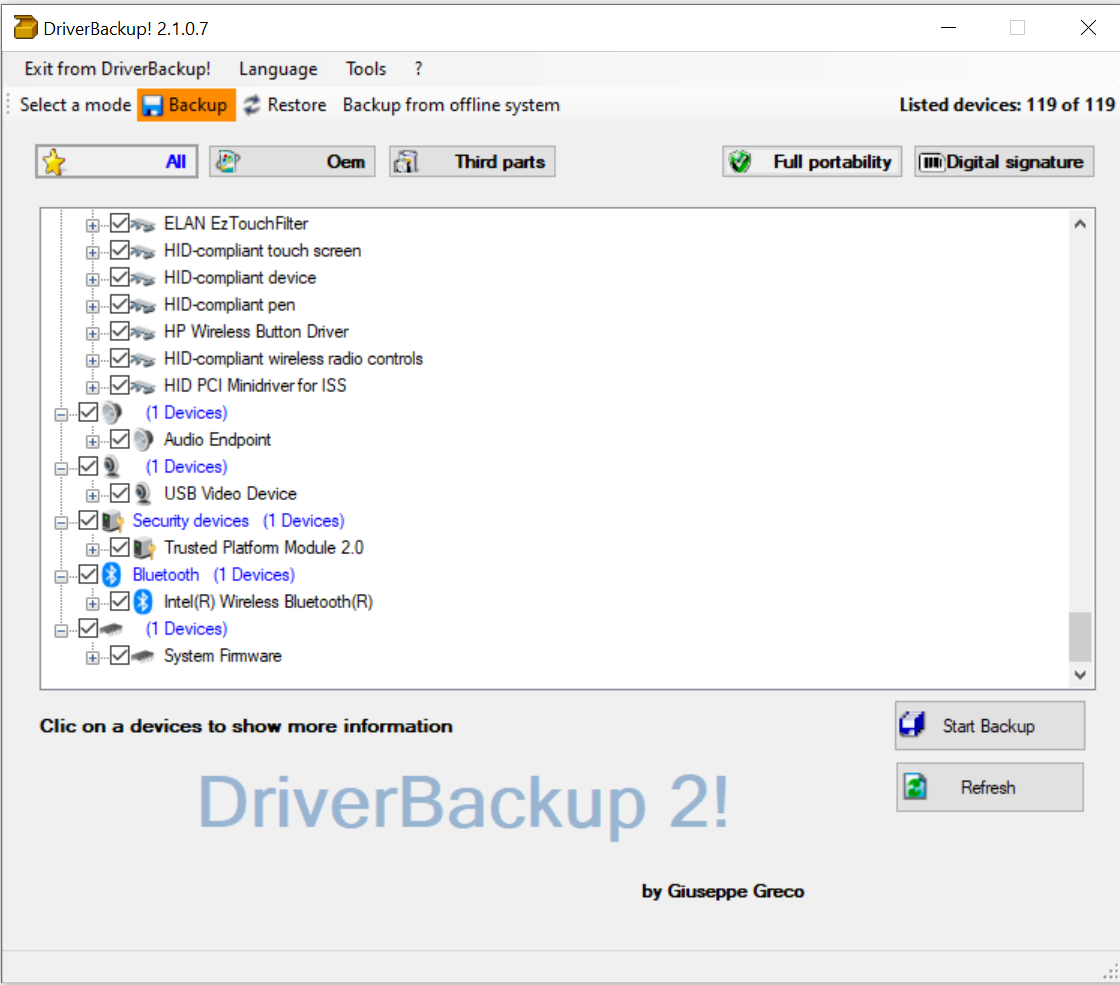
Once you have decided which drivers to back up, simply click the “Start Backup” button.
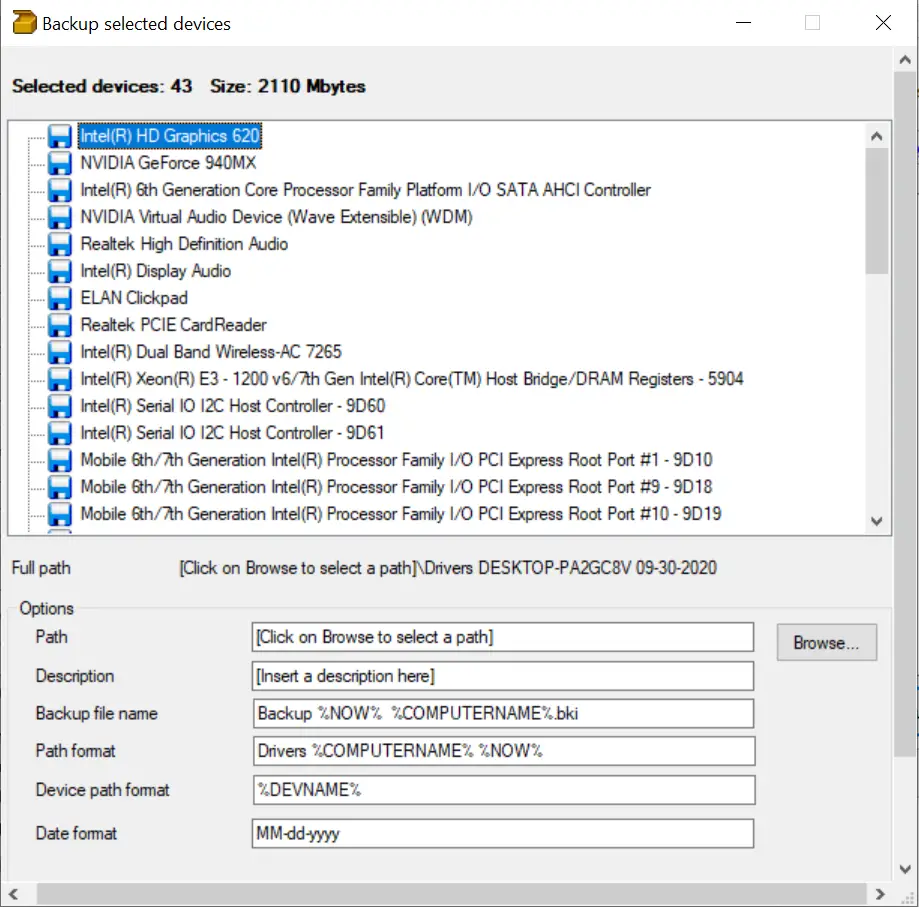
This will allow you to choose the backup path, add a description, name the backup file, and select the date format. You will also have two backup options: the ability to allow DriverBackup to overwrite files in the destination path if required, and the option to generate a file for automatic drivers’ restoration.
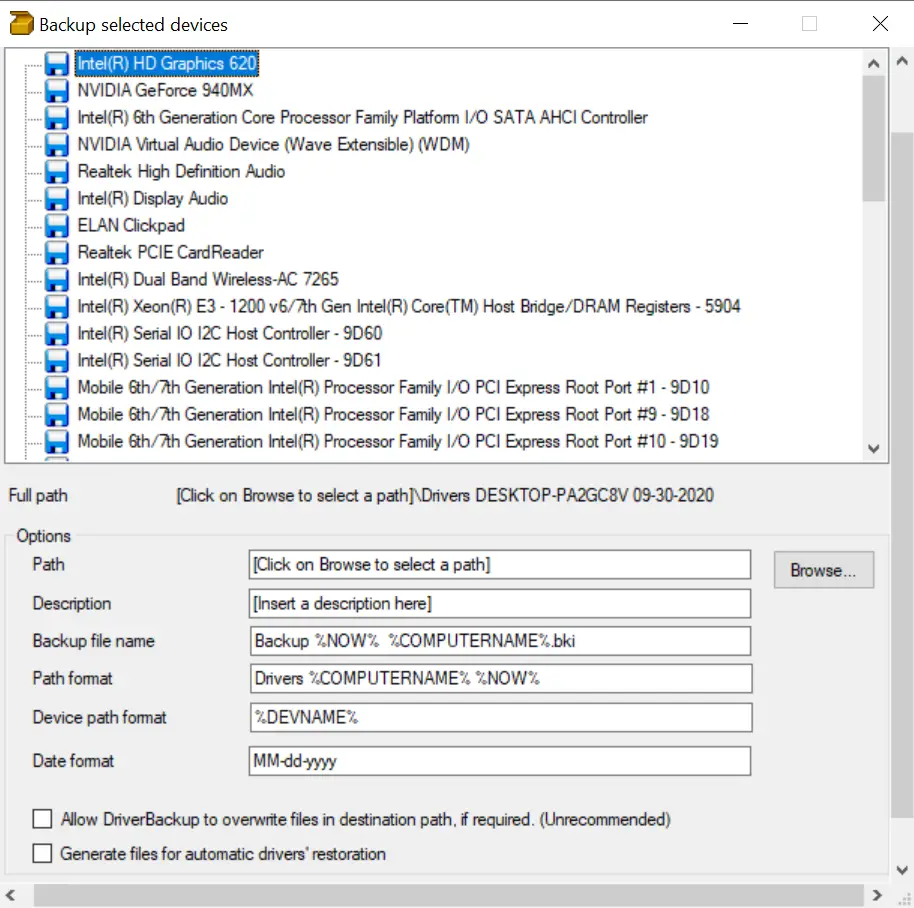
DriverBackup is compatible with 64-bit systems and even provides backup and restoration of third-party devices. It also allows for drivers’ backup from offline or non-booting systems, making it convenient if you lose the driver’s disk and have no idea about the hardware. Additionally, DriverBackup generates executable files for automatic drivers’ restoration, which include a batch file “Restore.bat” and “Autorun.inf” that enable autorun in removable devices. This is an advantageous option for creating a DVD or an Autorun USB drive to install the software on the PC.
Download DriverBackup
You can download the DriverBackup software from SourceForge.net. Ensure the safety of your PC’s drivers, and download DriverBackup today.
Conclusion
In conclusion, DriverBackup is an excellent utility tool for anyone in need of a reliable software to back up and restore drivers on their Windows PC. With its user-friendly interface, portability, and range of features, such as restoration, backup, removal, command-line options, automatic restoration from CD/DVD, and path formatting, it is the go-to tool for safeguarding your drivers. It even includes an interactive command-line builder, making it easier to use. Additionally, DriverBackup provides backup and restoration of third-party devices, backup from offline or non-booting systems, and generates executable files for automatic driver restoration. So, don’t leave your PC’s drivers to chance—download DriverBackup from SourceForge.net today and safeguard them with ease.
Want Free Driver Updaters?
Once your backup is safe, you may also want to refresh outdated drivers. We’ve hand-picked several good options here: 10 Best Free Driver Update Software for Windows 11 and 10. Quick picks you can try now: Snappy Driver Installer (offline), Driver Easy (simple UI), WinZip Driver Updater, Intel Driver & Support Assistant, and AMD Driver Autodetect.
Frequently Asked Questions About DriverBackup
Why should I back up my drivers?
Backing up drivers ensures you can quickly restore them after a system crash, reinstall, or upgrade without searching for them online.
Can DriverBackup restore drivers to a different PC?
Yes, but it works best when restoring to a system with similar hardware to avoid compatibility issues.
Is DriverBackup safe to use?
Yes, DriverBackup is a reputable freeware tool, and downloading it from SourceForge.net ensures you get the official, safe version.
Does DriverBackup work on Windows 11?
Yes, DriverBackup is fully compatible with Windows 11 as well as older versions like Windows 10, 8.1, 8, and 7.