

If you want to burn a bootable ISO image to a USB flash drive, plenty of tools are available on the internet. You can choose from one of the following popular freeware tools that will help you to burn an ISO on a USB flash drive:-
- EasyBCD
- AnyBurn
- WinUSB Maker
- Rufus
- Windows USB/DVD Download Tool
- ISO2Disc
- WinToHDD
- Using Command Prompt
The freeware mentioned above lets you create a bootable USB flash drive, but none of them support creating a bootable SD card; in other words, none of them lets you burn an ISO on an SD card. Etcher is a freeware tool that allows you to burn ISO images on an SD Card and USB flash drive.
If you are searching for a tool to burn ISO on an SD card for any reason, Etcher is an appealing option. It is an open-source tool for Windows computers; it’s straightforward and easy to use. Etcher supports ISO, BZ2, DMG, DSK, ETCH, GZ, HDDIMG, IMG, RAW, XZ, and ZIP. That means you can burn ISO, BZ2, DMG, DSK, ETCH, GZ, HDDIMG, IMG, RAW, XZ, and ZIP files directly to your SD Card or to a USB Flash Drive.
Features of Etcher
- It validates before writing images on SD cards & USB Flash drives.
- Easy to use
- Simple Interface
- 50% faster flashes
- Simultaneous writing for multiple drives
- Supports Windows 7/8/10 (both 32-bit and 64-bit)
- Supports macOS
- Supports Linux (32-bit and 64-bit)
- Supports ISO, BZ2, DMG, DSK, ETCH, GZ, HDDIMG, IMG, RAW, XZ, and ZIP file formats.
- Can download a bootable ISO from the specified URL.
Burning ISO images to SD Cards & USB Flash Drive
To burn an ISO image to SD Cards or USB Flash Drive, do the following:-
Step 1. Run the Etcher tool.
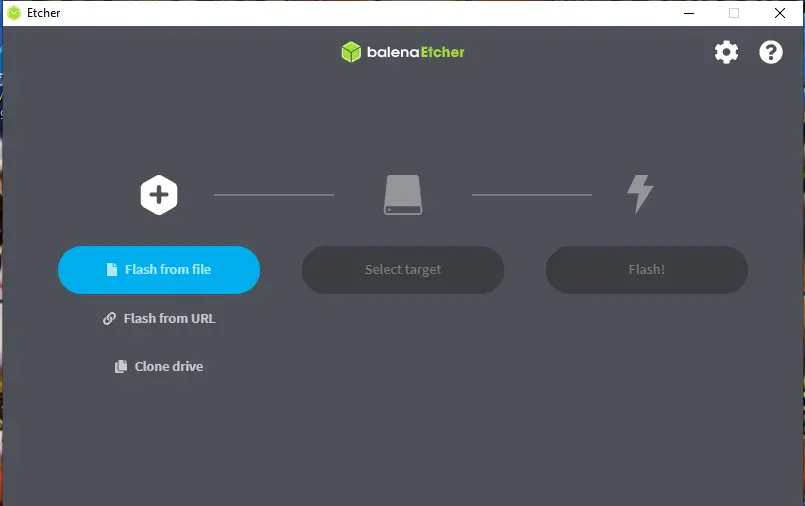
Step 2. Click on the Flash from file to select a bootable ISO file from your PC.
Step 3. Now, connect your USB flash drive or SD card to your PC and click on the Select Target option.
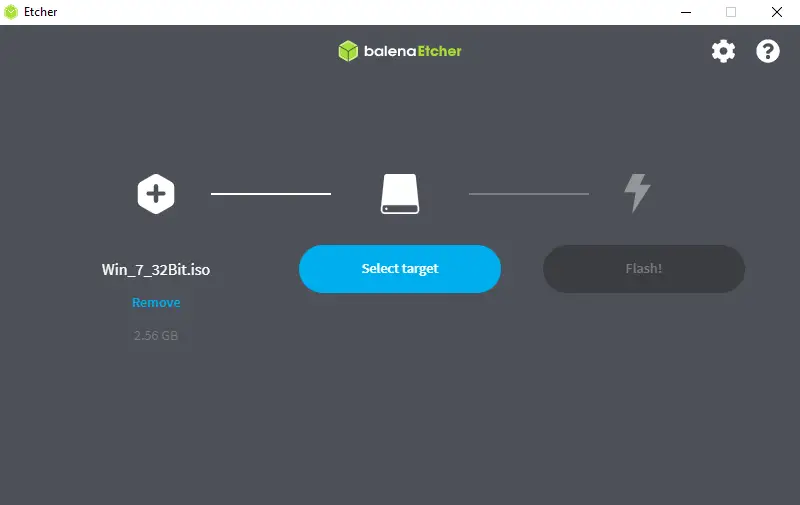 Step 4. Finally, click on the Flash option to start copying bootable ISO content to your USB flash drive or SD card.
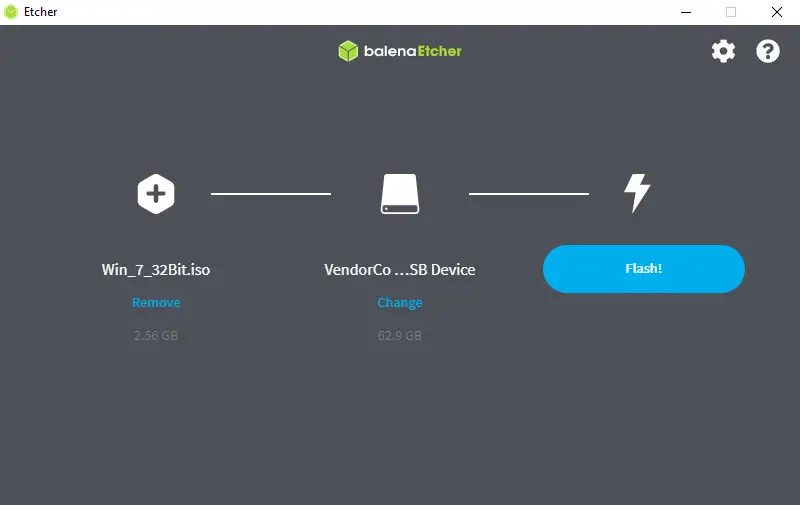 Depending upon the size of the ISO file and the speed of your external drive, it may take a few minutes to complete the copying process.
Once you have created a bootable USB flash drive, you can test it without installing it on your computer or laptop.
Download Etcher
You can download it from here.
Pros & Considerations
- Pros: Simple interface, cross-platform (Windows/macOS/Linux), validates images before writing, supports many image formats, and can flash multiple drives simultaneously.
- Considerations: Requires admin rights to write to drives; large ISOs may take several minutes depending on drive speed; does not create multi-boot USBs natively (use Rufus or other tools for advanced options).
- Best for: Beginners who want a quick, reliable way to flash ISO/IMG files to USB sticks or SD cards.
Frequently Asked Questions
What file formats does Etcher support?
Etcher supports a wide range of image formats, including ISO, IMG, ZIP, DMG, RAW, GZ, XZ, BZ2, HDDIMG, and more, making it suitable for most bootable images.
Can Etcher flash to SD cards as well as USB drives?
Yes. Etcher can write images to both USB flash drives and SD cards, which makes it especially useful for creating bootable media for devices like Raspberry Pi.
Does Etcher validate the image after writing?
Yes. Etcher performs validation to verify that the image was written correctly, reducing the risk of corrupted or unusable boot media.
Do I need to format the drive before using Etcher?
No. Etcher will overwrite the selected drive during flashing. Back up any important data before proceeding because the process will erase the contents of the target drive.
Can I flash multiple drives at once?
Yes. Etcher supports simultaneous writing to multiple drives if your system has multiple target devices connected.
What should I do if flashing fails or the target drive is not bootable?
If flashing fails, try a different USB port or a different USB/SD card, re-download the image to ensure it’s not corrupted, run Etcher with administrative privileges, or use a different flashing tool to rule out hardware issues.
Is Etcher free and safe to use?
Etcher (Balena Etcher) is open source and available for free. Download it from the official Balena website to ensure you get the legitimate installer.
Conclusion
In conclusion, burning a bootable ISO image on a USB flash drive or SD card is a useful process that can help you install operating systems or run live versions of different software applications. While there are various freeware tools available to burn ISO images on a USB flash drive, Etcher is the only tool that supports creating bootable SD cards. Etcher is a straightforward and easy-to-use open-source tool that supports multiple file formats and has various useful features, such as validation before writing images, simultaneous writing for multiple drives, and the ability to download bootable ISOs from specified URLs. With Etcher, burning ISO images to SD cards or USB flash drives is a simple process that can be completed within minutes.
Great guide! I found the step-by-step instructions very easy to follow. Etcher makes the process seamless. Thanks for sharing!