

MAC (Medium Access Control) address is also known as a physical address or hardware address. This number is uniquely formatted in hexadecimal and is assigned by the hardware manufacturer to network devices (such as Ethernet, Bluetooth, or wireless cards) on a computer network. These IDs are usually embedded into the firmware of the network access hardware. Due to this, some vendors use specific formats for the hardware address.
The MAC address is a 12-digit hexadecimal number embedded into the device’s network interface card by the manufacturer. No two devices can share the same physical address. These addresses are 48 bits long and consist of 12 characters (6 pairs), typically separated by colons or hyphens (e.g., 01:1C:C9:8C:01:87 or 01-1C-C9-8C-01-87).
There are several reasons why you might want to find your device’s MAC address. Since the MAC address is unique for each network device, it can help in locating stolen equipment or resolving network-related issues.
In this gearupwindows guide, we’ll show you several methods to find the MAC address on Windows 11 and 10 PCs. You can choose any method based on your preference.
How do I find MAC addresses using Command Prompt in Windows 11/10?
Command Prompt is one of the most reliable ways to find the MAC address on any Windows version, including Windows 11 and 10. It also shows all MAC addresses connected to your PC, including virtual LAN ports.
Step 1. Press the Windows + R keys on your keyboard to open the Run dialog box.
Step 2. Type the following command in the Run box and press Enter to open the Command Prompt:-
cmd
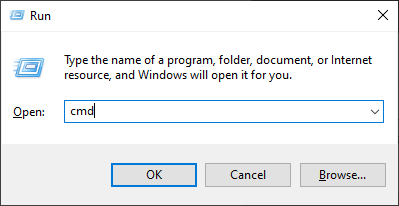
Step 3. In the prompt window, type the following command and press Enter:-
ipconfig /all
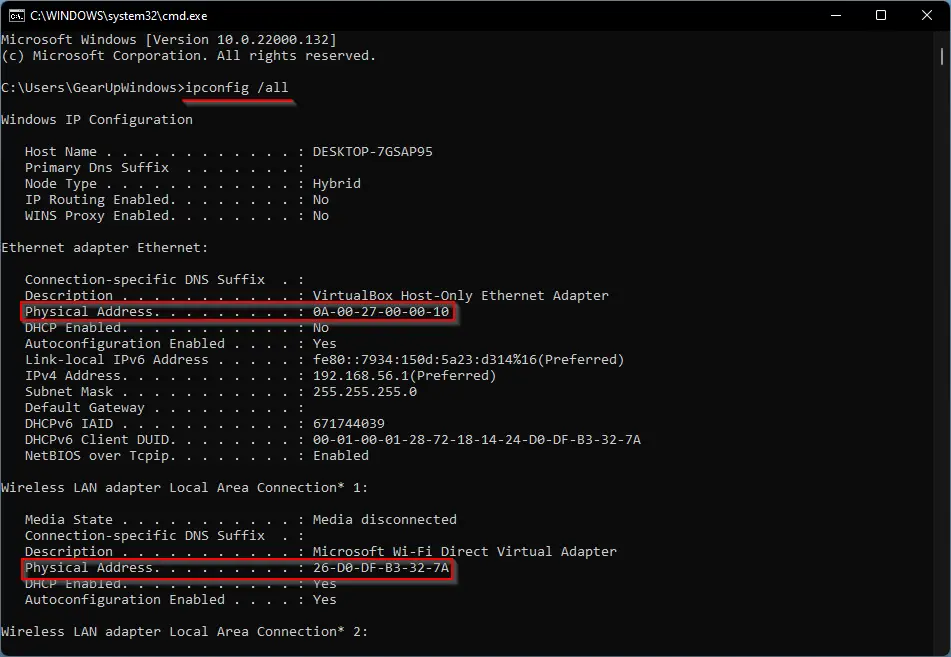
After running the above command, scroll down to locate the Physical Address for your network devices. This command displays a lot of details, including IP address and gateway. If you only want to view the MAC address, use the following command instead:
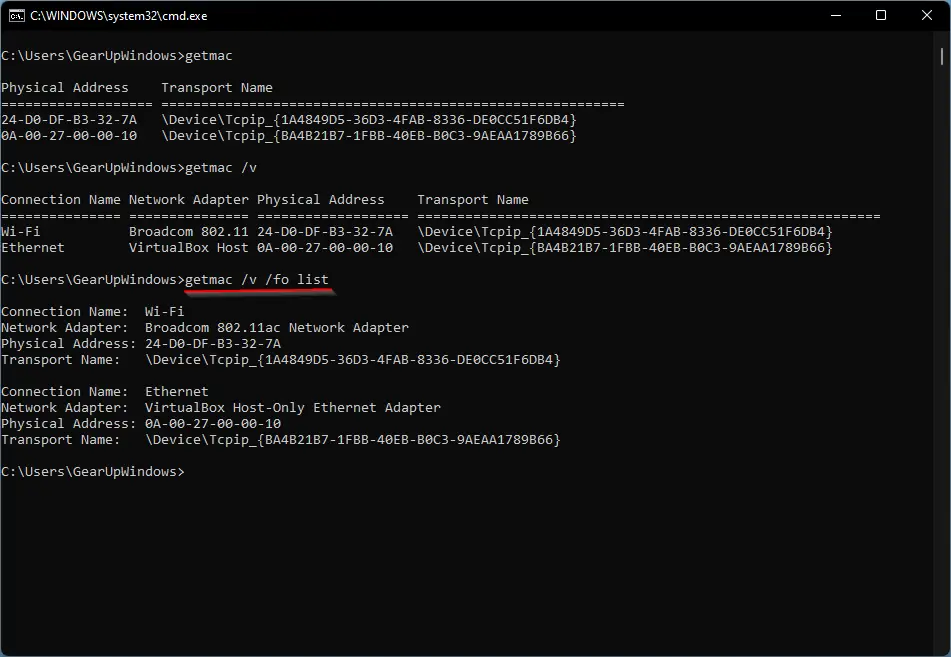
getmac
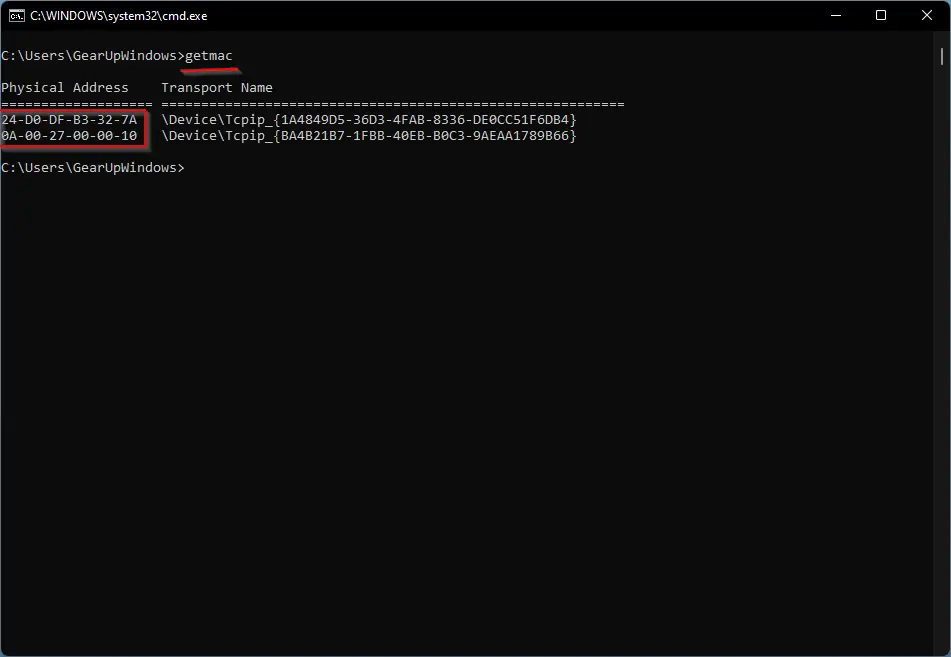
The getmac command shows only physical addresses and transport names. For a more descriptive output, run:
getmac /v
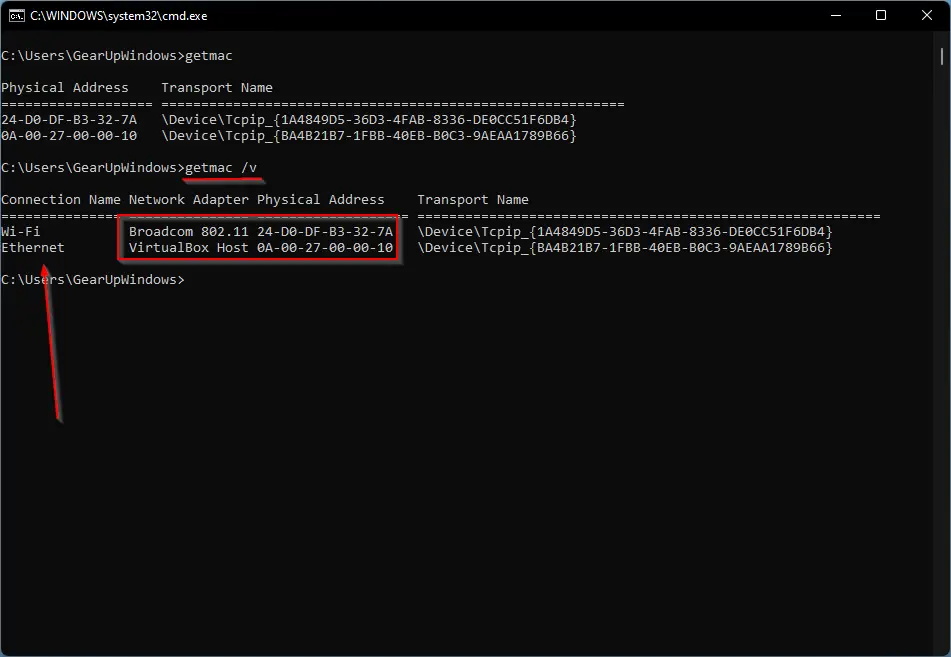
To view MAC addresses of only active adapters, use:
getmac /v /fo list
How to View MAC Address using Control Panel in Windows 11/10?
Step 1. First, open Control Panel.
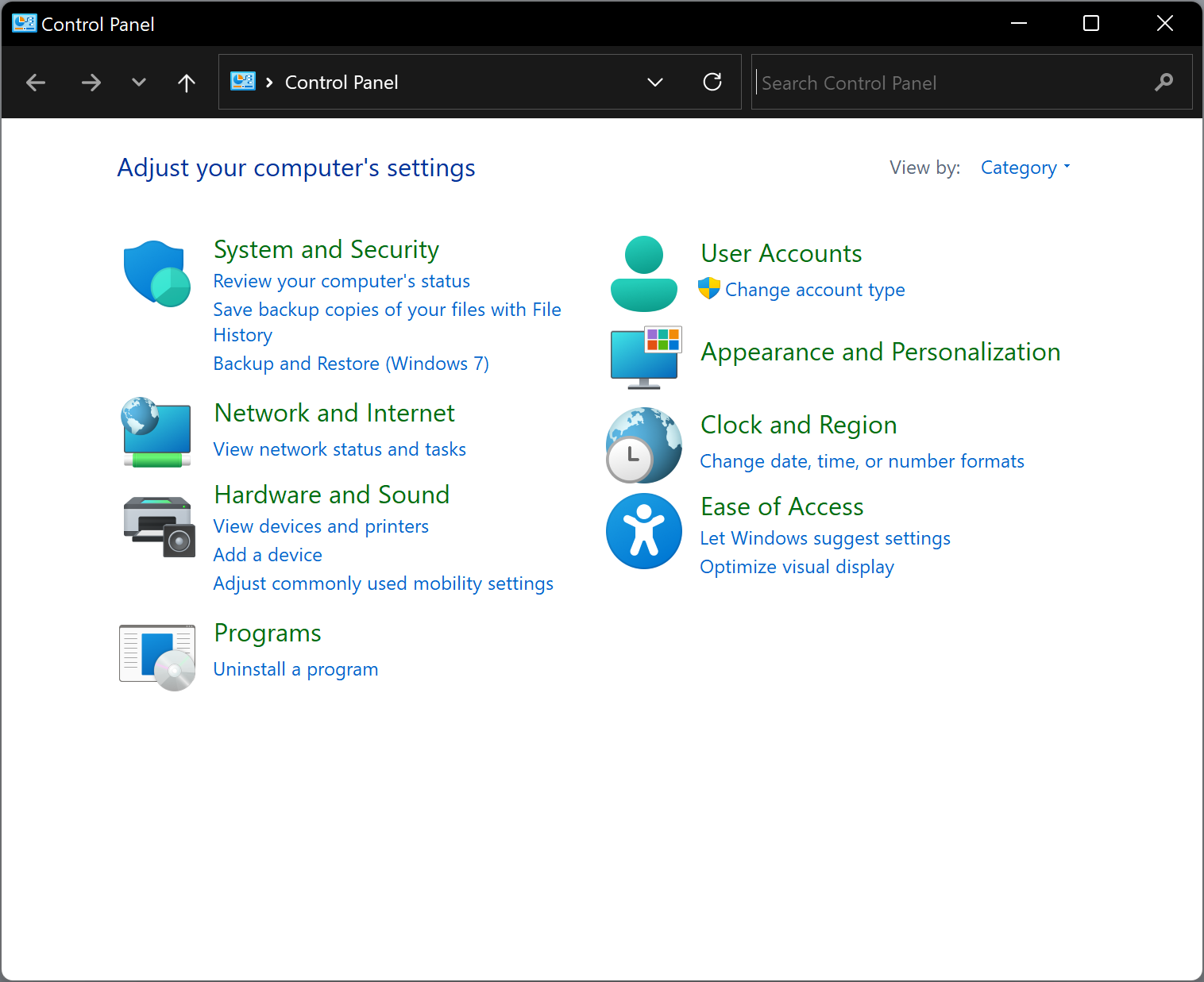
Step 2. Click on View network status and tasks.
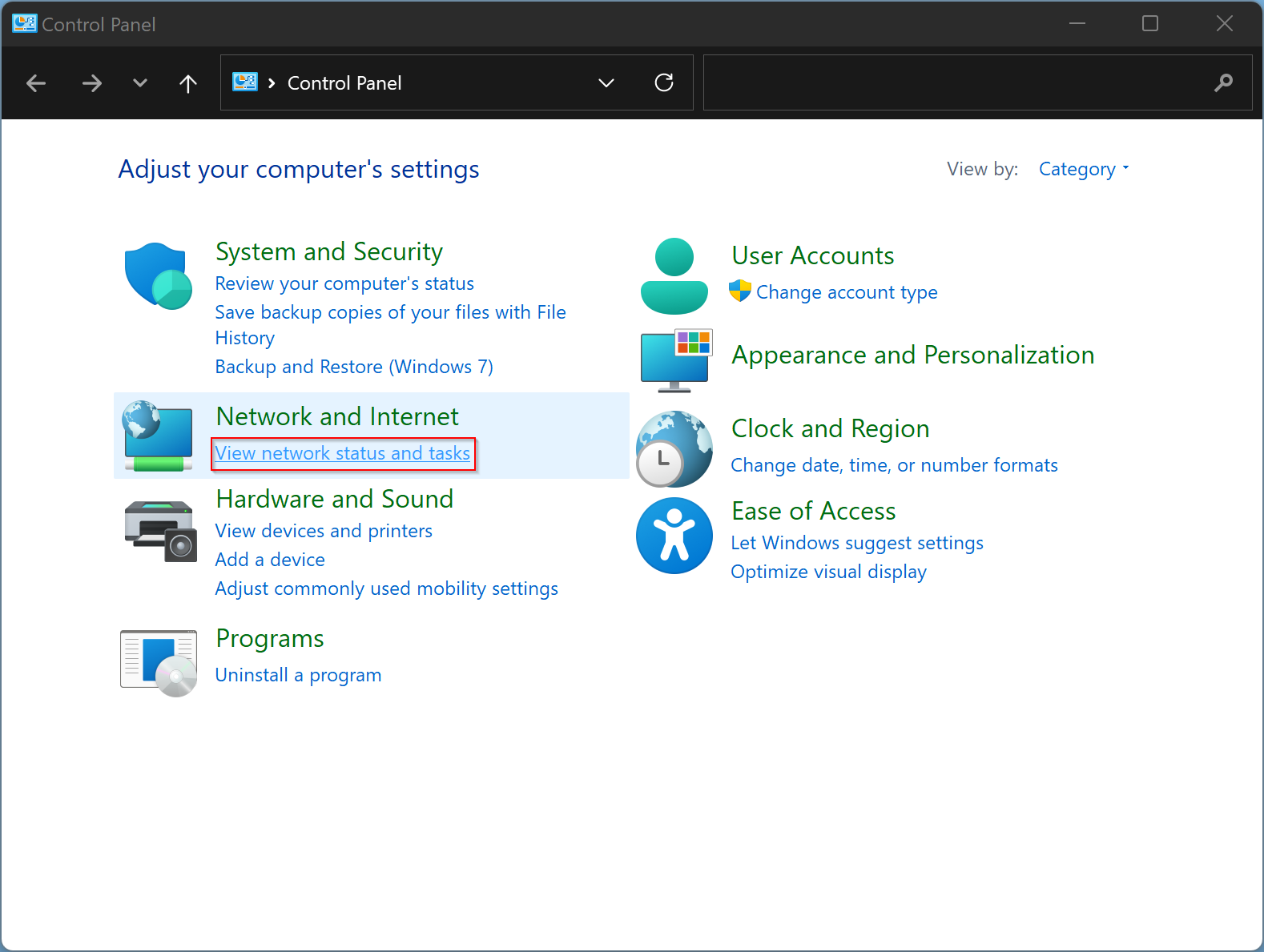
Step 3. Under the Network and Sharing Center, locate your active network and click on the link beside Connections.
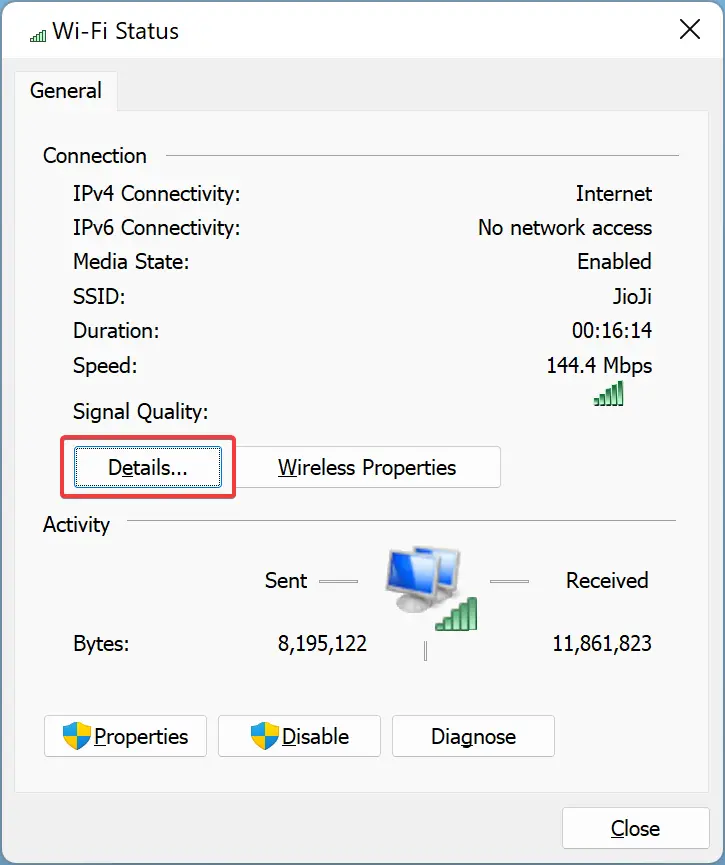
Step 4. In the connection status window (Wi-Fi or Ethernet), click the Details button.
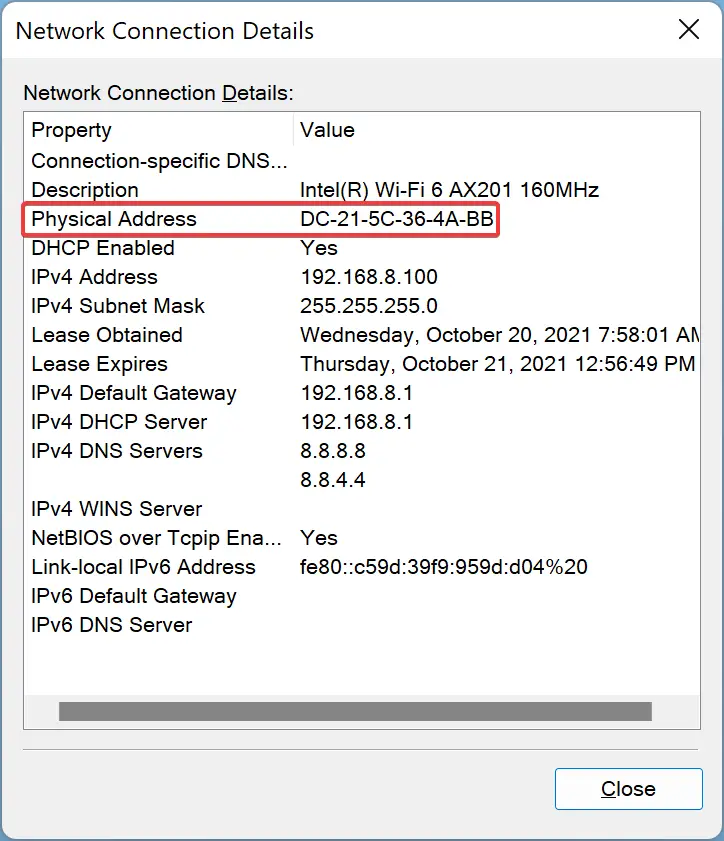
Step 5. In the pop-up Network Connection Details window, you’ll find the MAC address next to Physical Address.
How to Find the MAC Address on Windows 11 using the Settings app?
Step 1. First, open the Settings app by pressing Windows + I.
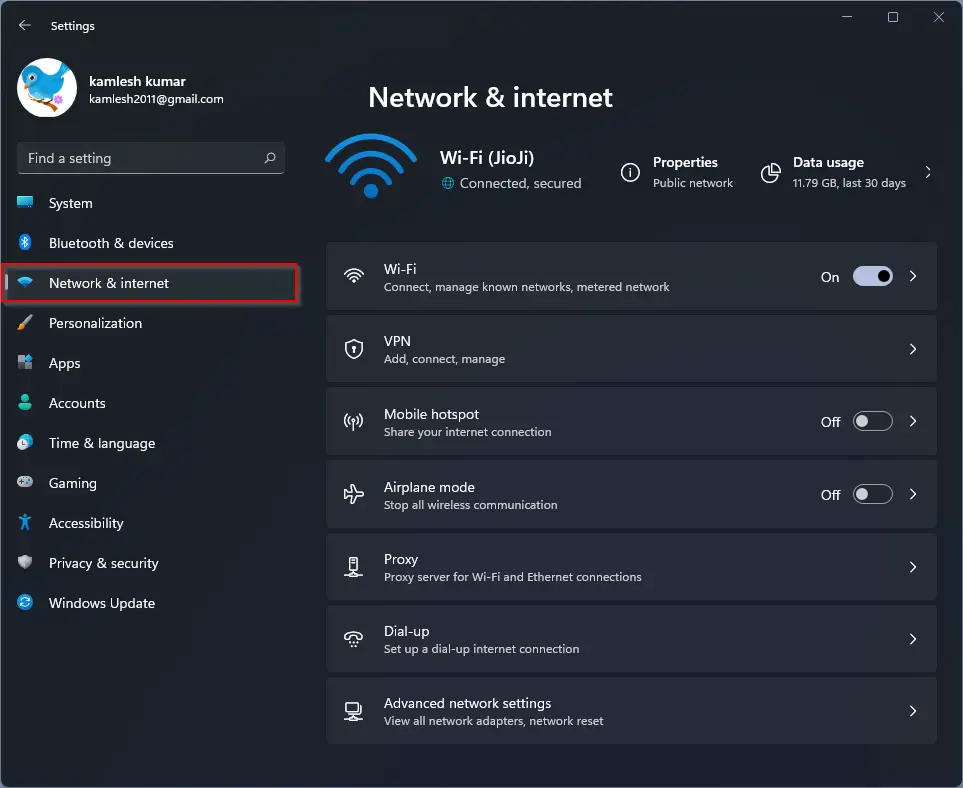
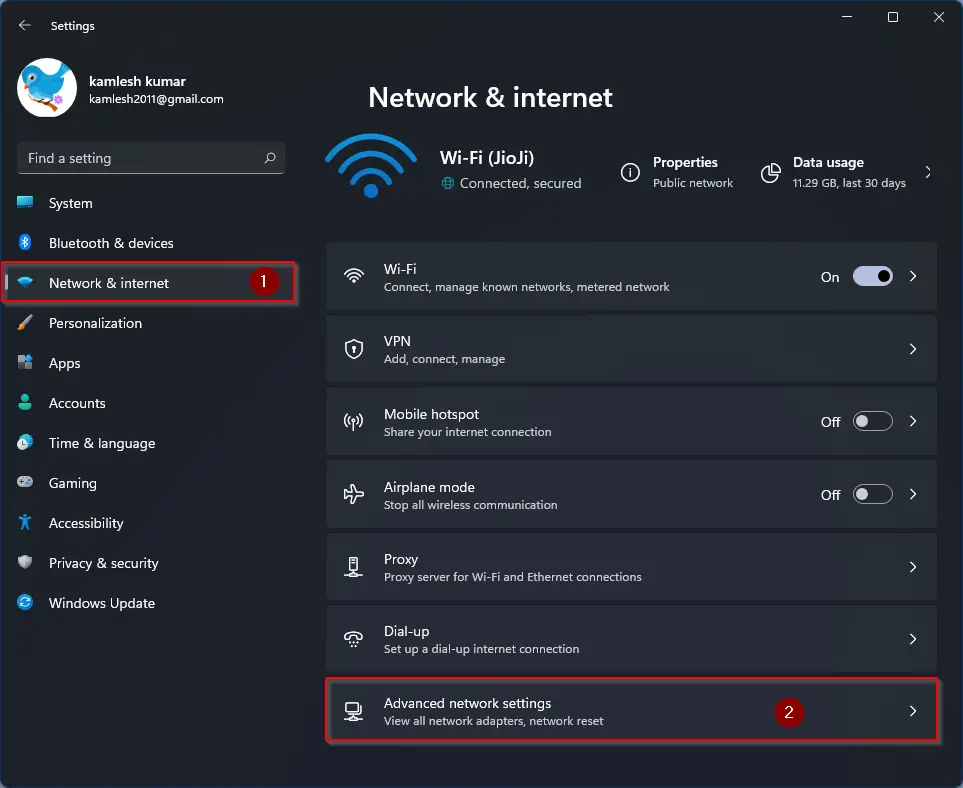
Step 2. Click on Network & Internet from the left pane.
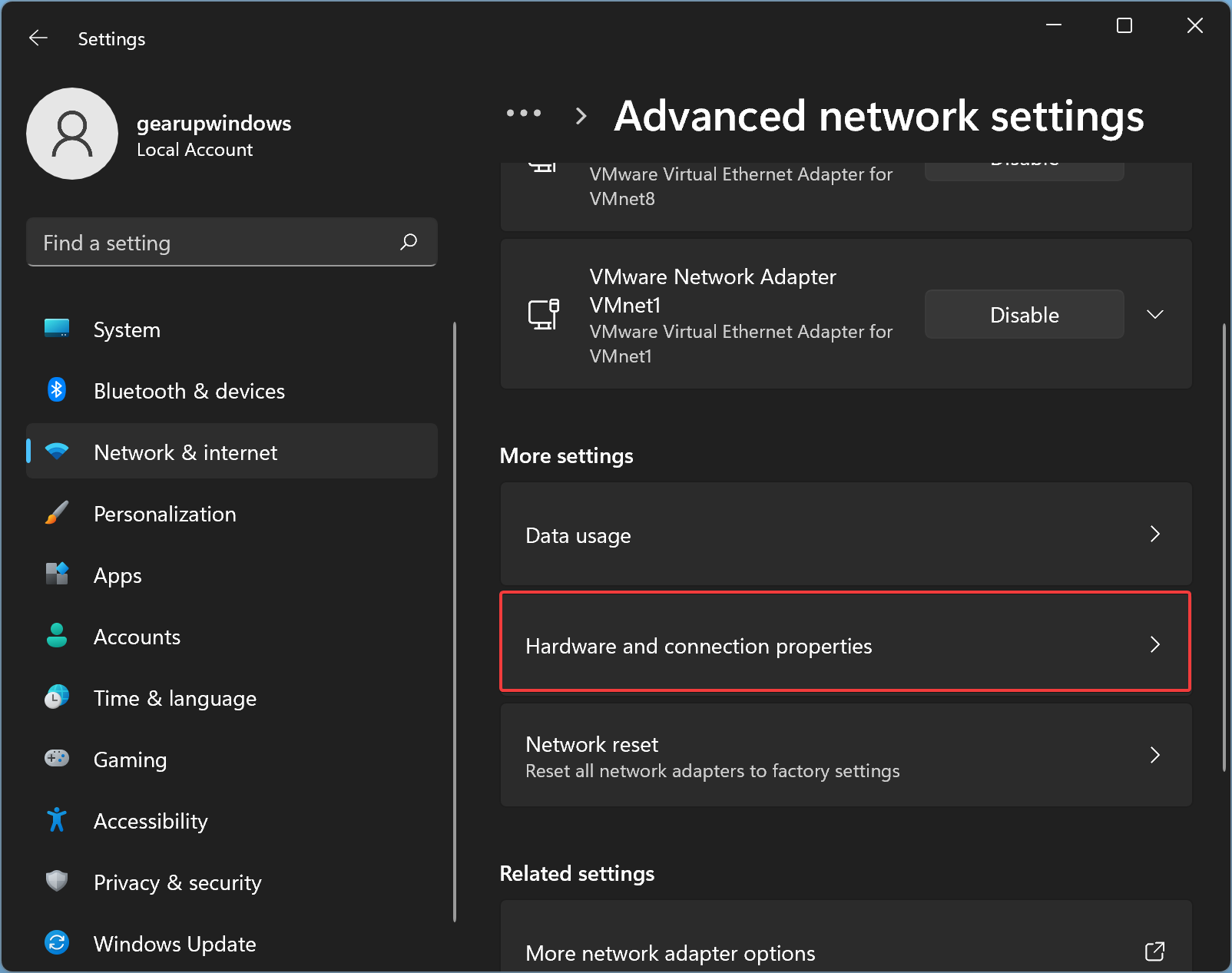
Step 3. Scroll down and click Advanced network settings.
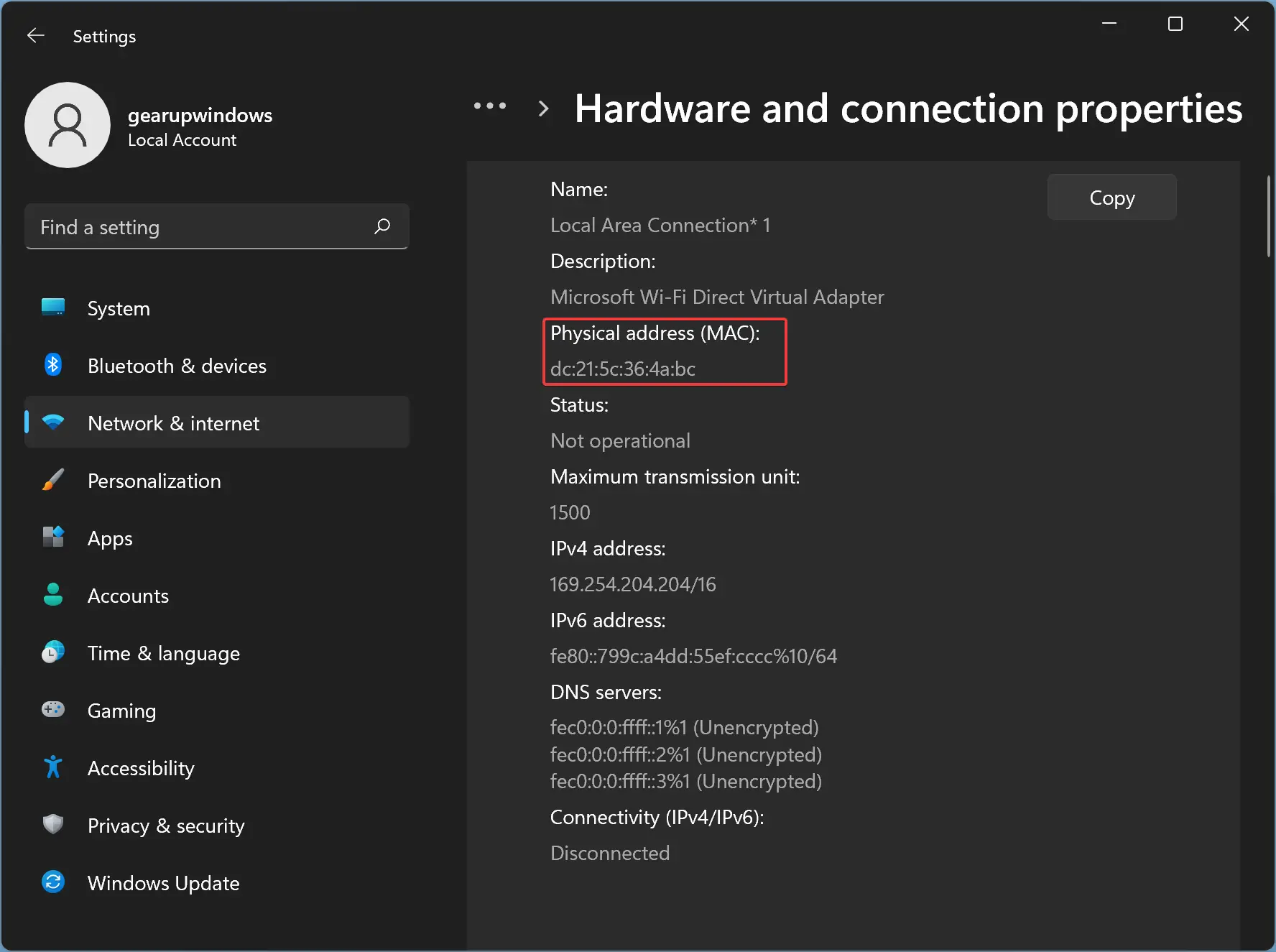
Step 4. Then click on Hardware and connection properties.
Step 5. Under this section, find the MAC address next to Physical Address (MAC).
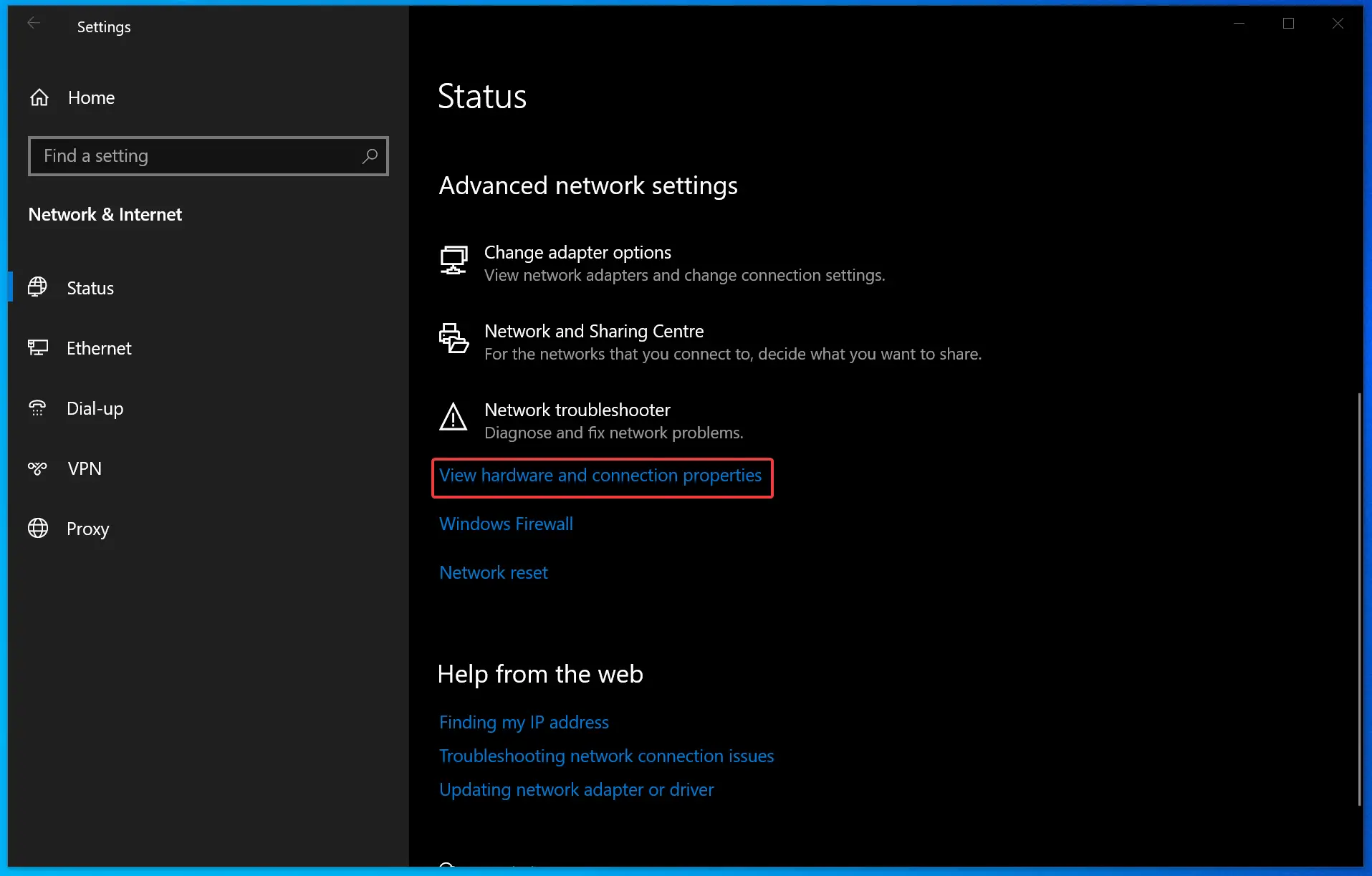
How to see the MAC Address on Windows 10 using the Settings app?
Step 1. Open the Settings app using the Windows + I keys.
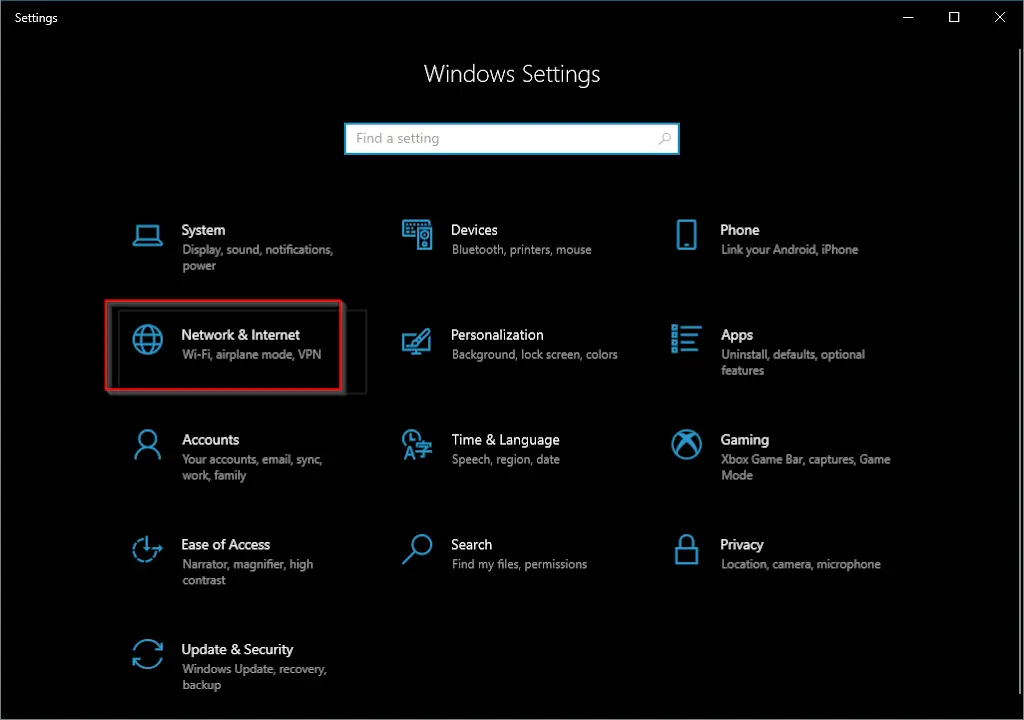
Step 2. Click the Network & Internet category.
Step 3. From the left pane, select Status.
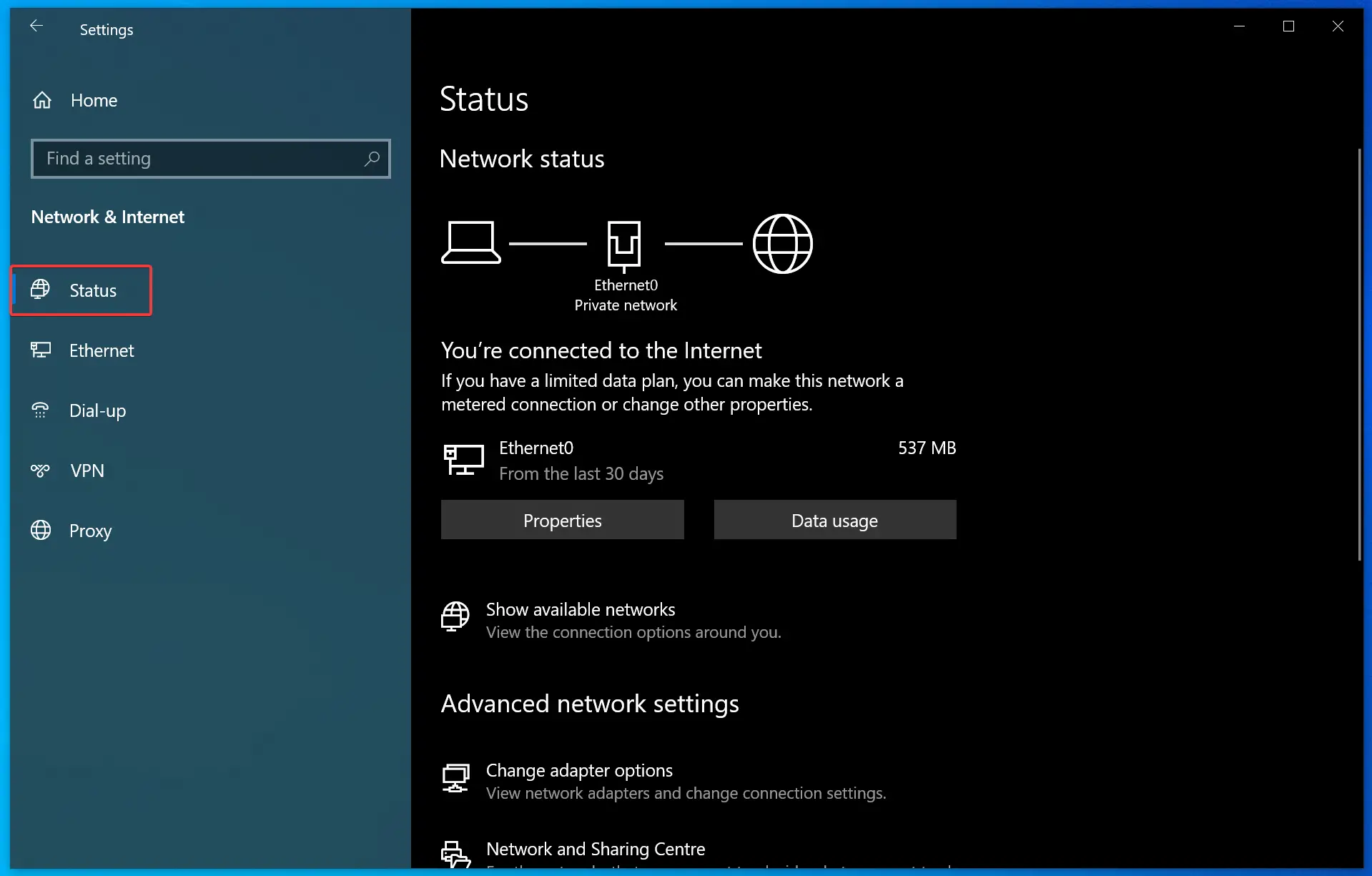
Step 4. On the right-side pane, click the View hardware and connection properties link.
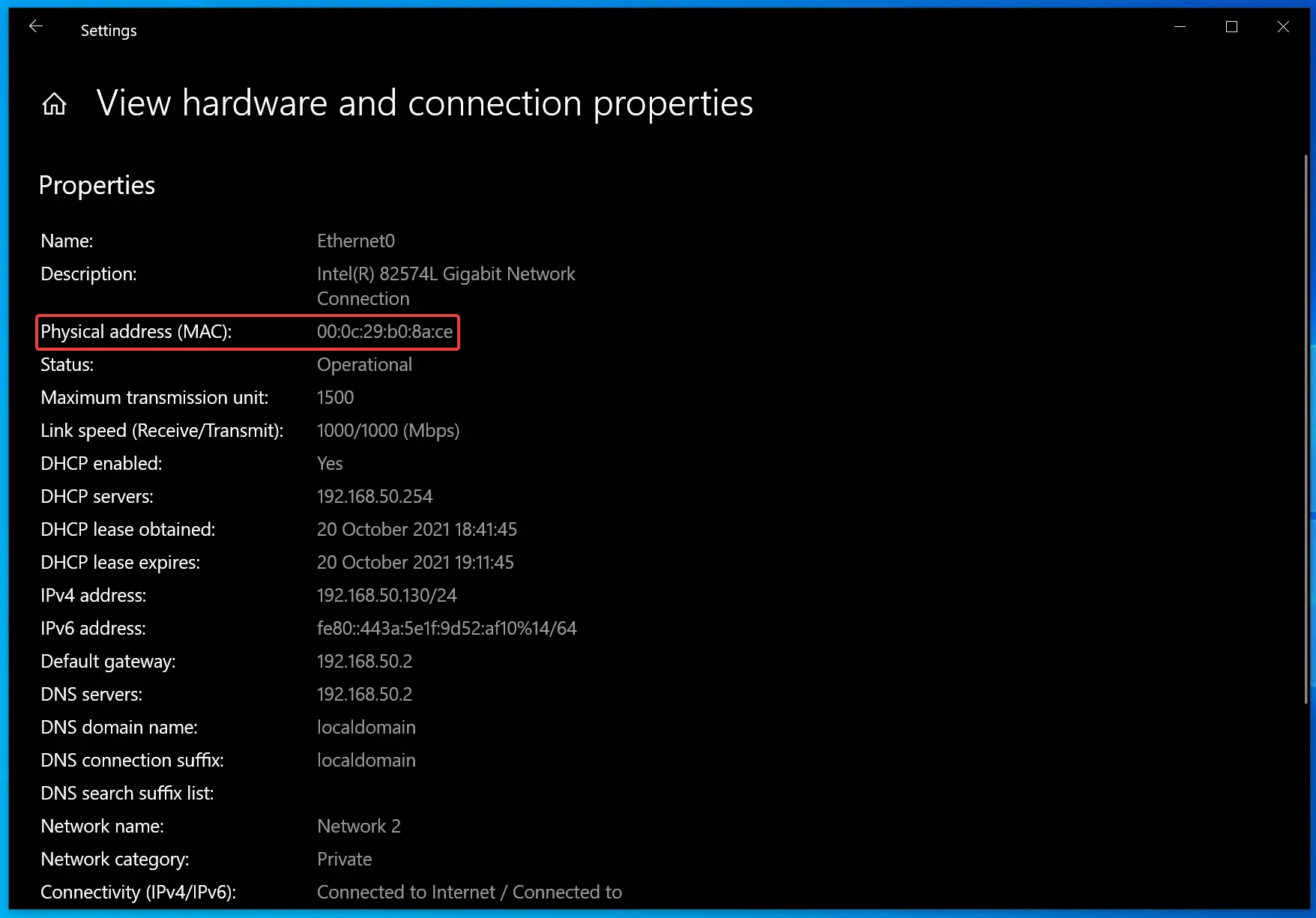
Step 5. Under the listed network adapters, find the MAC address beside Physical address (MAC).
How to View MAC Addresses on Windows 11 or 10 using the System Information Tool?
Step 1. Open the System Information tool.
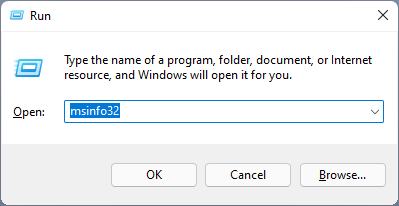
To do that, click on the Start button and type System Information, then click on it. Alternatively, open the Run dialog using Windows + R and type:
msinfo32
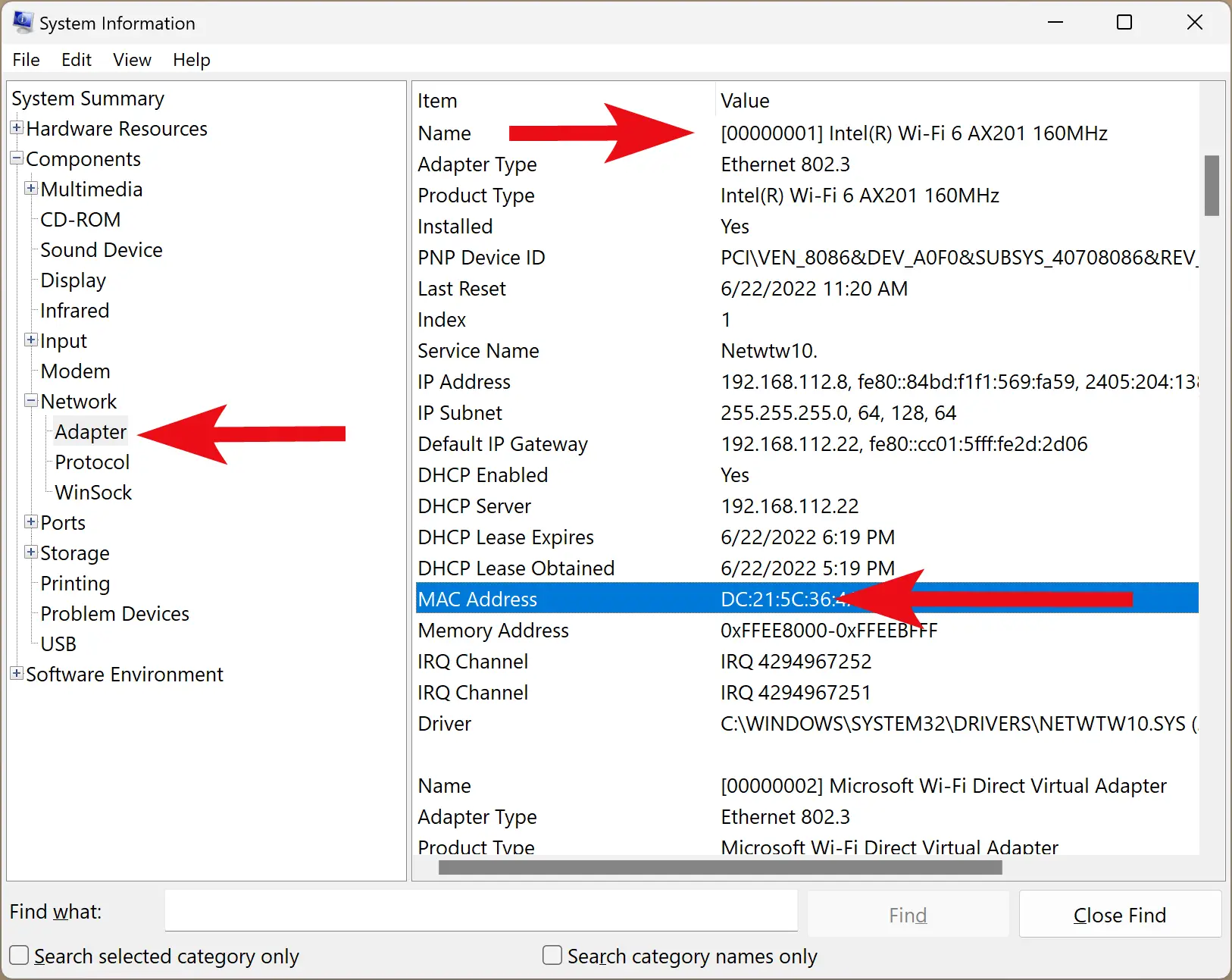
Step 2. In the System Information window, expand Components > Network > Adapter.
Step 3. On the right pane, scroll through the list of adapters. You’ll find the MAC address next to the field named MAC Address.
Conclusion
In conclusion, finding your MAC address is useful for tasks like identifying a stolen device or resolving network issues. The MAC address is a unique 12-digit hexadecimal number assigned by manufacturers to network devices. Windows 11 and 10 offer various ways to view it, including via Command Prompt, Control Panel, Settings, and the System Information tool. Choose the method that suits your needs and follow the steps in this article to locate the MAC address on your device.
Also Read: