

Windows 11 introduces a redesigned Taskbar, expected to be fully rolled out to the public by October this year. One of the most noticeable changes is the center alignment of Taskbar icons, a departure from the traditional left-aligned layout seen in all previous versions of Windows. This new design gives the interface a fresh and modern look.
While Windows 11 includes many new features and improvements, some customization options available in Windows 10 have been removed. One such limitation is the inability to resize Taskbar icons through the settings—meaning you can’t make them larger or smaller by default.
Fortunately, there is a workaround using the Registry Editor. By modifying specific registry values, you can change the size of Taskbar icons to small, default, or large based on your preference.
In this gearupwindows article, we will guide you step-by-step on how to tweak the Windows 11 registry to adjust Taskbar icon size and enhance your desktop experience.
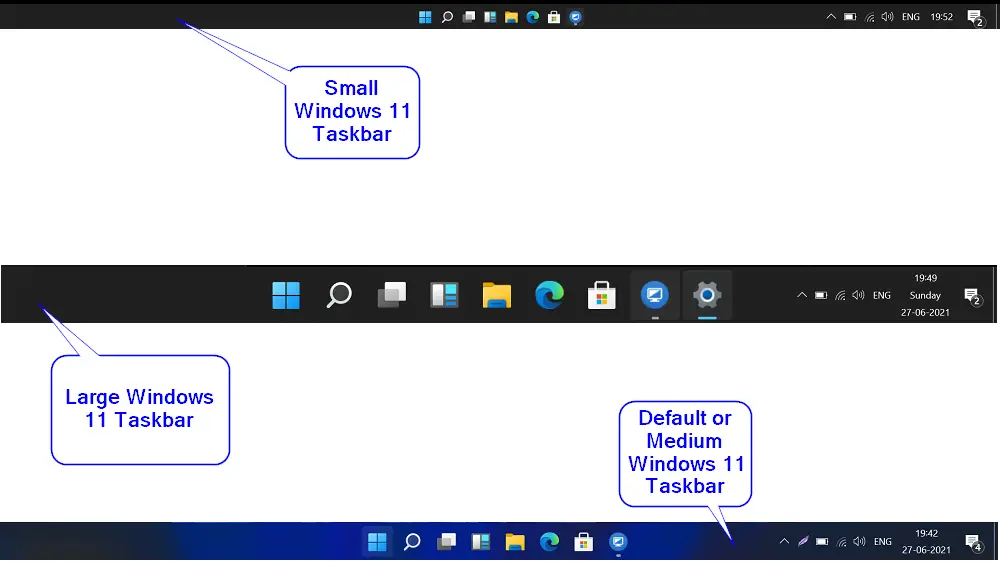
How to Increase or Decrease the Size of Windows 11 Taskbar Icons?
Resizing the Windows Taskbar icons involves registry editing; hence, we recommend creating a full backup of the Windows Registry and making a system restore point. If something goes wrong, you can revert your PC to a previous working state. To increase or decrease the size of icons on the Windows 11 taskbar, perform the following steps:-
Step 1. Open the Registry Editor.
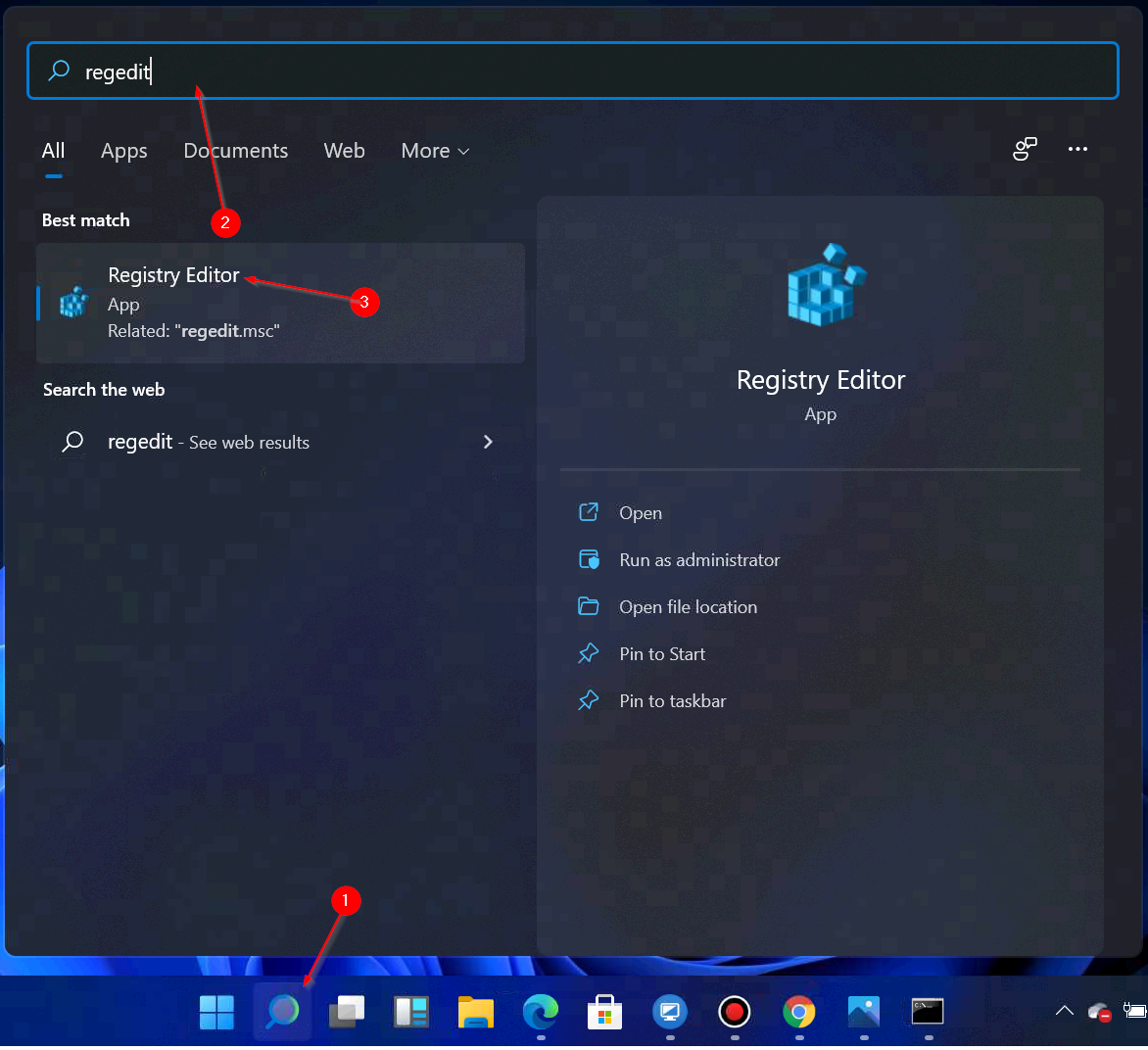
To access the Registry Editor windows, click on the Search icon located on the Windows 11 Taskbar and type regedit. Click on the Registry Editor in the search result to open it.
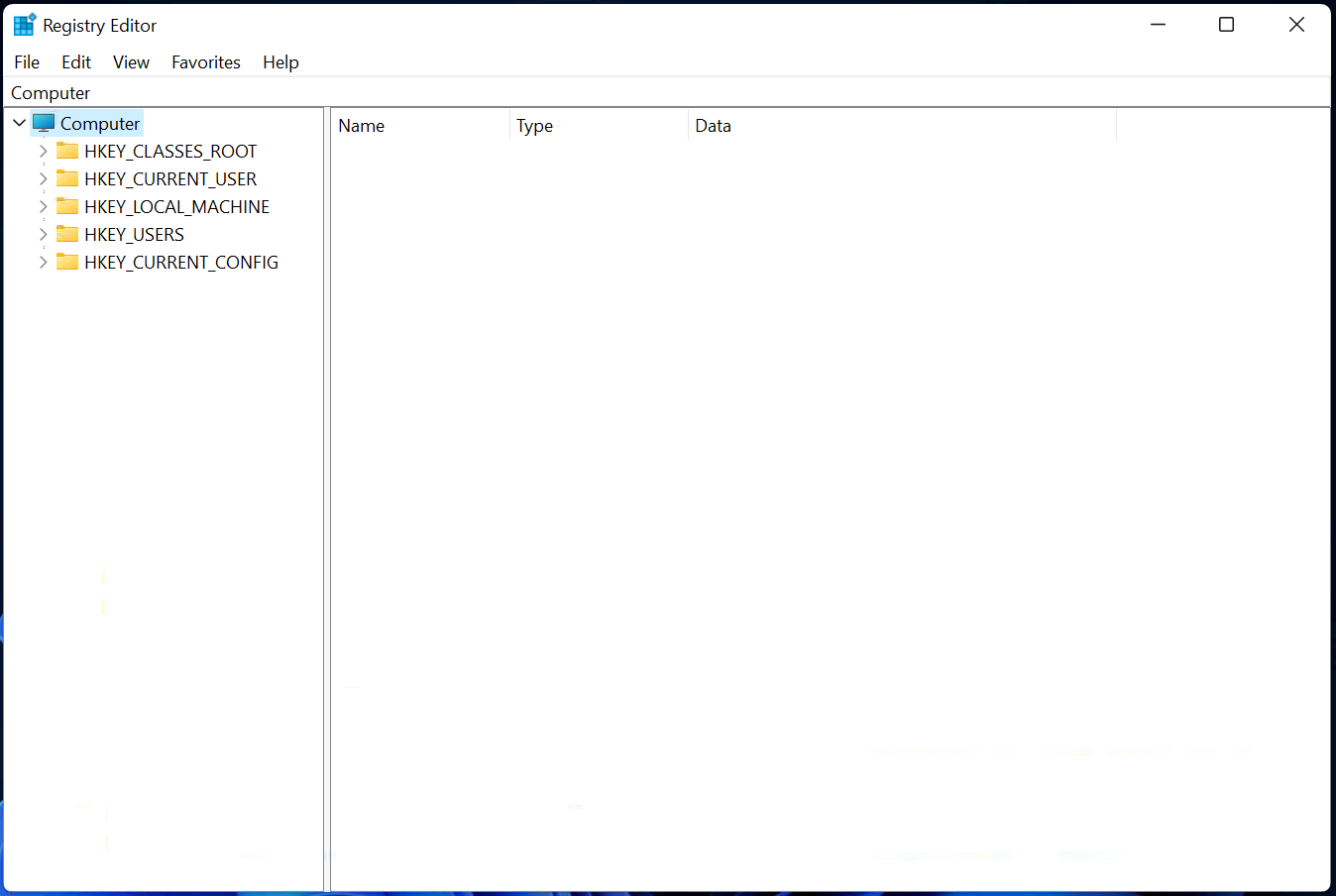
Step 2. In the Registry Editor left sidebar, search for the following key:-
HKEY_CURRENT_USER\Software\Microsoft\Windows\CurrentVersion\Explorer\Advanced
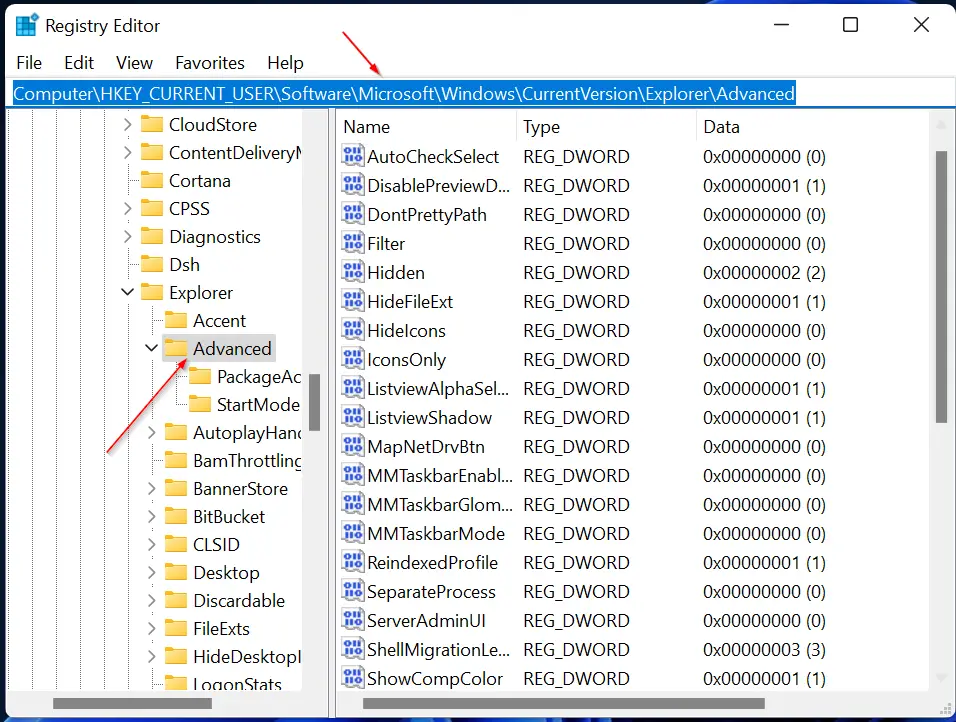
Step 3. Now, perform a right-click on the Advanced folder on the left side pane and select New > DWORD (32-bit) Value option. Name the newly created DWORD as TaskbarSi.
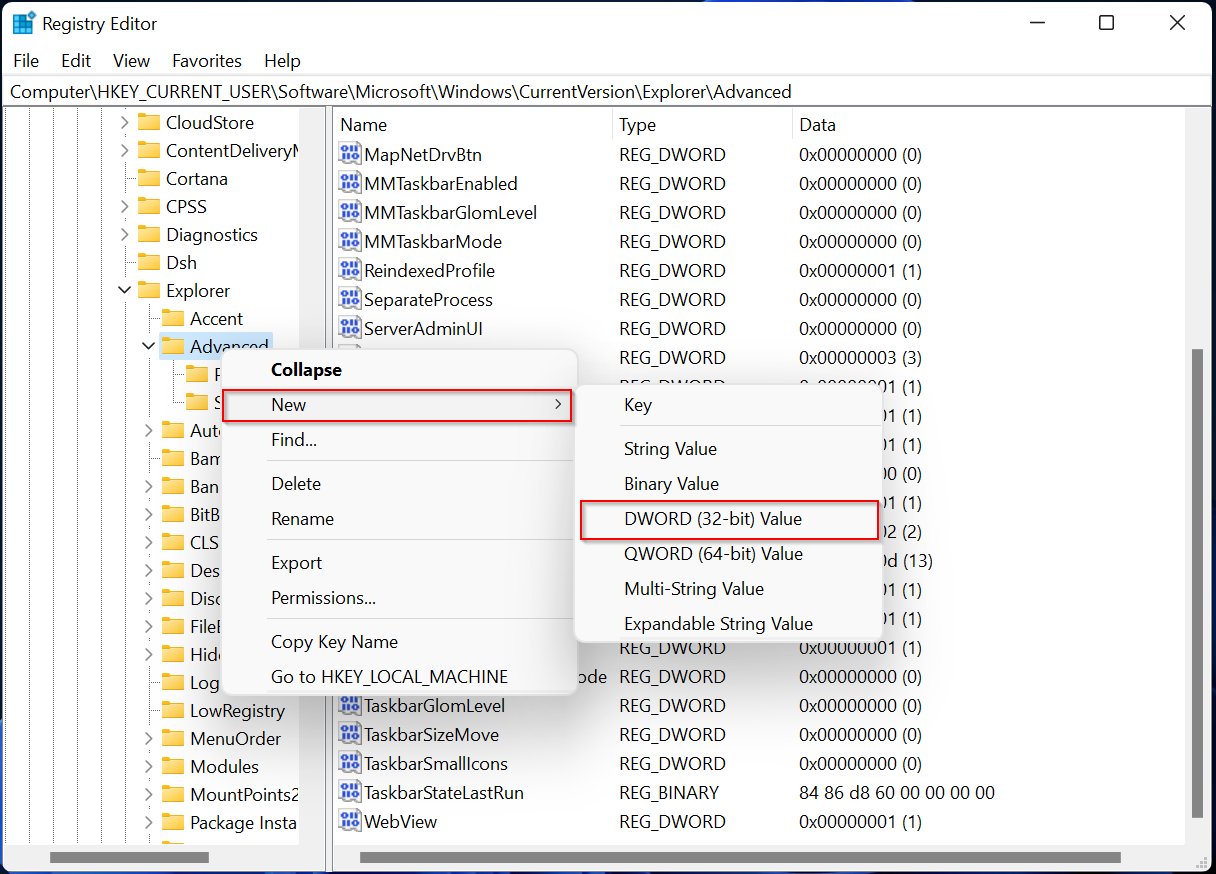
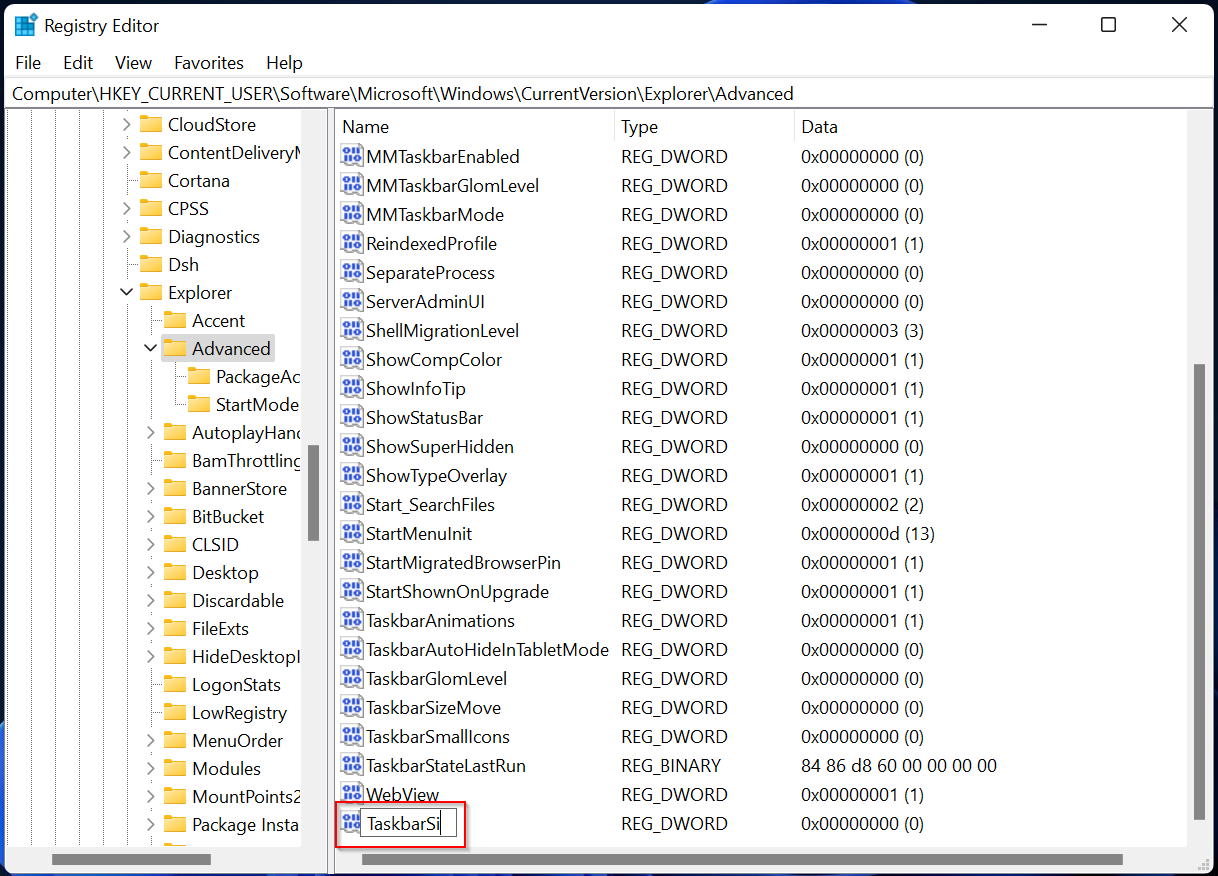
Step 4. Now move to the right side of the Advanced key and double-click on TaskbarSi to edit its Value data. In the Value data field, you can use the following number:-
- 0 – Small taskbar icons
- 1 – Medium or default taskbar icons
- 2 – Large taskbar icons
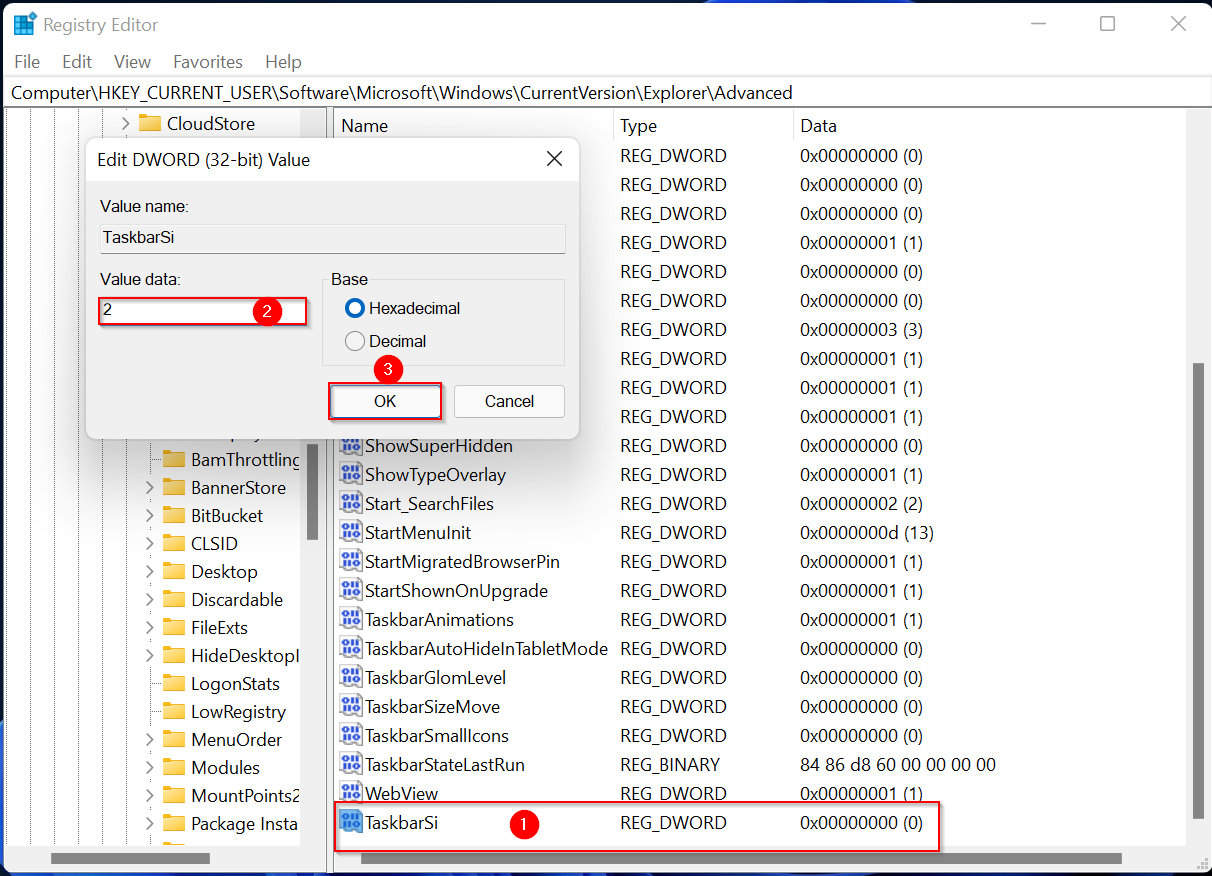
Step 5. Change the Value data from 0 to 2 to raise the size of the Windows 11 Taskbar icons to the maximum extent.
Step 6. Click OK.
Step 7. Finally, log out or restart your PC.
Now, you should experience bigger icons on the taskbar of Windows 11. To change the Taskbar icon size to its default value, navigate to the following registry key in the Registry Editor window:-
HKEY_CURRENT_USER\Software\Microsoft\Windows\CurrentVersion\Explorer\Advanced
On the right side of the Advanced key, look for the DWORD entry TaskbarSi. Double-click on it and set its Value data to 1. Restart your computer. You will notice the default taskbar icon size is back to the taskbar.
Conclusion
In conclusion, Windows 11 has introduced various changes to the taskbar, including center-aligned icons, which look great but are not resizable by default. However, with the help of registry editing, you can increase or decrease the size of taskbar icons. It is essential to take a backup of the registry before making any changes. This gearupwindows article has provided a step-by-step guide to increasing or decreasing the size of Windows 11 taskbar icons. By following these steps, users can easily resize their taskbar icons according to their preferences. Additionally, the article also covers how to enable or disable the widgets icon on the Windows 11 taskbar. Overall, Windows 11 has some exciting new features that enhance the user experience, and with a few tweaks, users can customize it to their liking.
Update: The Registry Editor method no longer works to increase or decrease the size of Windows 11 Taskbar Icons. Instead, you can use either Windhawk or ExplorerPatcher to do the same.
Don’t work for me
works but now the time and keyboard language looks chopped
Since the H22 Update, this no longer works.
Start11 & Winearo fixed this; I checked the Registry just now; the Value is still “2”.
I have a large 32″ screen; and the Taskbar is now just a tiny ribbon.
I can no longer stack my System Tray icons (that Value is still the same too).
I’m hoping Start11 and/or Winearo will come thru for us soon.
Meantime, I hate the way my Desktop looks. Ugh.