

Google Chrome is a widely used web browser that offers a plethora of features, including customizable backgrounds. Users can easily change the background image for the “New Tab” page of Chrome by setting their own image or downloading and installing a theme from the Chrome Web Store. However, if users prefer not to use pre-built themes or want to stop automatic updates, they can rename the GoogleUpdate file. Additionally, users can create their own custom Chrome themes online.
Despite its flexibility and convenience, many users may forget to uninstall Chrome themes they no longer want or do not know how to remove them. Fortunately, the process of uninstalling a theme in Google Chrome is straightforward and easy to perform. By following a few simple steps, users can quickly remove any unwanted themes and restore their browser to its default appearance.
How to Uninstall Google Chrome Themes
Google Chrome still supports themes, but the interface for removing an installed theme has changed. If you previously followed old steps involving the New Tab customizer, those no longer apply. Chrome now removes themes directly from the Settings page.
Here are the updated steps.
How to Uninstall Google Chrome Themes
Step 1. Open Google Chrome and click the three-dot menu in the top-right corner.
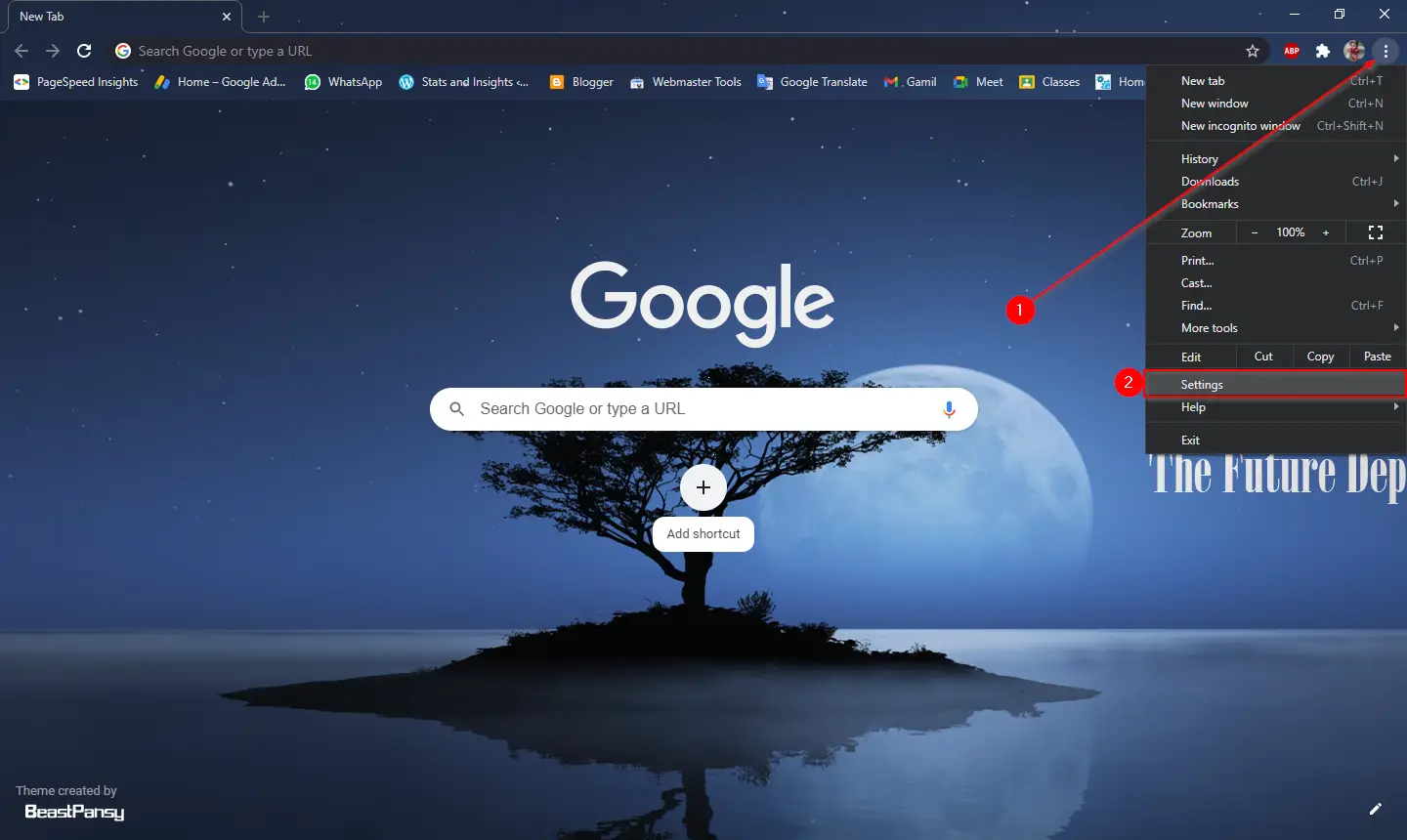
Step 2. Select Settings from the menu.
Step 3. In the left pane, open Appearance.
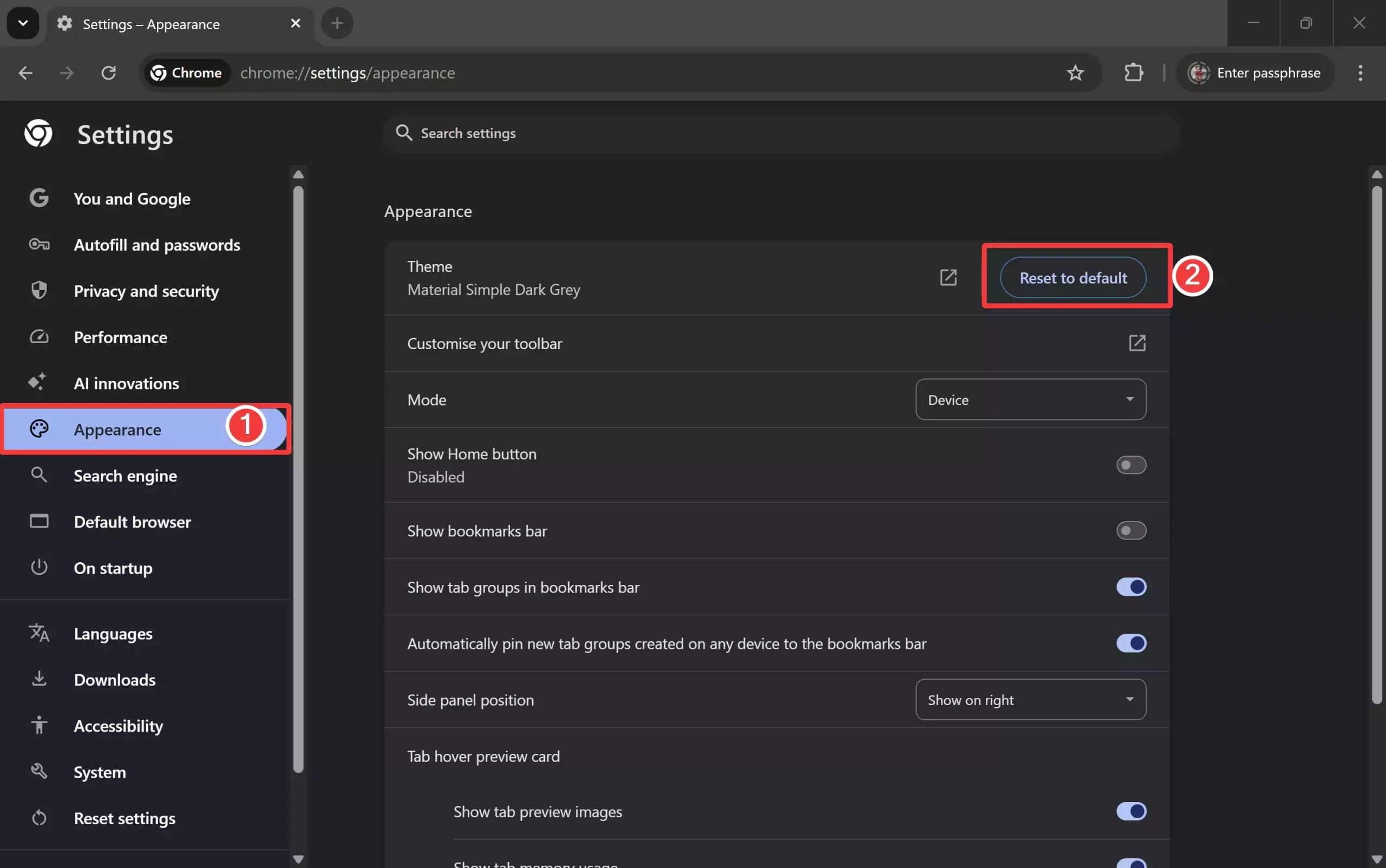
Step 4. Under the Appearance section, click the Reset to default button.
This instantly removes the installed Chrome theme and restores the default light theme.
Step 5. Close and reopen the browser if you want to ensure the theme is fully refreshed.
Conclusion
In conclusion, Google Chrome offers users the flexibility to customize their browsing experience by changing the background image of the “New Tab” page. While there are pre-built themes available on the Chrome Web Store, users can also create their own themes or stop automatic updates by renaming the GoogleUpdate file. However, uninstalling themes that users no longer want is a simple process that can be done in just a few steps. By following the steps outlined in this article, users can easily remove any unwanted themes and restore their browsers to their default appearance. Overall, Google Chrome continues to be a popular web browser choice due to its user-friendly interface and extensive range of features.
Also Read:
- In Windows 11 or 10, how do I add Google Calendar to the taskbar?
- In Chrome, Firefox, and Edge, how do you block cookie consent popups?
- How to update add-ons, extensions, and plug-ins in Chrome, Edge, and Firefox?
- What is the minimum width for tabs in Google Chrome and Mozilla Firefox?
- What’s the best way to make Chrome, Edge, Firefox, Opera, & Vivaldi ask before closing all tabs?