

In today’s multi-platform world, there’s a growing need for tools that bridge the gap between different operating systems. For macOS users interested in running Windows, this means having a simple and reliable way to create Windows 11 ISOs. Enter CrystalFetch, an innovative macOS application designed to streamline the process. With just a few clicks, you can generate bootable ISOs for testing, virtualization, or even installation on real hardware. Let’s explore why CrystalFetch is the go-to choice for Mac users eager to experience Windows 11.
What is CrystalFetch?
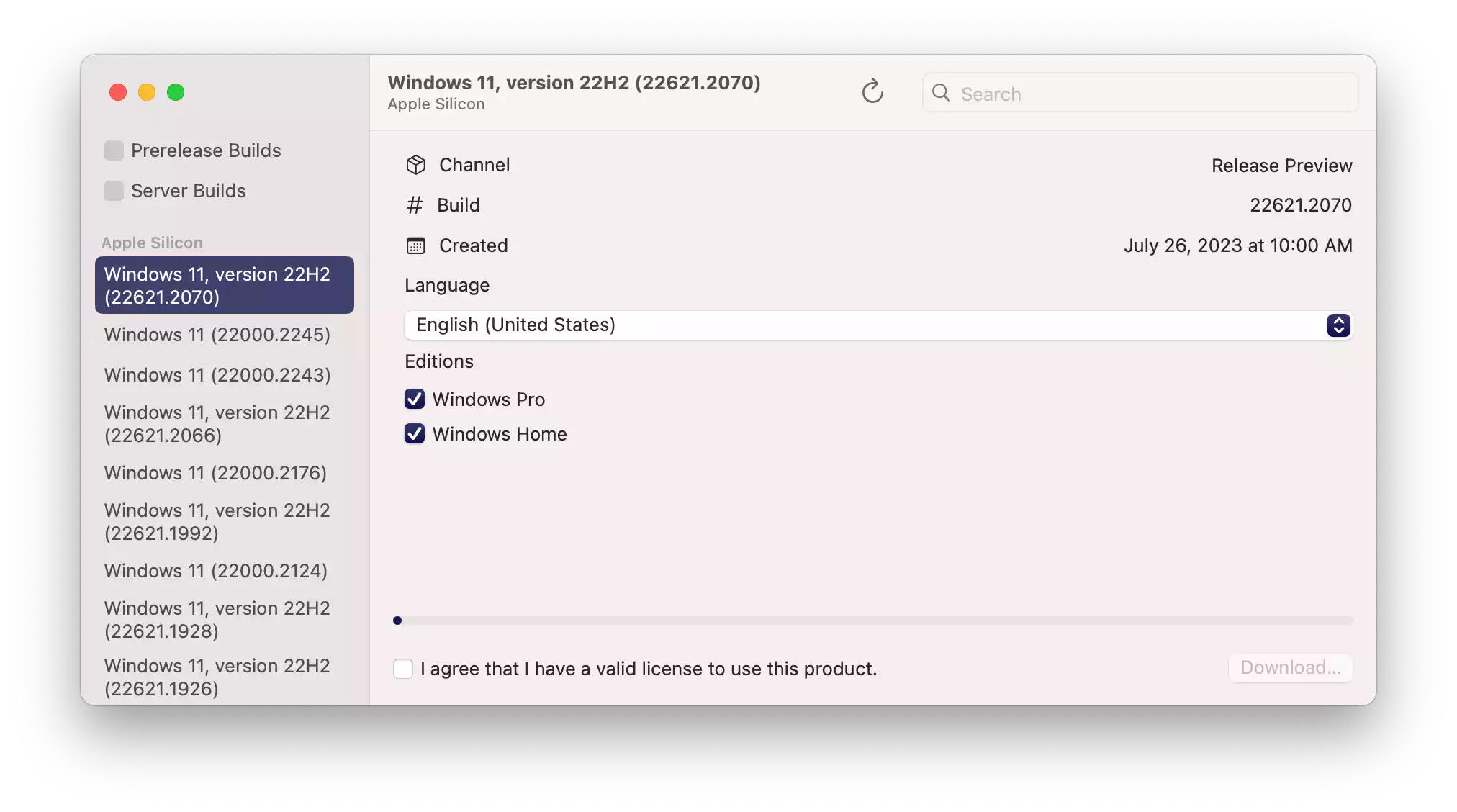
CrystalFetch is more than just another app—it’s a smart solution for macOS users who want to create Windows 11 ISO images without hassle. Traditionally, generating ISOs required complicated scripts, manual use of UUP dump tools, and command-line expertise. CrystalFetch removes these barriers with an intuitive interface that automates everything, making it as simple as selecting your Windows version and waiting for the ISO to appear in your Downloads folder.
Unlike general-purpose ISO tools such as Free ISO Burner or WinCDEmu, CrystalFetch is tailored exclusively for macOS, ensuring seamless integration and optimized performance for Apple users.
Key Features
- Simplicity: With its clean, user-friendly interface, even beginners can create ISOs without needing advanced knowledge.
- Versatility: Works with multiple virtualization platforms like UTM and Parallels, ensuring flexibility for macOS power users.
- Always Updated: From stable Windows 11 releases to the latest Insider builds, CrystalFetch ensures access to fresh and official images.
- Efficient ESD Conversion: CrystalFetch integrates an enhanced ESD-to-ISO conversion method, generating fully functional Windows 11 x64 images quickly and reliably.
- Lightweight and Optimized: It consumes minimal system resources, unlike traditional heavyweight ISO creation tools.
How to Use CrystalFetch?
- Download CrystalFetch from the GitHub releases page and install it on your Mac.
- Select Version: Open the app and choose the desired Windows 11 release from the dropdown list.
- Automated Download: CrystalFetch downloads all required files from official Microsoft servers.
- ISO Creation: The tool converts the downloaded files into a bootable ISO, automatically saving it to your Downloads folder.
- Virtualization Ready: Use the ISO with virtualization software like UTM or Parallels, or even prepare it for USB booting with tools such as Rufus.
This workflow eliminates the need for third-party scripts or complicated manual setups. For users who frequently test multiple systems, pairing CrystalFetch with a drive management tool like DiskGenius ensures smoother deployment and partition handling.
Why Choose CrystalFetch Over Alternatives?
Several utilities let you download Windows ISOs, but few are optimized for macOS. While apps such as ISO Toolkit or Universal MediaCreationTool are powerful for Windows environments, CrystalFetch stands out for Mac users thanks to:
- Native macOS compatibility – designed specifically for Apple systems.
- Zero scripting required – no command-line or UUP dump handling.
- Lightweight and automatic – handles updates and builds seamlessly.
FAQs About CrystalFetch
1. What is CrystalFetch used for?
CrystalFetch is a macOS application that allows users to easily create Windows 11 ISO files. It automates the complex UUP dump process and makes ISO generation quick and beginner-friendly.
2. Is CrystalFetch free to use?
Yes, CrystalFetch is completely free and open-source. You can download it directly from its GitHub releases page without any subscription or hidden costs.
3. Can I use CrystalFetch with virtualization software?
Absolutely. The ISOs generated by CrystalFetch are compatible with popular macOS virtualization platforms such as UTM, Parallels, and VirtualBox.
4. Does CrystalFetch support Insider builds of Windows 11?
Yes, CrystalFetch lets you choose between official stable releases and the latest Insider builds of Windows 11, ensuring flexibility for testing and experimentation.
5. Where does CrystalFetch save the ISO files?
By default, CrystalFetch saves all ISO files to the Downloads folder on your Mac. You can then use these ISOs for installation, virtualization, or creating bootable USB drives.
6. Do I need technical knowledge to use CrystalFetch?
No. CrystalFetch is designed with simplicity in mind, featuring an intuitive interface that allows even beginners to create Windows 11 ISOs without advanced skills.
7. Does CrystalFetch work on Intel and Apple Silicon Macs?
Yes, CrystalFetch works across both Intel-based and Apple Silicon (M1/M2) Macs, offering broad compatibility within the macOS ecosystem.
Conclusion
In the world of macOS-to-Windows utilities, CrystalFetch is a clear standout. With its straightforward interface, enhanced ISO creation process, and dedicated support for Mac users, it’s an essential app for anyone seeking to install or virtualize Windows 11 on macOS. Whether you’re a developer testing compatibility, a student experimenting with multiple OS environments, or simply a curious Mac owner, CrystalFetch provides a fast, reliable, and hassle-free solution.
If you’re exploring more ways to optimize cross-platform workflows, check out tools like CrystalFetch itself or explore Ventoy2Disk for creating multiboot USBs. Together, they make working across Windows and macOS smoother than ever.