

Do you have some documents and want to transform them into PDF (Portable Document Format) files? If your answer is YES, then you are reading the right post. In this gearupwindows article, we will guide you on how to create a PDF file in Windows 11 without installing any third-party software.
Windows 11 comes with a built-in feature called Microsoft Print to PDF, which allows you to save almost any printable document as a PDF. Whether it’s a Notepad text file, a WordPad document, an image, a webpage, or even an email, you can convert it into a PDF with just a few clicks. If the printer is missing or not working, you can reinstall Microsoft Print to PDF in Windows 11 easily.
Before the PDF printer feature, Microsoft offered the Microsoft XPS Document Writer, which didn’t gain much popularity. Now, with the “Microsoft Print to PDF” virtual printer, the process is much more universal and user-friendly. All you have to do is open your document, press Ctrl + P to open the Print dialog, choose Microsoft Print to PDF as your printer, and save it.
How to Create a PDF File in Windows 11?
As mentioned above, you can create or convert almost any document or webpage into a PDF file using the built-in “Print to PDF” feature in Windows 11. This means you don’t have to download and install any additional PDF creators or converters.
Follow these steps to make a PDF in Windows 11:
Step 1. Open the file you want to convert to PDF. This could be a document, an image, or a webpage. If your application has a Print option under the File menu, click on it. Otherwise, press Ctrl + P on your keyboard to open the Print dialog.
Step 2. In the “Select Printer” section, choose Microsoft Print to PDF from the list of available printers.
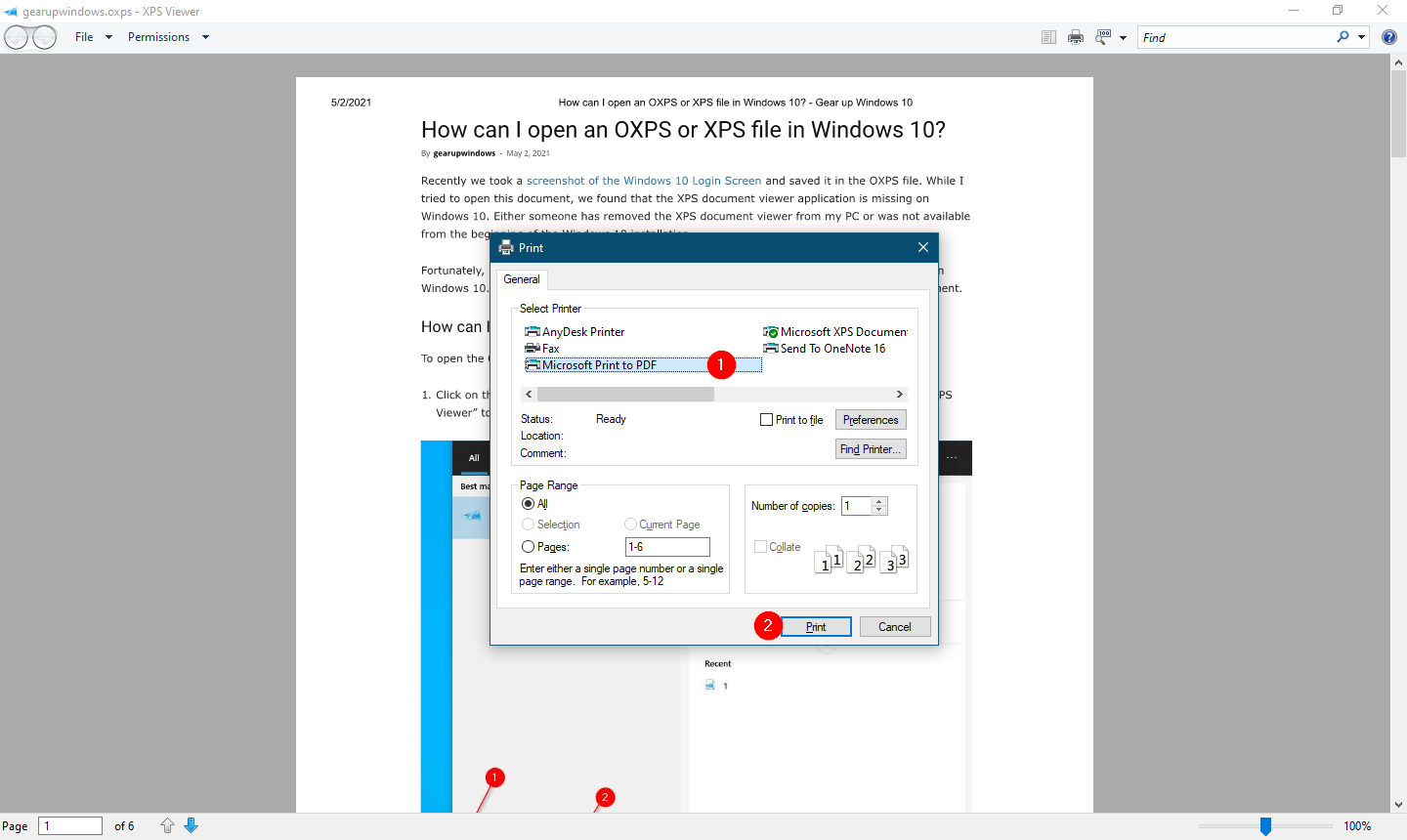
Step 3. Click on the Print button to proceed.
Step 4. A dialog will appear asking you where to save your PDF file. Choose the desired location, give your file a name, and click Save.
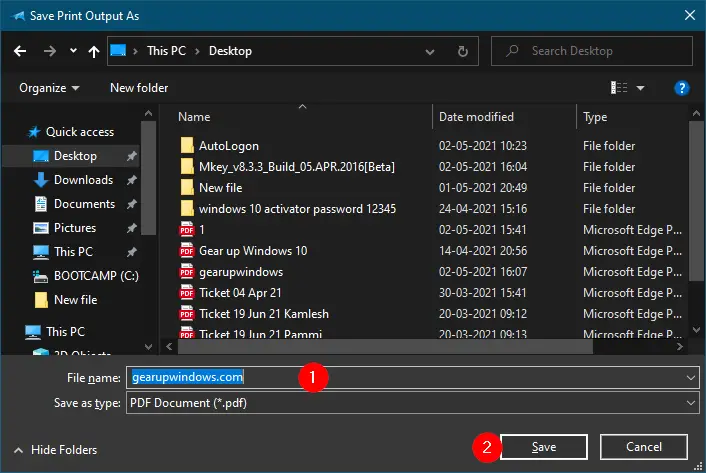
That’s it! You now have a PDF version of your selected document. The best part is that this method works for almost any file type that supports printing.
Why Use Microsoft Print to PDF in Windows 11?
- No need to install third-party PDF creation software.
- Works with almost any file type, including documents, images, and web pages.
- Keeps the formatting and layout intact.
- Completely free and built into Windows 11.
- Works offline without any internet requirement.
Other Free PDF Tools for Windows
While Microsoft Print to PDF is perfect for creating simple PDF files, you might need extra features like merging, splitting, compressing, repairing, or converting. Explore these live guides and tools on Gear Up Windows:
- PDFBinder: Merge Several PDF Documents into One
- PDF Shaper: Split, Merge, and Convert PDF Files for Free
- CleverPDF: 24 PDF Tools in a Single Application
- doPDF: A Free PDF Converter
- Adobe Acrobat Reader DC: Free PDF Viewer with Advanced Features
- How to Encrypt or Password Protect a PDF Online for Free
- How to Crop PDF Files on Windows 11/10
- How to Extract Pages from a PDF without Third-Party Tools
- How to Combine Multiple Pictures into a Single PDF
- PDF Fixer: Repair Corrupted PDF Files
- Top Free Batch PDF to Word Converters for Windows 11/10
- How to Save a File as PDF in Microsoft Office
Frequently Asked Questions
Can I create a PDF from images in Windows 11?
Yes. Open the image in the Photos app, press Ctrl + P, select Microsoft Print to PDF, and save it as a PDF file.
Does Microsoft Print to PDF work in Windows 10?
Absolutely. The feature was first introduced in Windows 10 and continues in Windows 11 with the same functionality.
Can I password-protect a PDF created this way?
The built-in printer does not offer encryption. You can secure a file afterward using the online approach shown here: Encrypt or Password Protect PDF Online for Free.
Will this work for emails?
Yes. If your email client supports printing, choose “Microsoft Print to PDF” and save the email as a PDF.
Conclusion
Creating PDF files in Windows 11 is quick and effortless thanks to the built-in Microsoft Print to PDF feature. This free tool converts any printable file into a PDF without additional software, keeps formatting intact, and ensures compatibility across devices. If you need more control—such as merging, compressing, repairing, or converting—use the free PDF tools and guides linked above to get the job done smoothly.