

Since the launch of Windows 10, about six years have passed, and now Microsoft has announced its new operating system, Windows 11. During these years, Microsoft performed a lot of hard work toward the improvement of Windows 10. Many new features were introduced in Windows 10/11 by Microsoft, and they also removed a few functionalities. Besides these features, the most-awaited tab functionality has not been introduced on Windows 10 yet.
Windows 10/11 comes with its own File Manager, which is known as File Explorer. It offers an easy and convenient way to modify file attributes. It is designed to simplify file management activities in Windows, but what about tabs, dual-pane interface, batch file renaming tools, and other advanced features?
Cut, copy, paste, move, and rename functions are not sufficient when we say managing the files with ease. Most Windows users start searching for a third-party utility when they need advanced functions. Many Windows 10 users are quite unhappy with the default behavior of File Explorer and want to install a third-party tool to get some advanced functions so that they can execute their tasks with ease.
If you are also searching for a good alternative to File Explorer with some extra features, this gearupwindows article will help you. This post will share some free alternatives to File Explorer that will help you manage files/folders on Windows 11/10/8/7 with ease.
Free File Managers for Windows 10/11
Files
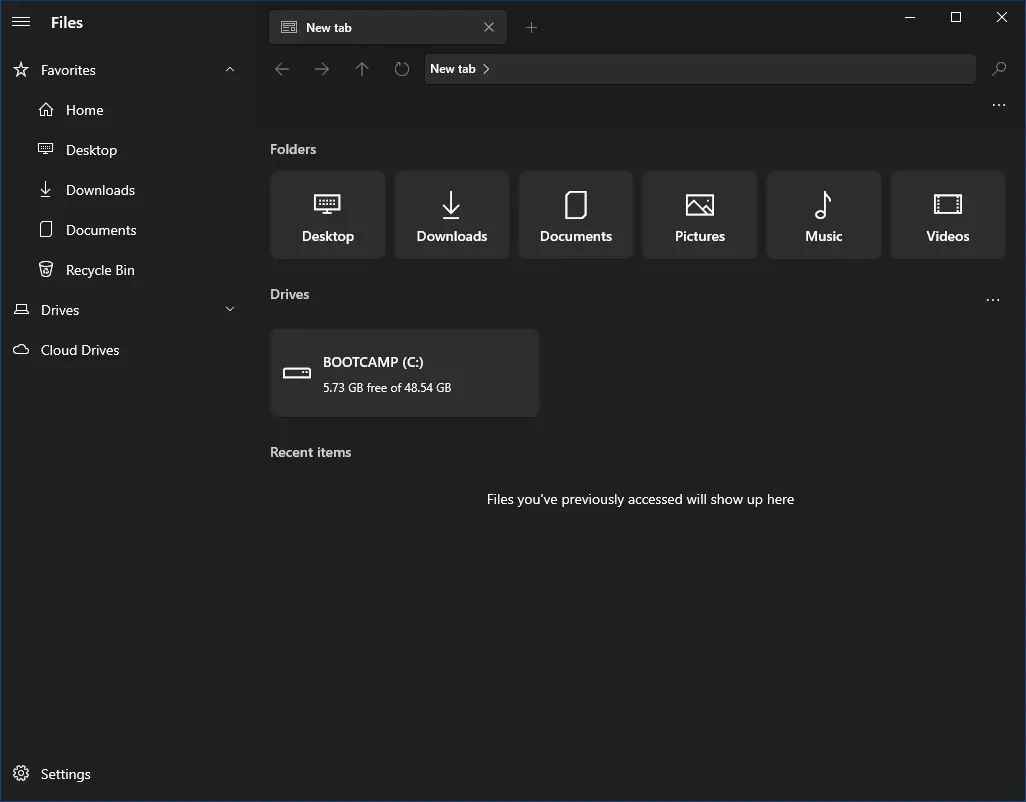
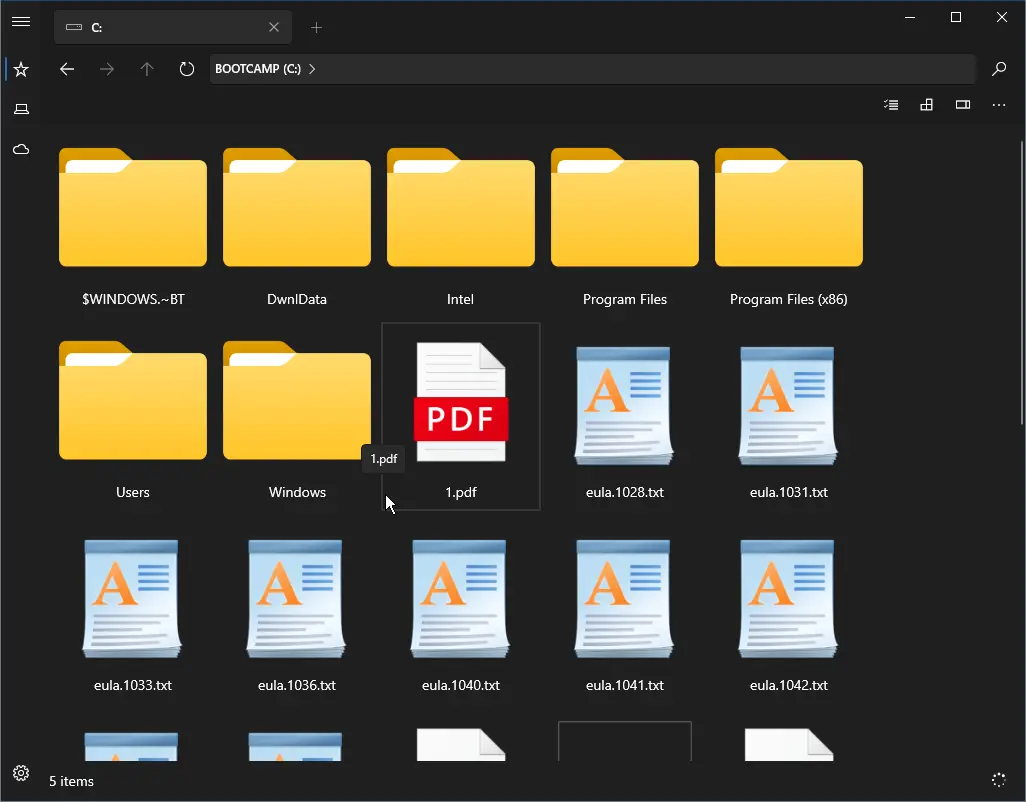
Files is a modern UWP app that brings a nice tabbed UI (User Interface) to Windows 10/11 PC. It allows you to open different hard drives and folders in separate tabs in a single window. It is quite helpful to manage files and folders. This software even allows you to set different layout modes for files and folders.
Files app allows you to open multiple file explorer windows to access more than one item at a time. Simply click on the plus (+) sign on the toolbar to open a new tab in the same interface.
FileVoyager
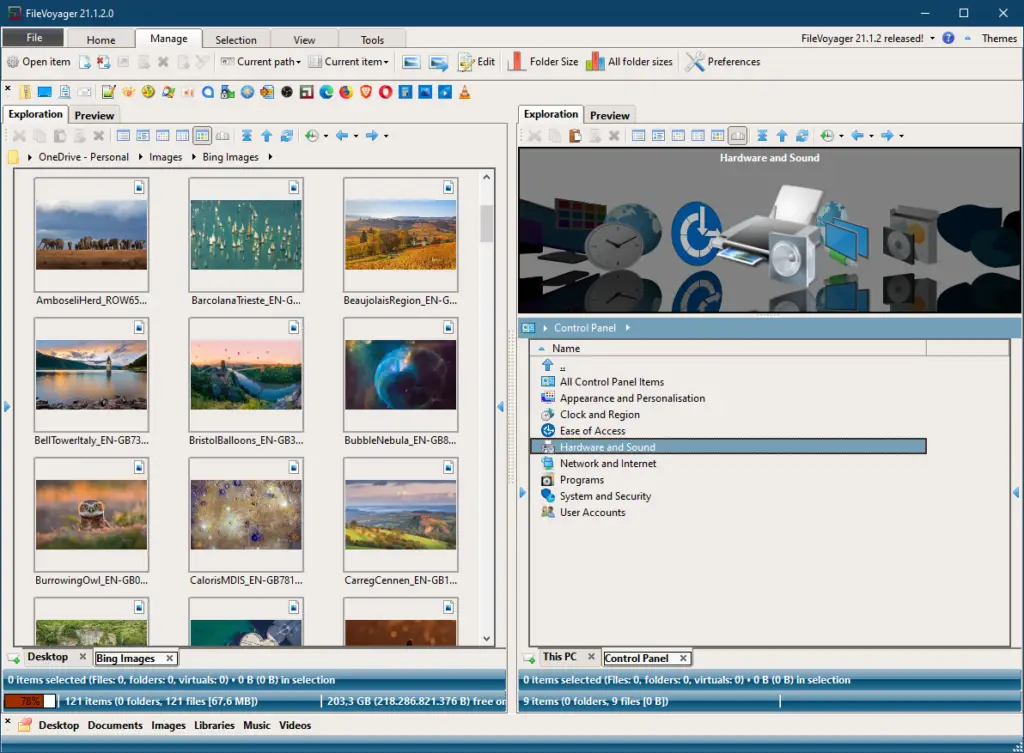
FileVoyager is a dual-panel and free File Manager software for Windows systems that helps you manage files in an organized way. When you launch this application for the first time, you will see the complete details of the system on its left panel and details of all connected drives on the right panel.
This application also includes support for a lot of extensions that help you organize and browse different types of files easily. You will find a ribbon-like GUI utility that provides easy switching among different files. Using this utility, users can access two or more files at the same time.
The Multi Tab extension of FileVoyager allows users to lock particular tabs that they don’t want to close accidentally. Furthermore, you are free to create your favorite folder location and save particular files and folders in it.
If you would like to hide any folder from other users, you can use the password protection utility of this app. It uses the AES-256 algorithm to set a password and encrypt its content. The password-protected folder can also be searched easily, like other folders.
FileVoyager also includes audio and video codecs provided by Windows Media Player and VLC so that users can stream different types of media files easily with this software.
Apart from the above features, this user-friendly application also gives direct access to system utility tools as well as the Command Prompt. Its ‘Edit’ function opens a file in the default text editor format.
It is compatible with Windows 10, 8, 7, and Windows Vista.
Konvertor
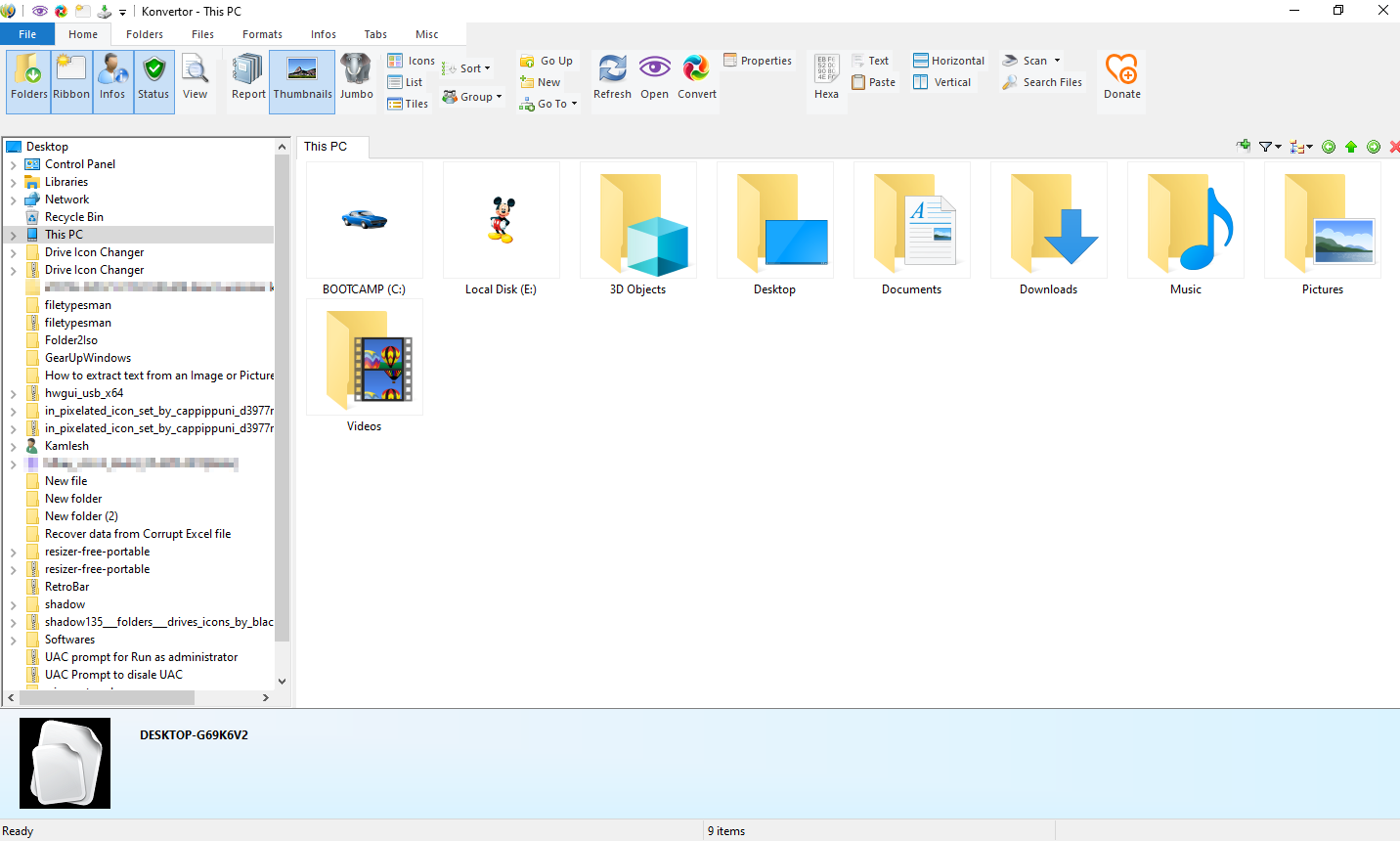
Konvertor is another free application that has a dual-pane and multi-tabbed File Manager feature. It is a popular media file manager and viewer capable of converting more than 3400 file types. It not only views JPGs, PNGs, and GIFs, but it also supports 2,034 image file types, 795 audio, 230 video, 102 3D, Office documents, and some other general file types.
As far as the GUI is concerned, this tool features an Explorer-like layout that offers you quick access to the files and folders stored on your PC. You can easily select the desired options using this application that you would want to process.
All you need to do is select an item you wish to convert and then select the Convert option from the toolbar. Now, choose the desired output format. Finally, click on the Convert button to start the conversion.
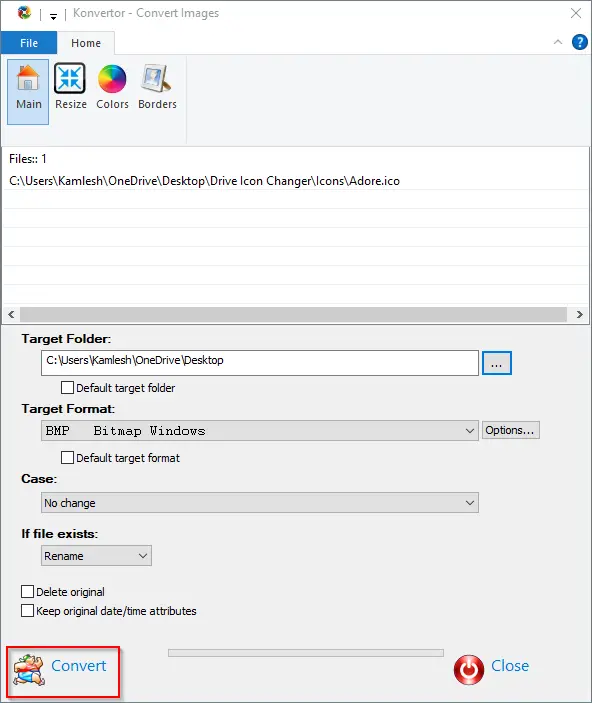
Those who want to modify and enhance their images or pictures can find over 40 Filters, like resizing, blur, noise, charcoal, etc., in this software. It also allows you to fine-tune images by tweaking brightness, contrast, and colors or even apply special effects like cropping photos, rotating, and reducing red-eye. There are plenty of features available in this software, and above all, it also allows you to open multiple tabs simultaneously.
Konvertor is an all-in-one media player and file manager for Windows PC. It is compatible with Windows 11, 10, 8, and 7.
FreeCommander
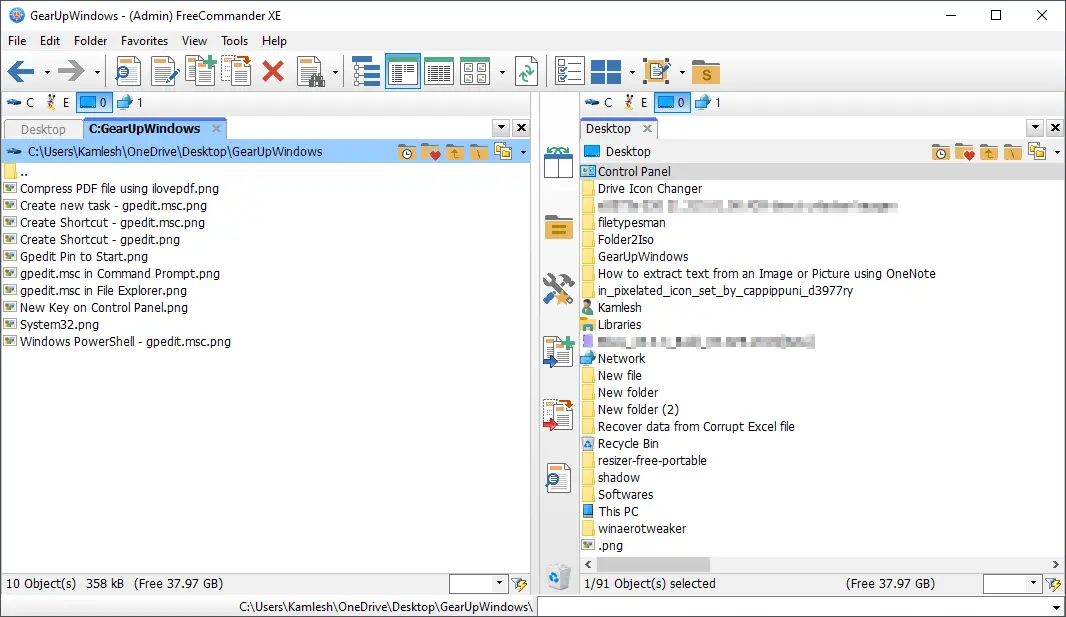
FreeCommander is a freeware application that allows you to manage your files and data very easily and quite efficiently. It comes bundled with many features. Its user interface is attractive and simple to use. To use this application, you don’t need technical knowledge, which means a novice can also use it.
Apart from the tabbed interface, this application allows you to perform the following:-
- File Compression.
- Built-in file viewer to view files in hex, binary, text, or image format.
- Nested archive styling.
- Copy, rename, delete, and move files and folders.
- Splitting of files.
- Folder size calculation.
- Dual panel technology, horizontal and vertical.
- File filters for display.
- Built-in FTP client.
- View the File inside the archives.
FreeCommander comes with a dual-panel – one is horizontal, and the other is vertical. Six tabs are present at the top of the window that you can choose to execute your operation. Using this software, you can perform several tasks like packing, unpacking, splitting files/folders, etc.
It is compatible with Windows 11, 10, 8, and 7.
Tablacus Explorer
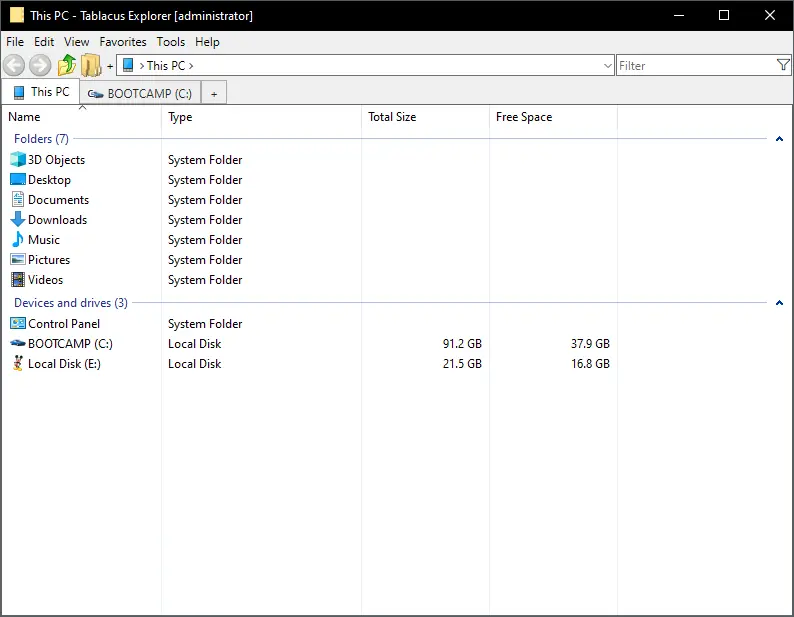
Tablacus Explorer is a free and portable application that helps you open many tabs and displays them in various layouts. This File Manager software can be used without installation. If you don’t like the default layout of this software, it allows you to switch between 10 different layouts. Just click on Tools from the menu of this software and then click the option Load layout. Select your preferred layout from this software folder.
Apart from tabbed windows, this tool offers support for add-ons. These add-ons can add many more features to it. To install add-ons, you will first have to download them from the official website, extract the ZIP file to your Addons folder, and then, from the UI, select the Get Add-ons button in the options.
It is compatible with Windows XP to Windows 10/11, both 32-bit and 64-bit operating systems.
One Commander
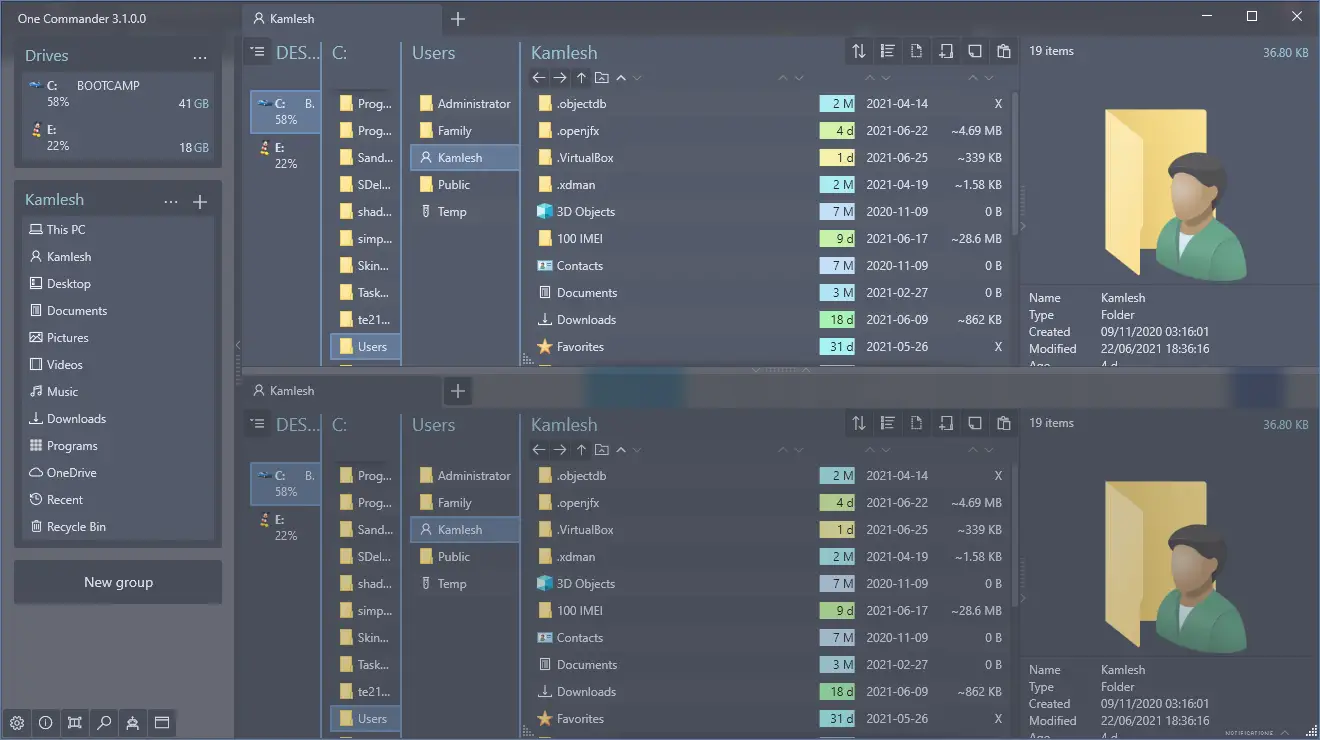
One Commander is a free and portable file manager tool for Windows 10. This software offers both a double window view and a multi-column view instead of just being a dual window file manager. When you launch it for the first time, you can choose your favorite option. Apart from this, it also offers white, dark, and light themes.
Its operation looks complicated; you will see it when you use it for the first time. But you will get addicted to it after 5 to 10 minutes of use.
One Commander has the following features:-
- Unpacks the archive files, including AR, ARJ, CAB, CHM, CPIO, CramFS, DMG, EXT, FAT, GPT, HFS, IHEX, ISO, LZH, LZMA, MBR, MSI, NSIS, NTFS, QCOW2, RAR, RPM, SquashFS, UDF, UEFI, VDI, VHD, VMDK, WIM, XAR, and Z.
- File Age/Relative File Dates (hours/days from modification time).
- File Preview
- Tabbed Viewing
- Helps to organize Favorites into project groups.
- Quick Filtering of Current Folder.
- ToDo Tasks and Notes in Any Folder.
- Drop List/Smarter Clipboard.
- Easy sorting to multiple destinations.
- Image/Audio/Video/Document metadata.
- Picture Preview with Metadata and GPS photo location.
- Monitoring folders for changes.
- Add an image folder.jpg or cover.jpg to make a folder background image.
It is also available through the Microsoft Store. Further, it is compatible with Windows 10 and Windows 11.
Multi Commander
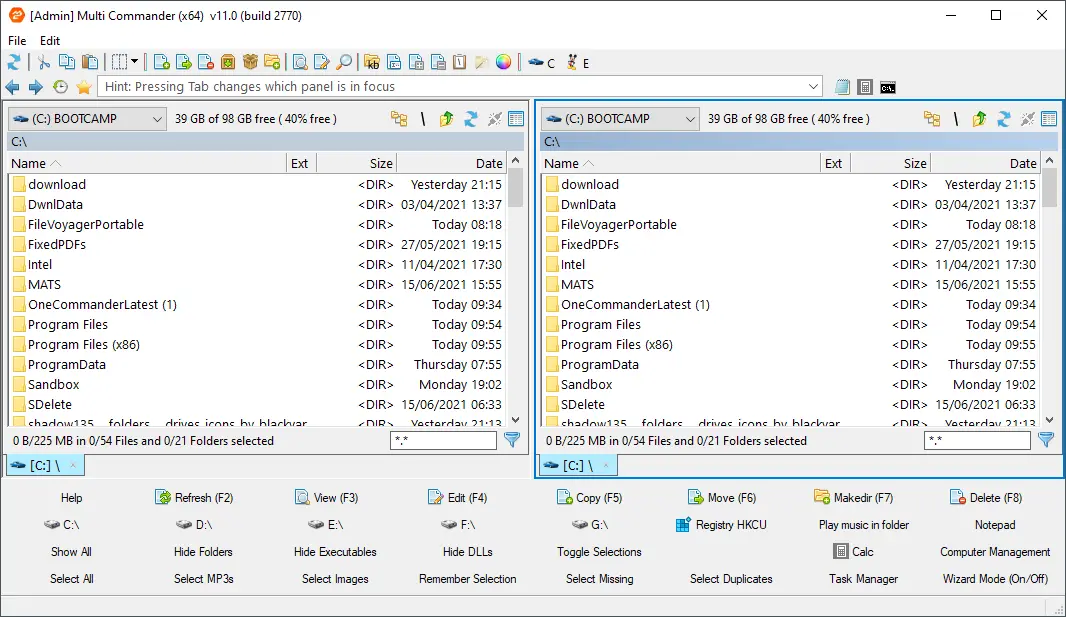
Multi-Commander is a free and multi-tabbed file manager with a dual-panel layout. It is fast, efficient, and has everything that you need in a file manager. Apart from the standard operations like Copy, Paste, Rename, and Delete, this software has the ability to perform advanced operations like Auto-Sorting, Auto-Unpacking, and Searching for files. Therefore, the Multi-Commander is a complete file manager that helps you make your day-to-day tasks easier.
It comes in two flavors: Commander Styled Look and Feel and Windows Explorer Compatibility Look and Feel. During the installation, you can choose according to your preference.
Multi Commander comes with the following features:-
- Tabbed User Interface.
- Dual panel layout.
- Support two layouts: Commander-styled and File Explorer-styled.
- Allows customizing keyboard, mouse, and colors as per your needs.
- Can view files and folders in detailed, list, or thumbnail mode.
- Convert or rotate pictures, view, and remove EXIF tags.
- Supports ZIP, 7-ZIP, RAR, TAR, GZ, Bz2, JAR, etc., file formats.
- Support JPG, PNG, GIF, PNG, BMP, TIFF, and many other RAW formats.
- Audio tools like viewing and editing MP3 tags.
- Allows creating extensions and plug-ins as its open API for developers.
- Portable means no need to install.
- Supports both 32-bit and 64-bit versions of Windows 11, 10, 8, and 7.
- Compare folders, put filters, write scripts to automate the tasks, etc.
- Multi-language support.
Unreal Commander
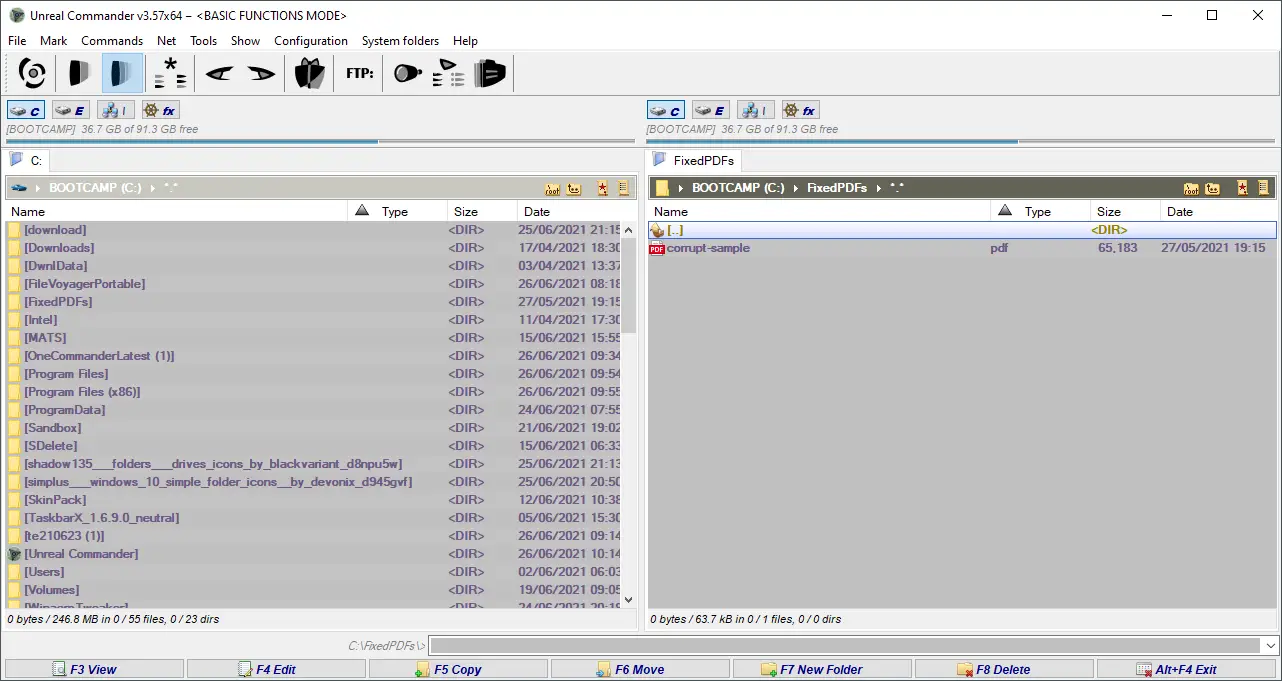
Unreal Commander is a free file manager for Windows that effectively manages your files on the system. If you are bored with the old File Explorer, you can use this file manager with a great user interface and easy to use.
Unreal Commander Features:-
- Tabs.
- Two-panel interface.
- Bulk rename tool.
- Support all basic file manager functions such as Copy, Move, Delete, Rename, etc.
- Background picture support.
- Drag and drop function.
- Built-in FTP client.
- Archives support like ZIP, RAR, ACE, CAB, JAR, etc.
- Plugins support
- Visual styles support
Frequently Asked Questions
What can a third-party file manager do that File Explorer can’t?
Many tools add tabs, a dual-pane interface, smarter batch renaming, built-in archives/FTP, and custom layouts to speed up everyday work.
Do I need to uninstall File Explorer to use these tools?
No. You can keep using File Explorer. These file managers run alongside it, and you can set your favorite one as the default only if the app supports it.
Does Windows 11 File Explorer have tabs now?
Yes. Recent builds of Windows 11 include tabs in File Explorer. If you still want dual-pane, advanced batch tools, or power-user layouts, the free managers listed here remain very useful. Windows 10 does not include tabs.
Which free file manager is best for beginners?
Files (UWP) offers a simple, modern interface with tabs and is easy to learn. If you need dual-pane with more controls, FreeCommander and Unreal Commander are friendly options.
Which options support dual-pane browsing?
FileVoyager, FreeCommander, Multi Commander, and Unreal Commander all provide dual-pane views for faster copy/move tasks.
Can I batch-rename files with these tools?
Yes. Most of them include a bulk renaming utility, often with previews and rules for numbering, case changes, and pattern matching.
Are these file managers portable?
Several provide portable builds you can run without installation (for example, Multi Commander and One Commander offer portable variants). Check each app’s download page for the portable option.
How do I make File Explorer open to This PC instead of Quick Access?
You can change the default start page in Windows 11. Follow our guide: Set File Explorer to open to This PC.
How do I show hidden files and folders in Windows 11?
Use Folder Options or the View menu to reveal hidden items. Step-by-step here: Show hidden files and folders in Windows 11.
Are these tools safe to use?
Yes, when downloaded from official sites or the Microsoft Store. Avoid third-party mirrors, verify checksums when available, and keep your antivirus enabled.
Conclusion
In conclusion, Windows 10/11 offers File Explorer as its default file manager, but it may lack certain advanced features and functionalities. This article introduced several free alternatives to File Explorer that provide enhanced file management capabilities. From the modern tabbed interface of Files to the dual-panel layout of FileVoyager, these file managers offer a range of features such as batch file renaming, FTP integration, and customizable layouts.
Konvertor stands out as a media file manager with support for over 3400 file types and image editing capabilities. FreeCommander provides a user-friendly interface with a wide range of file management tools, including file compression and built-in file viewers. Tablacus Explorer offers tabbed windows and the ability to switch between different layouts. One Commander offers a unique multi-column view and supports various archive file formats. Finally, Multi Commander provides a comprehensive set of features for advanced file management, including scripting and automation options.
By exploring these free alternatives, Windows users can find a file manager that suits their needs and offers a more efficient and convenient way to manage their files and folders. Download the preferred file manager and take control of your file management tasks on Windows 10/11.