

Saving webpages as PDFs can be a useful tool for preserving online content and sharing it with others. Whether you want to save an important article, a recipe, or a tutorial, converting it to a PDF file makes it easy to access offline and share across different platforms. In this guide, we’ll show you how to save webpages as PDFs in popular web browsers such as Chrome, Firefox, Edge, Opera, Vivaldi, and Brave on Windows 11/10.
We’ll begin by explaining the benefits of saving web pages as PDFs. By converting a webpage to a PDF file, you can save it for later reference or offline viewing without worrying about the webpage being taken down or changed. Additionally, PDF files are widely supported and can be easily shared via email, cloud storage, or other online platforms. We’ll then provide step-by-step instructions on how to save webpages as PDFs in each of the aforementioned web browsers so that you can choose the method that works best for you. Whether you’re a Windows 11 or Windows 10 user, you’ll be able to save webpages as PDFs quickly and easily.
Why saving webpages as PDF helps: PDFs preserve the page layout, fonts, and images; you can annotate them in your favorite PDF reader; and they’re ideal for archiving receipts, tutorials, and research material. If a site later updates or removes a page, you still have the original copy. On Windows, you also get a built-in virtual printer called Microsoft Print to PDF, so this works without installing extra software. If that printer ever goes missing, you can reinstall Microsoft Print to PDF in Windows 11 easily.
How to save web pages as a PDF in Chrome on Windows 11/10?
To save a webpage as a PDF in Google’s Chrome browser, perform the following steps:-
Step 1. Launch the Google Chrome browser and visit the web page to save a PDF copy on your computer.
Step 2. Press Ctrl + P to launch the Print dialog box. Tip: In Chrome, you can click More settings to tweak Pages, Layout, Paper size (A4/Letter), Margins, Scale, Headers and footers, and Background graphics before saving.
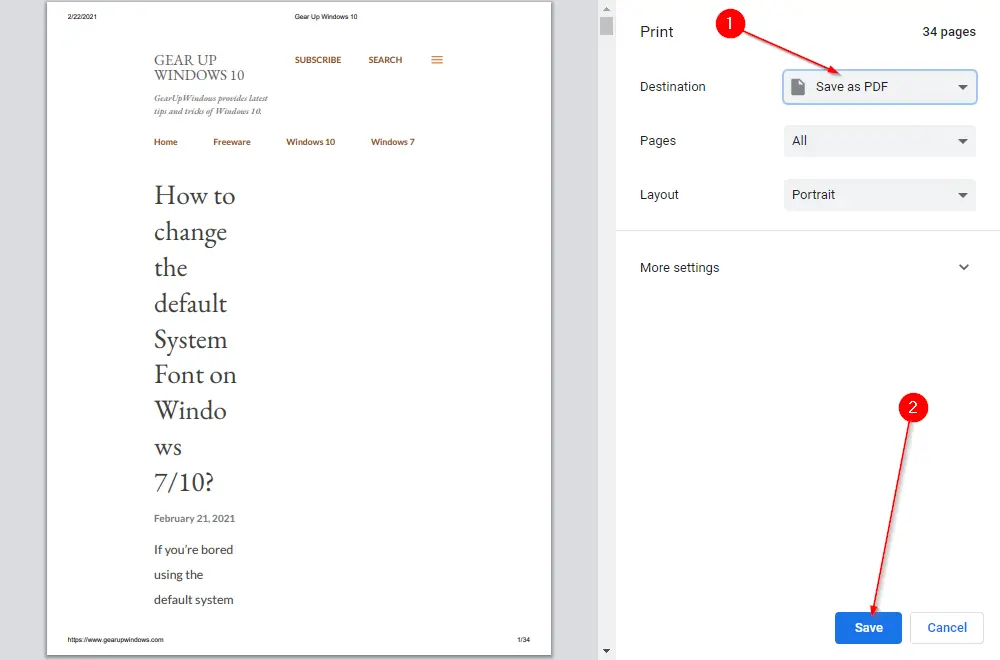
Step 3. From the drop-down of Destination, select Save as PDF and then click on the Save button.
Step 4. Once you click the Save button, it will prompt for a location where you want to save the PDF. Select the destination, write the name of the file, and finally, click on the Save button.
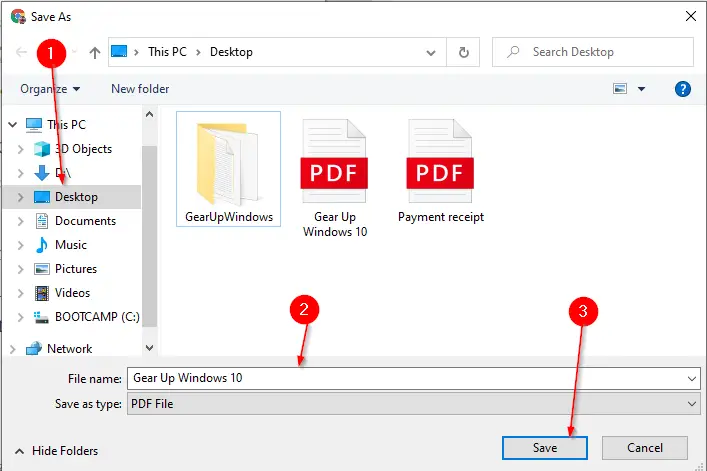
Once you have completed the above steps, you will get a PDF document on your PC of the opened webpage. For general PDF creation from any app on Windows, you can also follow this guide: How to Create a PDF File in Windows 11.
How to save web pages as a PDF in Firefox on Windows 11/10?
Follow these steps to save web pages as a PDF in Firefox on Windows 11/10:-
Step 1. To save a webpage as a PDF document in the Mozilla Firefox browser, visit the webpage through the Firefox browser.
Step 2. Once the webpage is opened, press Ctrl + P from the keyboard to print the webpage to a PDF file.
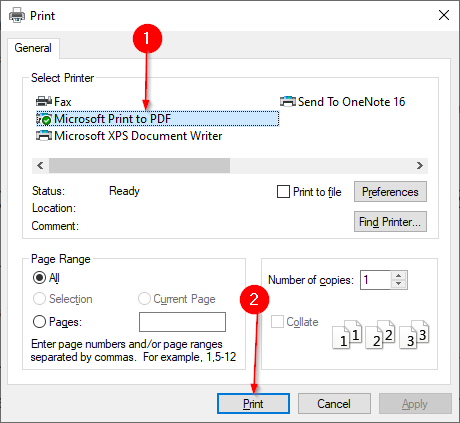
Step 3. Select the printer as Microsoft Print to PDF and then click on the Print button. In Firefox’s print preview, you can also choose Scale, Margins, and whether to include Backgrounds and Headers & Footers for a cleaner PDF.
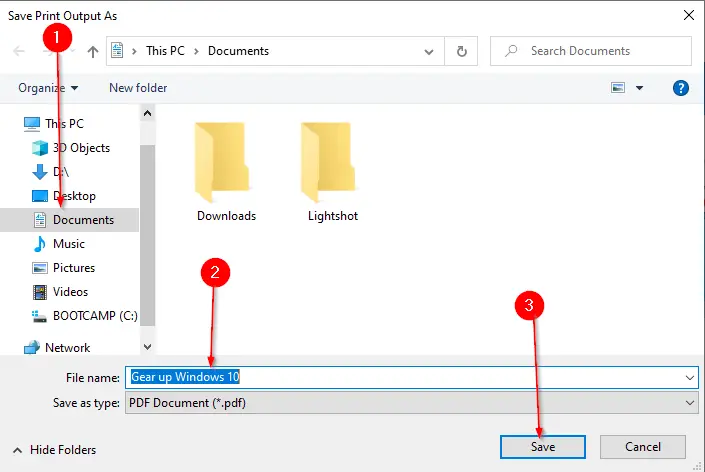
Step 4. On the next window that opens, select the location where you want to save the PDF file, write a file name, and finally click on the Save button to save the document.
Once you have completed the above steps, you will have a PDF file of the selected web page on your PC.
How to save web pages as a PDF in Edge on Windows 11/10?
Follow these steps to save web pages as a PDF in Edge on Windows 11/10:-
Step 1. To save a webpage as a PDF document in the Microsoft Edge browser, launch the Edge browser and visit the webpage.
Step 2. From the keyboard, press Ctrl + P to launch the Print dialog box. You can adjust Scale, Margins, Background graphics, and choose specific Pages to include.
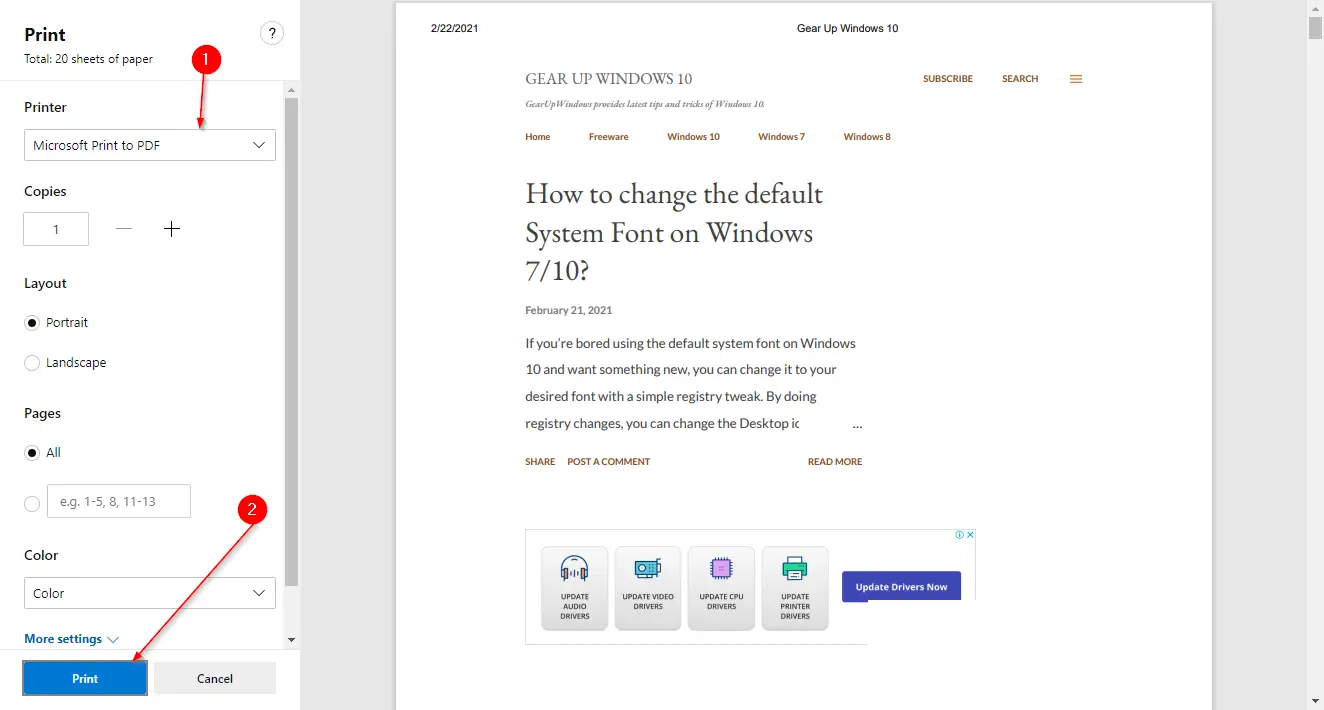
Step 3. Select the Printer as Microsoft Print to PDF and click on the Print button.
Step 4. Select the location and file name, and click the Save button to save your PDF file.
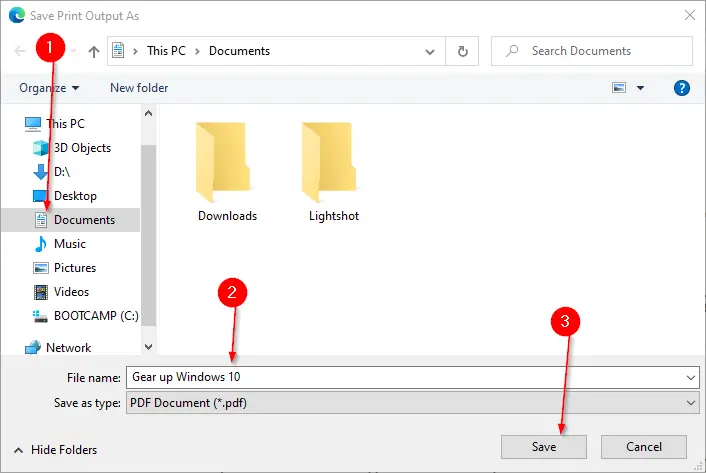
Once you have completed the above steps, you should have a PDF document of your PC’s selected web page. Edge also adds a handy shortcut in some builds—right-click the page and choose Save as PDF; see: Microsoft Edge Context Menu gets Save as PDF.
You can open this PDF file/document through any PDF viewer. If printing ever fails due to spooler issues, use this fix: How to Fix Printer Spooler Problems.
How to Save Webpages as PDFs in Opera on Windows 11 or 10?
To save webpages as PDFs in Opera on Windows 11 or 10, follow these steps:-
Step 1. First, visit the webpage in Opera that you want to save as a PDF.
Step 2. Then, press Ctrl + P to launch the Print dialog box.
Step 3. Next, select Save as PDF in the Destination drop-down menu.
Step 4. Now, click the Save button.
Step 5. Once you click the Save button, it will prompt for a location where you want to save the PDF. Select the location.
Step 6. Then, write the name of the file.
Step 7. At last, click on the Save button.
When you’re done, you will get a PDF document on your PC of the opened webpage. You can open the newly created PDF using the Opera browser or any PDF reader tool you prefer.
How to save web pages as a PDF in Brave on Windows 11/10?
To save a webpage as a PDF in the Brave browser, perform the following steps:-
Step 1. Launch the Brave browser and visit the web page to save a PDF copy on your computer.
Step 2. Press Ctrl + P to launch the Print dialog box.
Step 3. From the drop-down of Destination, select Save as PDF and then click on the Save button.
Step 4. Once you click the Save button, it will prompt for a location where you want to save the PDF. Select the destination, write the file name, and finally, click on the Save button.
Once you have completed the above steps, you will get a PDF document on your PC of the opened webpage.
How to save web pages as a PDF in Vivaldi on Windows 11/10?
To save a webpage as a PDF in the Vivaldi browser, perform the following steps:-
Step 1. Launch the Vivaldi browser and visit the web page to save a PDF copy on your computer.
Step 2. Press Ctrl + P to launch the Print dialog box.
Step 3. From the drop-down of Destination, select Save as PDF and then click on the Save button.
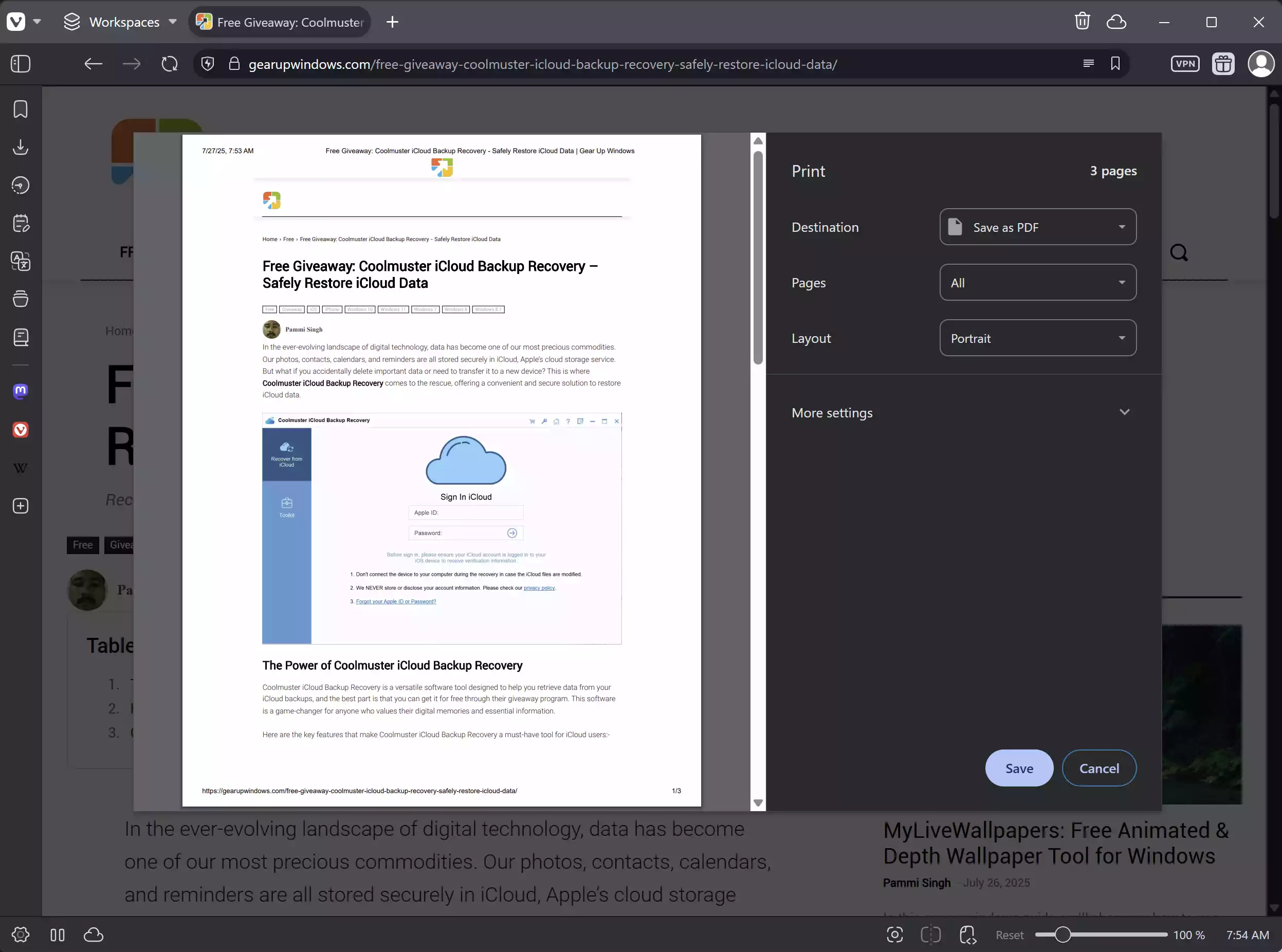
Step 4. Once you click the Save button, it will prompt for a location where you want to save the PDF. Select the destination, write the file name, and finally, click on the Save button.
Once you have completed the above steps, you will get a PDF document on your PC of the opened webpage.
Pro tips to get cleaner PDFs (works in all browsers)
• If a page looks cluttered, switch the site to its “Reader” or “Reader View” (where available) before printing. This removes ads and sidebars and gives a neat PDF.
• Under print options, disable Headers and footers to remove URL/date stamps, and enable Background graphics only if you need exact styling.
• Use Pages → Custom to export only a section (for example, pages 2–4). For long tutorials, this keeps the file size small.
• Need a PDF from a non-browser app (like Notepad, Photos, or WordPad)? Print to the virtual printer—see Create a PDF in Windows 11.
• Want to turn images into a single PDF? Try these guides: Combine multiple pictures into one PDF and convert JPEG/PNG to PDF.
Troubleshooting
• “Microsoft Print to PDF” missing: Re-add it using this fix: Reinstall Microsoft Print to PDF.
• Print queue stuck or nothing happens: Clear and restart the print spooler: Fix Printer Spooler Problems.
• Need specific pages from an existing PDF: Open the PDF and “print” only the pages you need to a new file: Extract PDF pages without third-party tools.
• PDF won’t open or looks corrupted: Try the fixes here: How to Repair Corrupt PDF Files.
Frequently Asked Questions
Can I save only part of a webpage to PDF?
Yes. In the print preview, change Pages to a custom range. You can also use a site’s Reader View to hide sections you don’t want.
What’s the difference between “Save as PDF” and “Microsoft Print to PDF”?
Chrome and Brave show a built-in “Save as PDF” destination; Firefox/Edge typically use Windows’ Microsoft Print to PDF printer. Both create PDFs—use either based on which options you prefer.
Where are my PDFs saved?
Wherever you choose in the Save dialog. If you can’t find the file, check your browser’s default Downloads folder or search for “.pdf” in File Explorer.
How do I make the PDF smaller?
Use Scale (e.g., 90%), switch to Black & White if acceptable, and disable Background graphics. Exporting fewer pages also reduces size.
Can I quickly save from Edge without opening the full print dialog?
Many Edge builds add a direct command—right-click the page and select Save as PDF. Details here: Edge Save as PDF in context menu.
Conclusion
In conclusion, saving webpages as PDFs is a great way to preserve online content and share it with others. PDF files are easily accessible, widely supported, and can be shared across various platforms. In this guide, we have provided step-by-step instructions on how to save webpages as PDFs in popular web browsers such as Chrome, Firefox, Edge, Opera, Vivaldi, and Brave on Windows 11/10. By following these simple steps and pro tips, you can quickly and easily save any webpage as a PDF on your PC. We hope this GearUpWindows guide helps you in your daily browsing and helps you preserve valuable online content for later use.