

Long gone are the days when the installation of Windows relied solely on CDs and DVDs. Today, you can create a bootable USB for almost any Windows version—including Windows 11/10—using reliable freeware. In this guide, we’ll look at ISO2Disc and also point you to a few proven alternatives from our own reviews so you can pick the tool that suits you best.
ISO2Disc is a simple, dependable utility that writes ISO files to USB and can even build a Windows To Go drive on supported ISOs. It works with Windows 11, 10, 8.1, and 7 in both 32-bit and 64-bit flavors. If you prefer an official route, Microsoft’s Windows USB/DVD Download Tool is still an excellent baseline. For speed and advanced options (like bypassing checks on Windows 11), many users also rely on Rufus, while Etcher is great when you need SD card support, and AnyBurn covers classic disc burns too.
Before you start (quick tips)
- Use an 8GB+ USB (16GB recommended for Win11).
- Back up important drivers after a clean install—Double Driver makes it easy.
- If you need UEFI + GPT for newer PCs, tools like Rufus (UEFI guide) are handy.
How to Create a Bootable USB & Windows To Go Drive with ISO2Disc
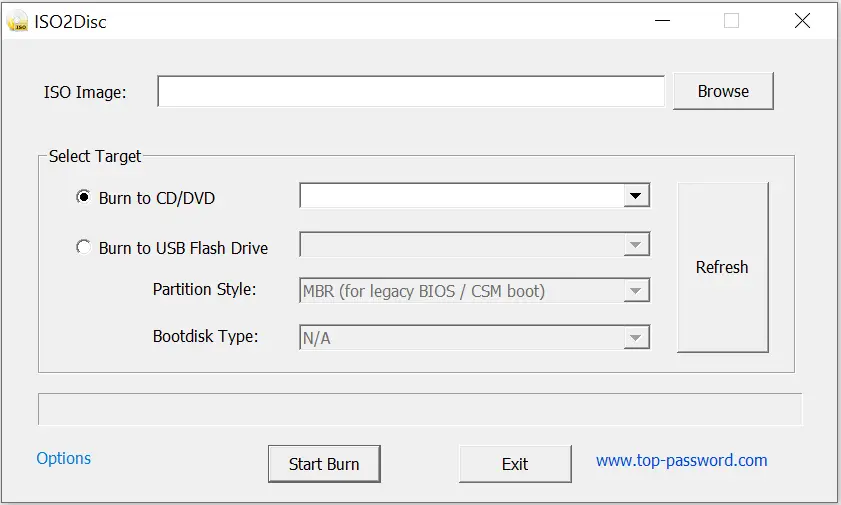
The flow is straightforward—choose your ISO, pick the target (USB/CD/DVD), and burn.
Step 1. Download and install ISO2Disc on your Windows PC.
Step 2. Launch ISO2Disc from the desktop shortcut.
Step 3. Insert your USB flash drive.
Step 4. Select the Windows ISO, then under “Select target,” choose Burn to USB Flash Drive.
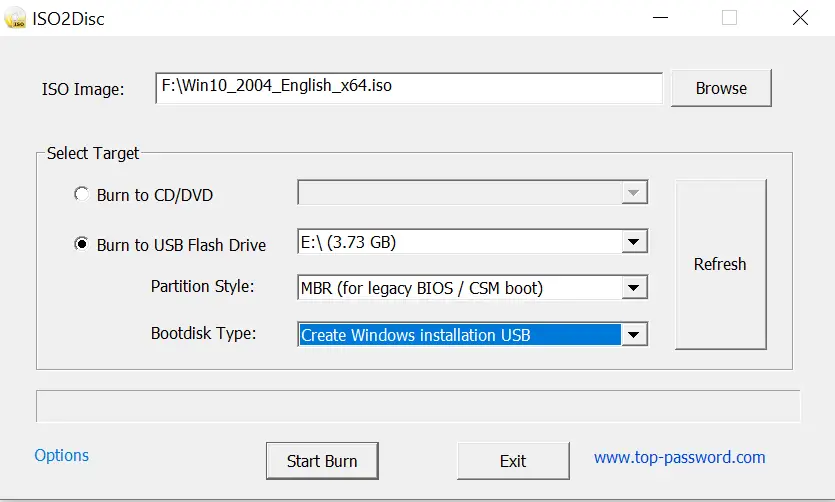
Step 5. ISO2Disc usually detects the USB automatically; click Refresh if it doesn’t.
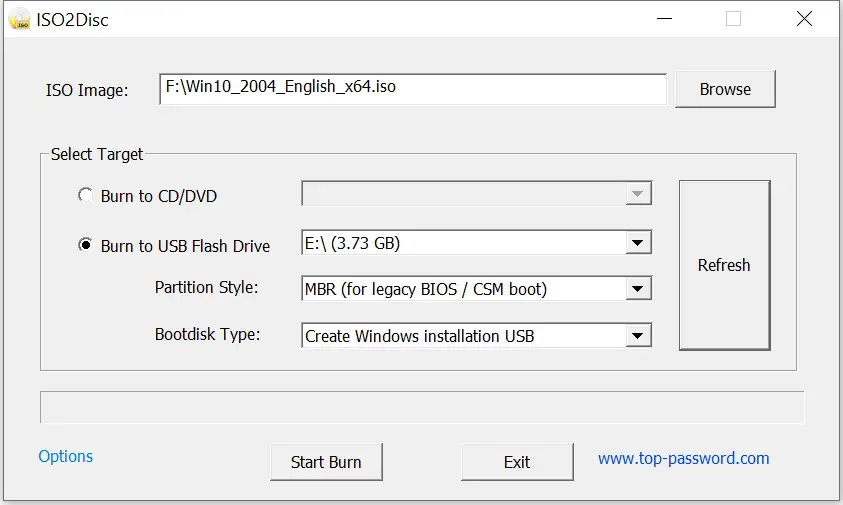
Step 6. Click Start Burn.
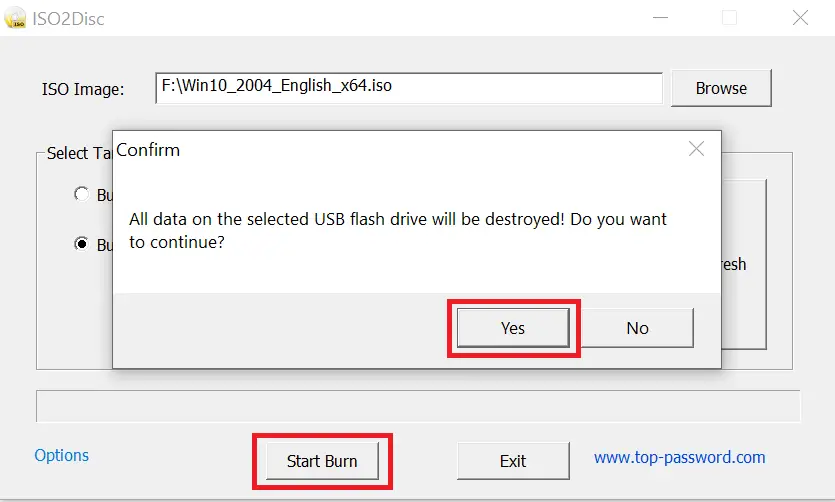
Step 7. Confirm the warning: “All data on the selected USB flash drive will be destroyed!”
Step 8. Click Yes to continue.
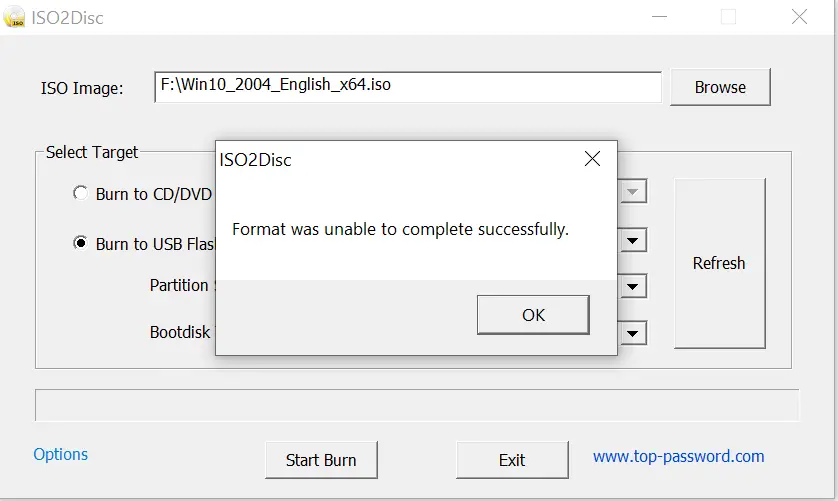
Step 9. If you see “Format was unable to complete successfully,” it’s typically a false alert—the USB is already formatted.
Step 10. Click Start Burn again to proceed.
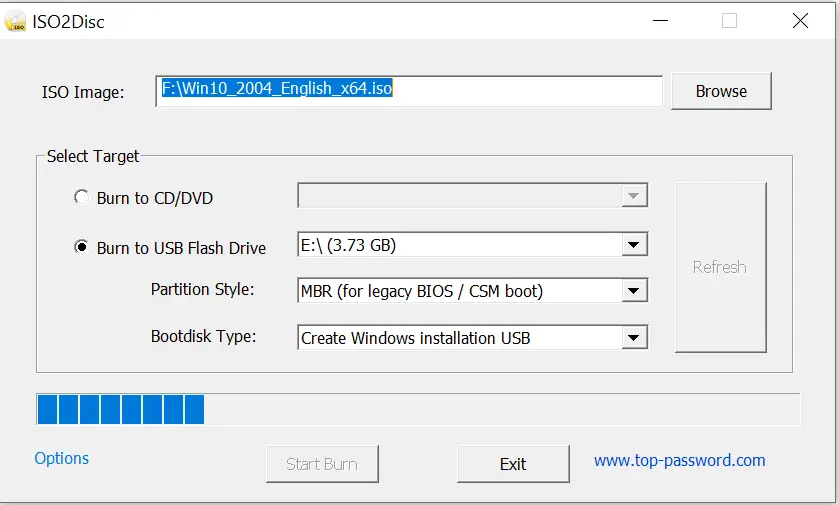
Step 11. Wait for the progress bar to complete; duration depends on your ISO size and USB speed.
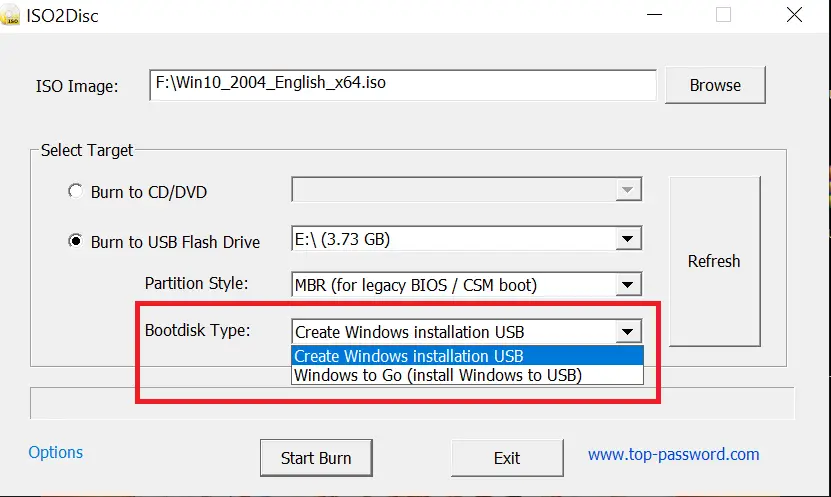
Windows To Go: set Bootdisk Type to Windows To Go (Install Windows to USB). This option is available only with Windows 8/8.1/10/11 ISOs. Note that Microsoft removed official Windows To Go support starting with Windows 10 version 2004 (feature updates aren’t supported), but ISO2Disc can still deploy a portable workspace in many cases.
Troubleshooting & verification
- USB not detected? Try another port, click Refresh, or reinsert the drive.
- Boot fails on UEFI-only PCs? Create a UEFI/GPT-friendly stick with DiskPart (CMD) or Rufus (UEFI).
- Unsure if the USB is actually bootable? Test it quickly with MobaLiveCD (no reboot required).
ISO2Disc advantages (at a glance)
- Beginner-friendly, minimal steps.
- Writes to CD/DVD, USB sticks, and even Blu-ray media.
- Handles Windows Setup ISOs and many custom/PE images.
- Windows To Go creation on supported ISOs.
- GPT/MBR partition table support.
- Optional driver injection (RAID/SCSI/SATA/IDE) for WIM-based media.
- Free for personal and commercial use; broad OS compatibility (XP → 11).
Alternatives you may prefer
Every tool has a sweet spot. If ISO2Disc isn’t a perfect fit, try these:
- Rufus – fastest creation and powerful tweaks (e.g., no-TPM/Secure Boot for Win11).
- WinUSB Maker – another straightforward Windows USB creator.
- Want a roundup? See our picks in Best Free ISO→USB Tools.
Related step-by-step tutorials
- Create a Windows 11 bootable USB
- Windows 10 bootable USB (Rufus method)
- Make a 20H2 USB the official way
- Bypass restrictions on Windows 11 22H2
Download ISO2Disc
Grab ISO2Disc from the official source: top-password.com/iso2disc.
Frequently Asked Questions About ISO2Disc
Is ISO2Disc free to use?
Yes, ISO2Disc is completely free for both personal and commercial use. There are no hidden charges or trial limitations, so you can create as many bootable USB drives or DVDs as you need.
Can I use ISO2Disc to make a bootable USB for Windows 11?
Yes. ISO2Disc works with Windows 11 ISOs. For best results, use a USB drive with at least 16GB capacity and match the partition style to your PC (MBR for Legacy BIOS or GPT for UEFI).
What’s the difference between ISO2Disc and Rufus?
Both tools create bootable USB drives. ISO2Disc focuses on simplicity and supports Windows To Go creation, while Rufus offers deeper customization such as bypassing TPM/Secure Boot checks for Windows 11 and fine-grained partition options.
Does ISO2Disc work with Linux ISOs?
ISO2Disc is primarily designed for Windows ISOs. For Linux, consider Etcher or Rufus, which handle a wide range of Linux distributions.
Is Windows To Go still supported?
Microsoft removed official Windows To Go support starting with Windows 10 version 2004. However, ISO2Disc can still deploy a portable Windows workspace from compatible ISOs in many scenarios—just note that feature updates aren’t supported like a normal install.
Conclusion
ISO2Disc remains one of the easiest ways to turn a Windows ISO into a bootable USB, with the bonus of Windows To Go for supported versions. If you need UEFI tuning, SD-card flashing, or advanced Win11 options, check the alternatives above. After setup, remember to secure your fresh install—back up drivers with Double Driver, and you’re good to go.