

As software, games, RAW photos, and 4K media continue to improve in quality, they also demand far more storage. That’s why even modern PCs end up with a full drive warning sooner than expected. A disk space analyzer shows exactly where your storage goes so you can remove or move the right files and avoid guesswork. Use the right analyzer and you’ll free dozens of gigabytes in minutes—without touching anything important.
This guide brings together the most reliable free disk space analyzer tools for Windows 11 and 10, plus complementary utilities and built-in features that make cleanup safer and faster.
Free Hard Disk Analyser for Windows 11 and 10
WinDirStat
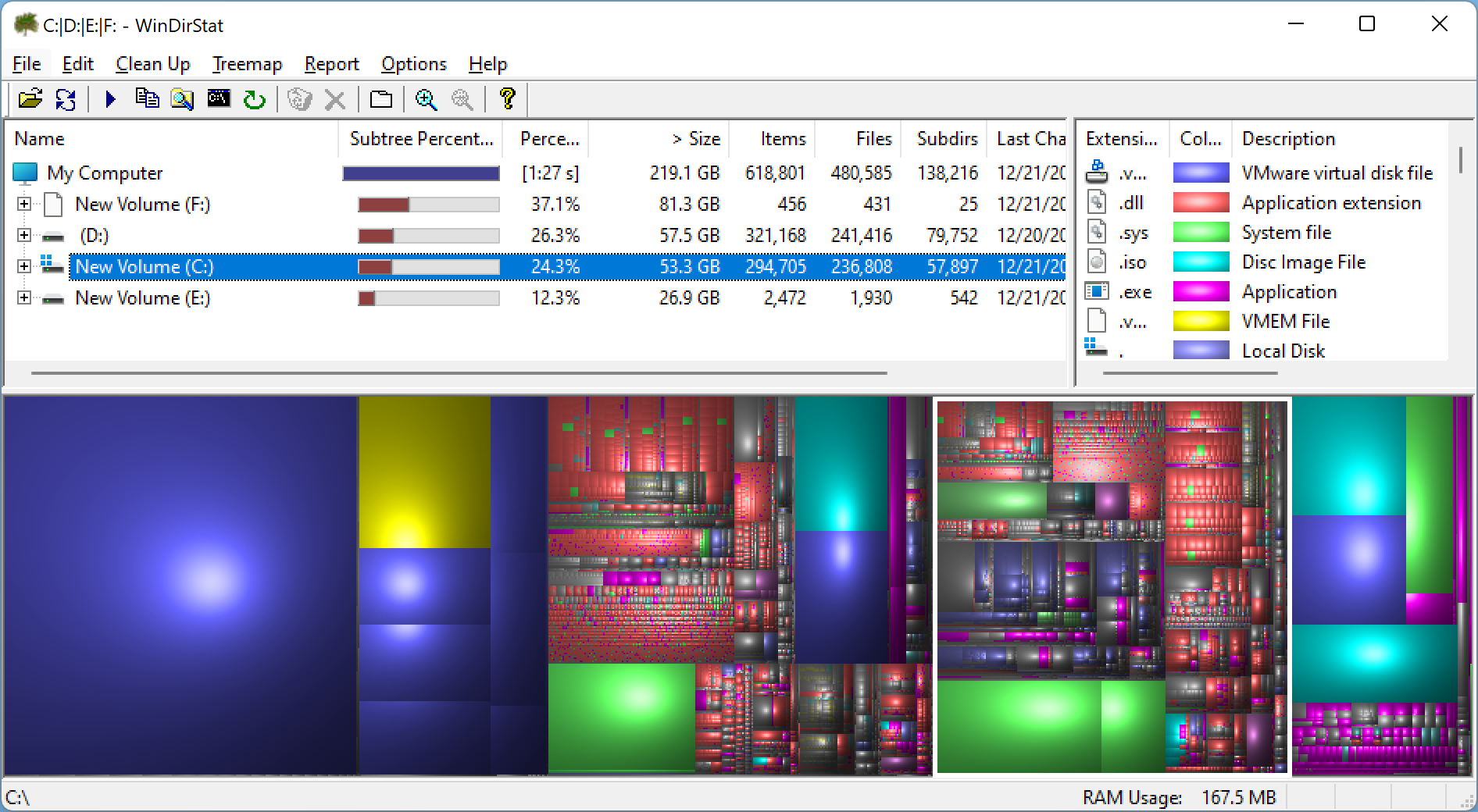
WinDirStat is the classic treemap analyzer most people start with. After scanning, it shows a color-coded mosaic of files sized by how much space they use. Click a big rectangle, and you jump straight to that file/folder in the tree—perfect for spotting giant video caches, forgotten ISOs, or obsolete backups.
Pros: clear treemap; file type breakdown; quick navigation; built-in cleanup options.
Considerations: interface looks dated; slower on very large disks compared to MFT-based tools.
Disk Savvy
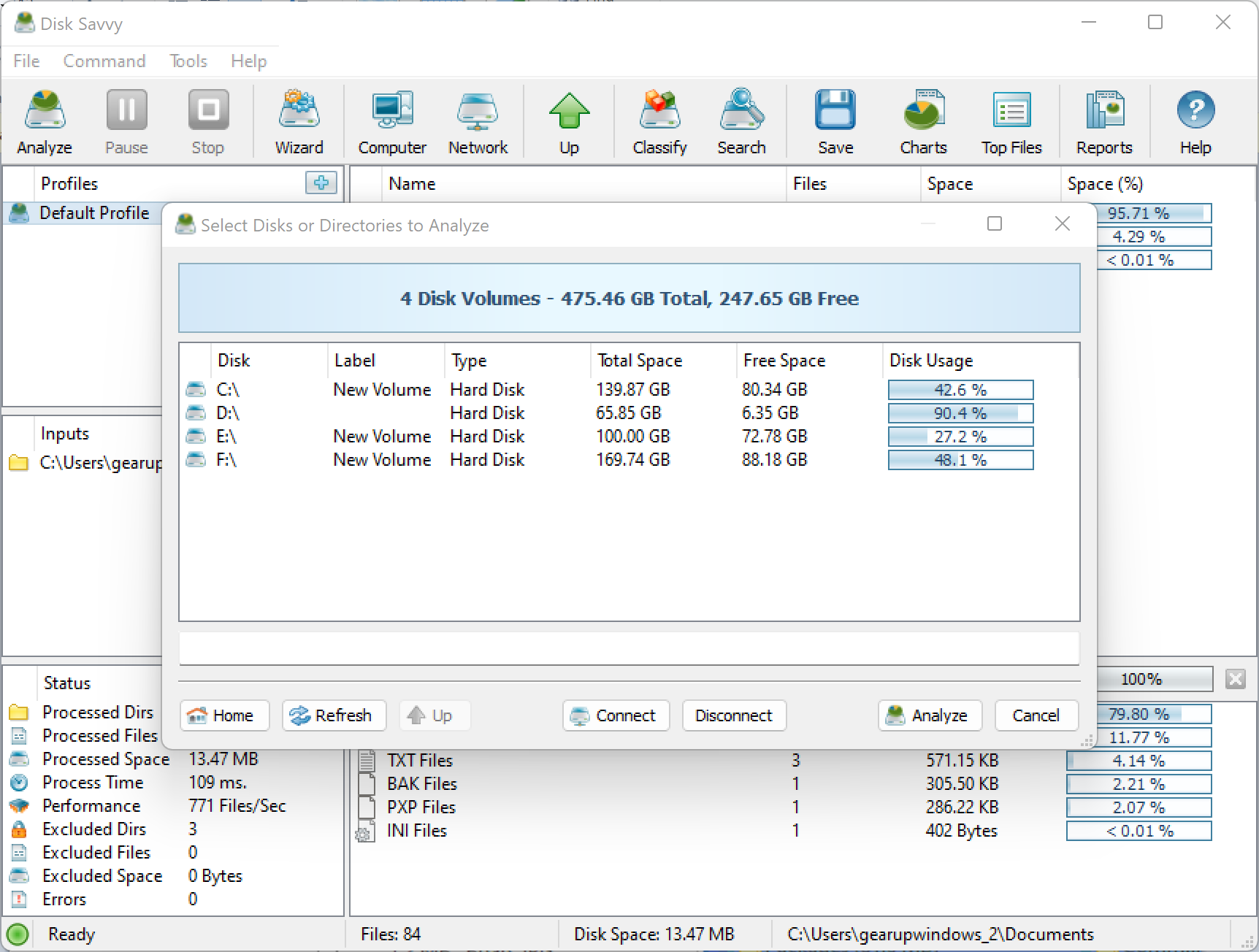
Disk Savvy focuses on categorization. Group files by extension, user, age, or last access to find what’s safe to archive or delete. The “Top 100” largest files view is a great first pass when you just need quick wins.
Pros: powerful filters; multiple locations at once; robust reports; Top 100 largest files.
Considerations: free edition caps some features; UI is utility-style rather than flashy.
JDiskReport
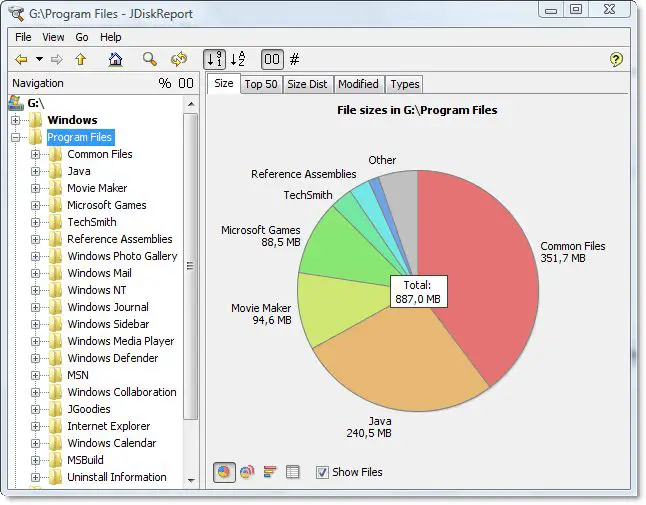
JDiskReport breaks usage down by folders, file types, and item age with tidy pie and bar charts. It’s wonderful for age-based cleanup: target files not opened in years and reclaim space without disrupting active projects.
Pros: multiple visualizations; age/type analysis; approachable for beginners.
Considerations: slower scans; no in-app delete—use Explorer to remove.
TreeSize Free
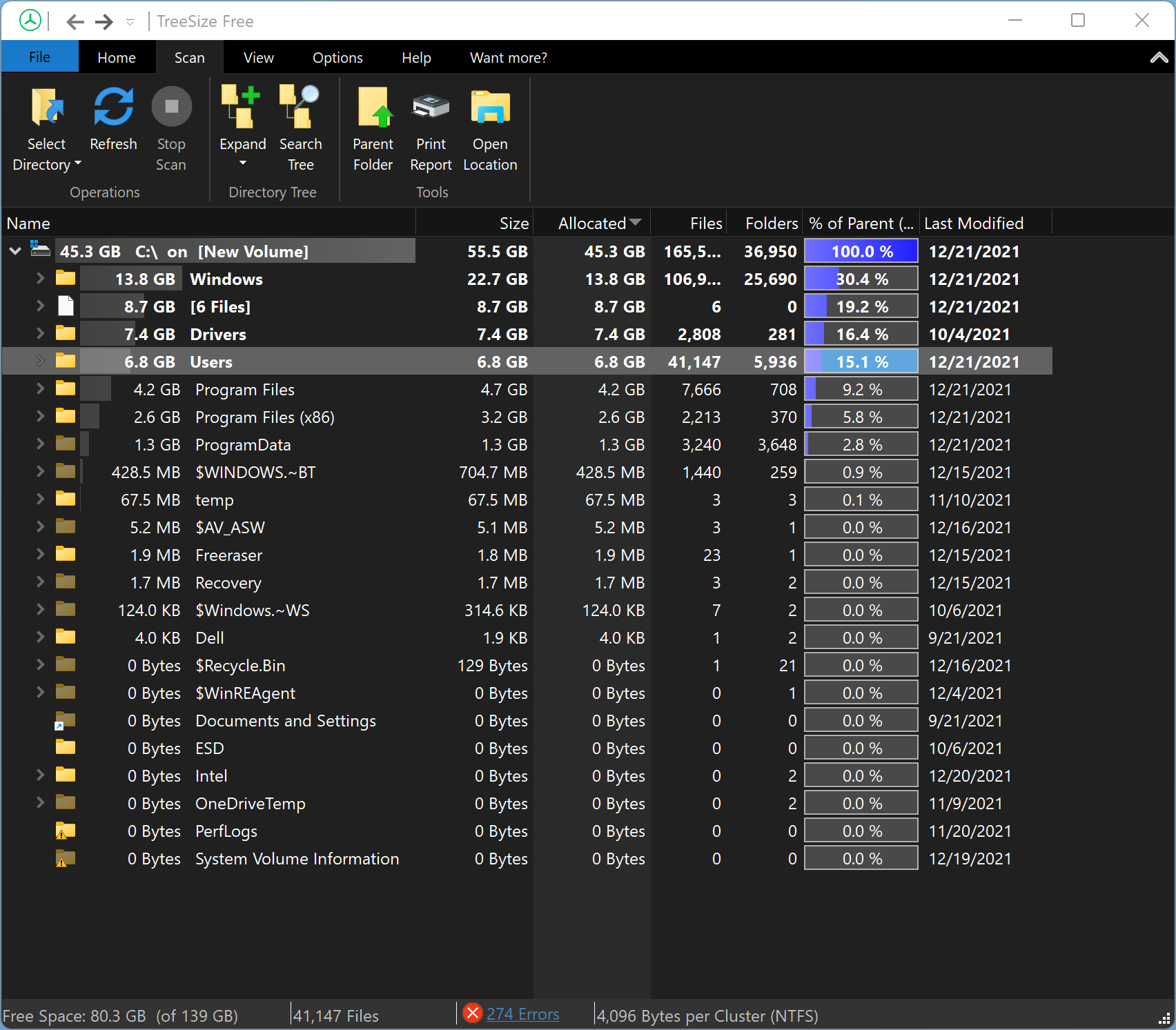
TreeSize Free looks like File Explorer, but sorts by the biggest folders first. If you prefer lists over treemaps, this is the fastest way to drill down and remove bulk data. It can also delete files directly from its interface.
Pros: ultra-familiar layout; speedy navigation; deletes in-app; portable version available.
Considerations: advanced reports and export live in paid editions.
WizTree
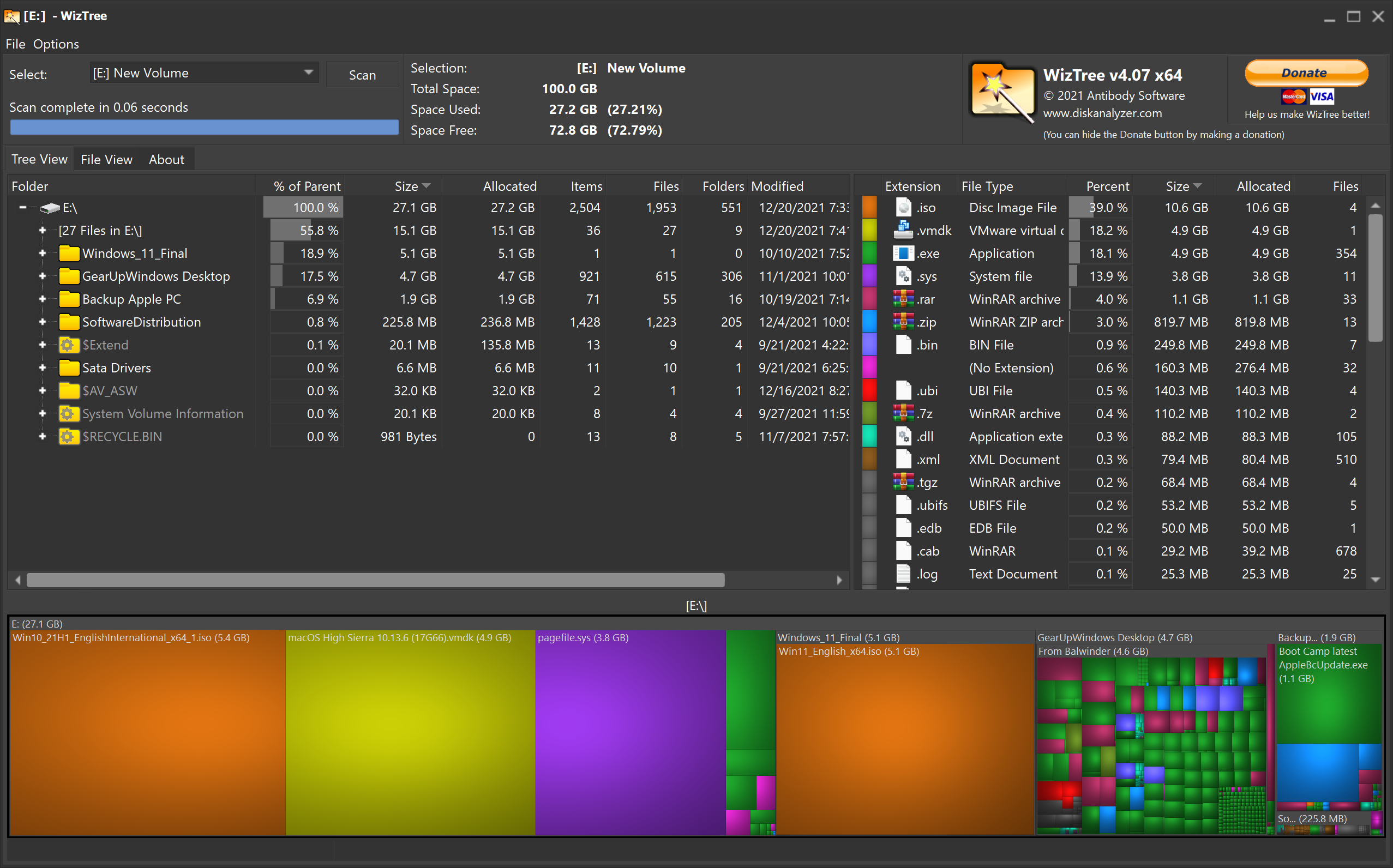
WizTree reads the NTFS Master File Table (MFT), making it one of the fastest analyzers on huge or nearly-full drives. You get both a treemap and a sortable file list with last-modified info and item counts.
Pros: blistering scans; great for giant drives; instant file sorting; live treemap.
Considerations: MFT acceleration applies to NTFS; other file systems scan at normal speed.
SpaceSniffer
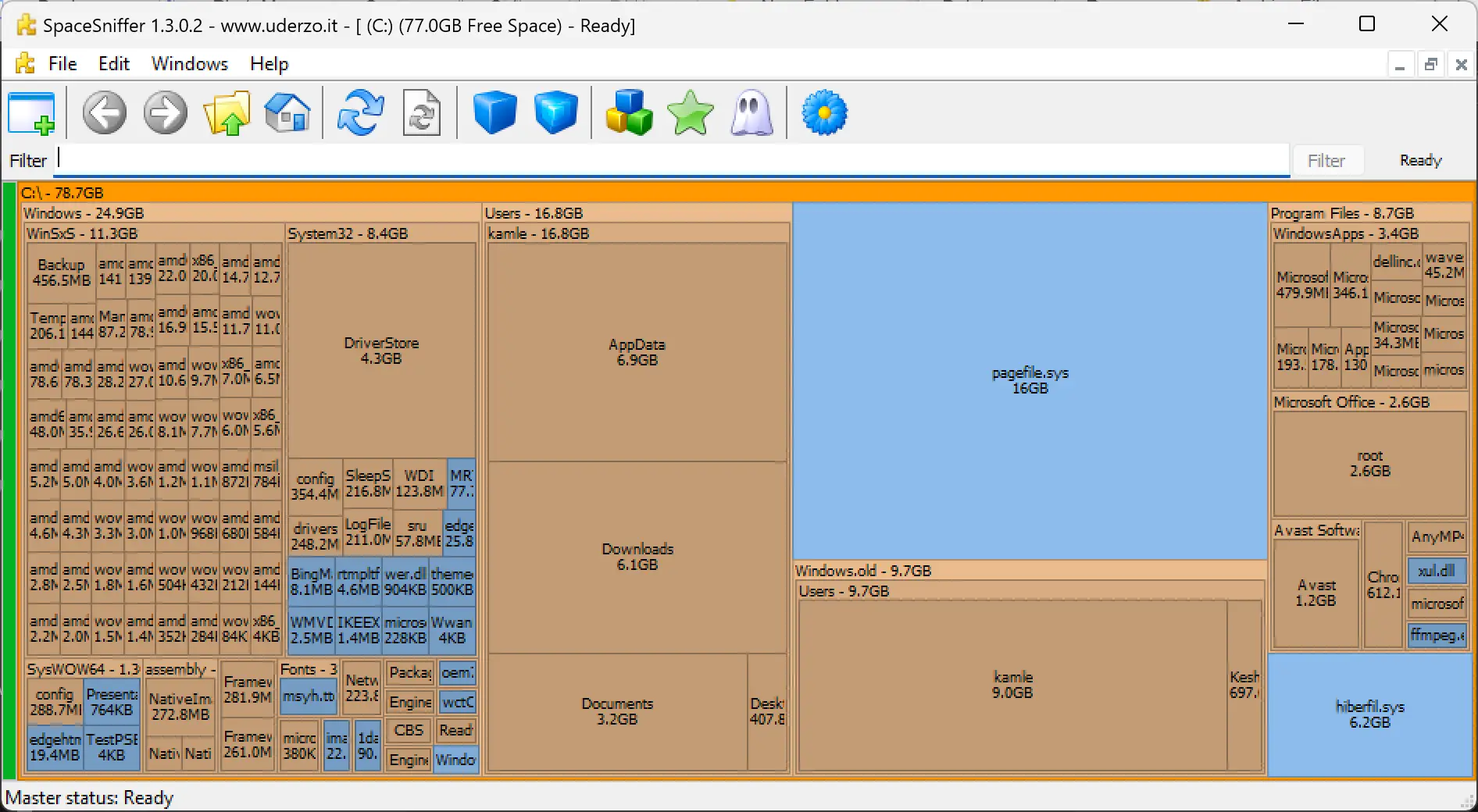
SpaceSniffer is an interactive treemap: double-click tiles to dive deeper, apply filters (like only videos), and watch the layout reorganize as you clean. Great for visual thinkers who want to see “what’s big” at a glance.
Pros: highly interactive; portable; flexible filtering; satisfying visual feedback.
Considerations: fewer textual reports than list-based analyzers.
HDGraph
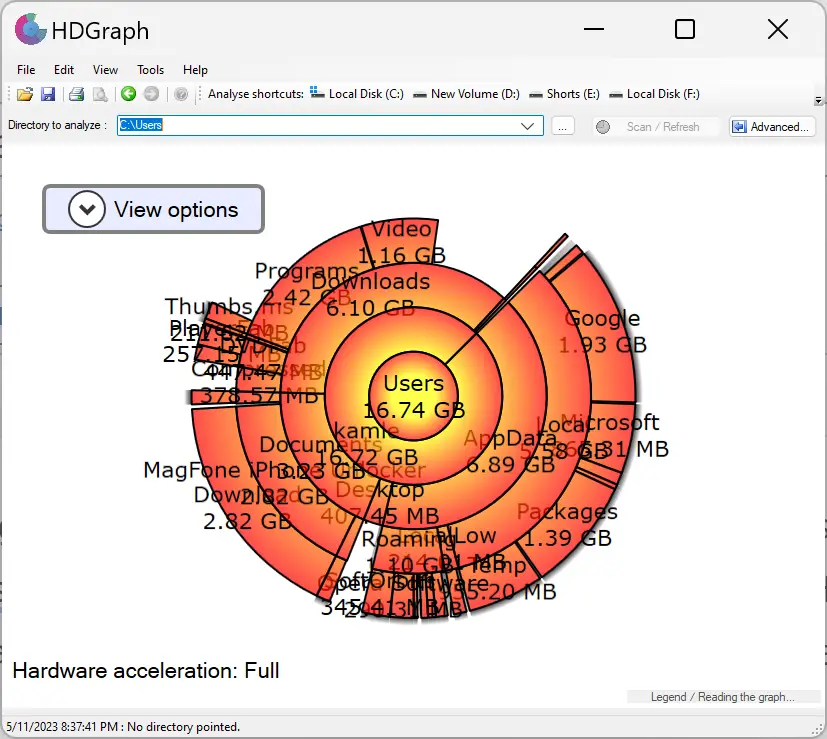
HDGraph uses radial “sunburst” charts that make branch-heavy folders obvious. If treemaps feel crowded, this clean circular layout quickly reveals where to focus.
Pros: unique radial view; easy to read; lightweight and fast.
Considerations: less suited to spreadsheet-style audits and exports.
RidNacs
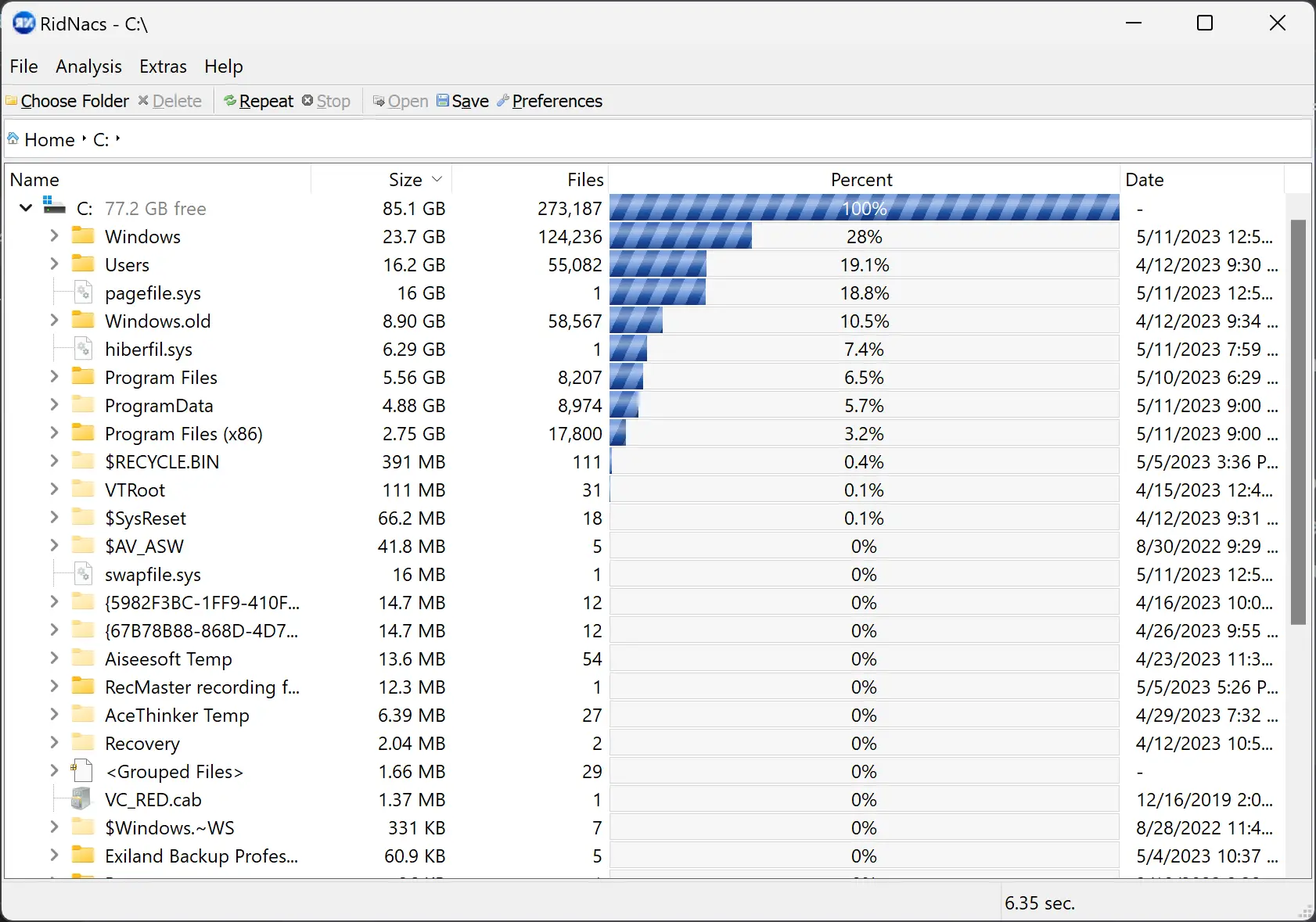
RidNacs provides a clean hierarchical view with percentage bars. It’s superb when you want a simple, sortable list that highlights the worst offenders without extra noise.
Pros: clear list view; exports reports; minimal learning curve.
Considerations: fewer advanced filters; no flashy visuals.
FolderSizes (Free Edition)

FolderSizes adds strong reports, file aging, and charts in one package. Even the free features are plenty for recurring audits across multiple folders or drives.
Pros: rich reporting; great for scheduled reviews; excellent for teams and audits.
Considerations: some advanced features are paid.
Folder Size Explorer

Prefer an Explorer-like workflow? Folder Size Explorer overlays size columns right into a familiar UI so routine cleanups feel natural. Sort by size, drill down, and act—no training needed.
Pros: zero learning curve; native-style navigation; perfect for weekly cleanups.
Considerations: fewer visualizations than treemap or radial tools.
Quick Start: A Safe, Fast Cleanup Plan
- Visualize with a treemap (WizTree, WinDirStat, or SpaceSniffer) to spot 3–5 biggest folders.
- Sort by “last modified” to target stale video projects, ISOs, downloads, or VM images you no longer need.
- Archive before deleting: move uncertain items to an external drive or cloud. Revisit in 30 days.
- Automate the easy wins: use Storage Sense (Windows 11/10) to clear temp files and the Recycle Bin regularly.
- Repeat monthly with a faster analyzer (TreeSize Free or RidNacs) to maintain a lean system.
Complementary Tools for a Deeper Clean
Analyzers show you what’s big. These free tools and guides help you act safely and keep space free long-term.
Check and Fix Disk Health Before You Delete
- Ariolic Disk Scanner – read-only scan for bad sectors (HDD/SSD/USB). If errors appear, back up before cleanup.
- Macrorit Disk Scanner – portable alternative with detailed block views.
- Victoria HDD/SSD Utility – advanced SMART tests and diagnostics.
- GSmartControl – simple GUI for SMART attributes and tests.
- PassMark DiskCheckup and HDDScan – monitor drive health to catch issues early.
Defrag & Optimize (HDD-Focused)
After deleting large files, defragmenting HDDs can improve performance (skip for SSDs).
- WinContig – portable, quick defrag of specific folders.
- Puran Defrag – classic full-disk defrag with automatic scheduling.
- IObit Smart Defrag – deep defrag and boot-time options.
- Disktuna and UltraDefrag – extra free choices for classic HDD optimization.
Automate Routine Space Recovery
- Windows 11: Automatically delete temporary files – set Storage Sense to clear temp, cache, and Recycle Bin on a schedule.
- Windows 10: Use Storage Sense to free disk space – older PCs benefit a lot from automatic temp cleanup.
Make Extra Space (Settings You Can Change Today)
- Change Recycle Bin storage size – a smaller bin returns space faster (with caution).
- Delete Windows.old folder – safe way to remove leftover system files after an upgrade.
- Check SSD health in Windows – if the SSD is failing, prioritize backup over cleanup.
- Move the default screenshot folder – point large auto-saved captures to a secondary drive.
Cleaners for Everyday Maintenance
Use analyzers to make decisions; use cleaners to remove the safe, repetitive clutter.
- CCleaner – clear temp files, browser caches, and logs in one pass.
- BleachBit – open-source cleaner with privacy-focused wipes.
- Puran Utilities – a toolbox that includes cleanup helpers and more.
- Microsoft PC Manager – one-click junk removal from Microsoft.
Offload Big Folders to the Cloud (Optional)
- MEGA – generous free tier; good for archiving rarely used files.
- Degoo – another free option to offload bulky media and keep your OS drive lean.
How to Choose the Right Disk Analyzer
- If speed matters: pick WizTree (MFT-based) for huge or nearly full NTFS drives.
- If you want a familiar UI: TreeSize Free or Folder Size Explorer.
- If you love visuals: WinDirStat or SpaceSniffer for treemaps, HDGraph for radial graphs.
- If you need reports and audits: Disk Savvy or FolderSizes.
- If you prefer simple lists: RidNacs with percent bars is hard to beat.
Best Practices to Avoid Mistakes
- Never delete first, visualize first. A 2 GB cache you actually need is worse to lose than a 10 GB old ISO.
- Archive uncertain data. Move it to an external or cloud location and set a reminder to remove it later.
- Beware system folders.
Windows,Program Files, andAppDatacan break apps if pruned blindly. - Watch browser downloads. They quietly balloon. Clear them monthly.
- Schedule Storage Sense. Automate the boring bits so you only handle the big decisions.
Real-World Cleanup Examples
- Video creators: archive old source clips and proxy caches after project delivery; keep the final exports only.
- Gamers: uninstall finished titles and delete leftover shader caches; move game libraries to a larger secondary drive.
- Developers: clear build artifacts and old virtual environments; exclude
node_modulesor.gradlein analyzers to see project payloads clearly. - Photographers: cull rejected RAWs; convert long-term archives to compressed DNGs and move to external storage.
FAQ
Are disk analyzers safe?
Yes—analyzers only scan and show usage. The risk appears when you delete files. Stick to personal data, downloads, caches, and old installers. Avoid system folders unless the guide specifically says it’s safe.
Which should I run first: analyzer or cleaner?
Run an analyzer first to identify what matters. Then use a cleaner (like CCleaner or BleachBit) for routine junk you’re confident about.
Do I need to defrag after cleanup?
Only for HDDs. SSDs don’t benefit from traditional defrag. Windows automatically runs SSD-appropriate maintenance.
My drive shows “Used by other users/system”. What do I do?
That’s normal—Windows and apps reserve space. Focus on your user folders (Downloads, Videos, Pictures) and app caches first.
How often should I analyze my disk?
Monthly is ideal. Pair a quick analyzer pass with Storage Sense so you’re always a few clicks away from recovering space.
What if I suspect my drive is failing?
Stop cleanup and back up. Run a bad-sector scan and SMART diagnostics. If errors appear, replace the drive before it gets worse.
Conclusion
Disk space is a precious resource as apps, games, and media swell in size. Start with a visual analyzer—WizTree, WinDirStat, SpaceSniffer, TreeSize Free, HDGraph, RidNacs, Disk Savvy, or FolderSizes—to find what’s truly big. Then automate the low-risk clutter removal, archive what you’re unsure about, and repeat monthly. With the right mix of analyzer, cleaner, and a few Windows tweaks, your PC will stay fast, tidy, and ready for what’s next.
Add Directory Report to your list
It looks just like the MS-Explorer but always shows the folder size
Faster than WinDirStat